EasyManua.ls Logo

Hitachi 43C31 - User Manual

Hitachi 43C31
40 pages
Print Icon
To Next Page IconTo Next Page
Loading...
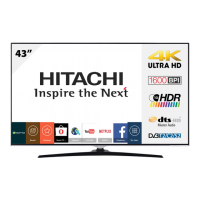
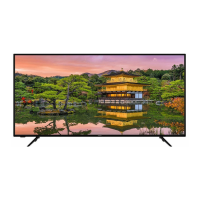
43C31
43” Class (42.51” Diag.)
Serial No.
Model:
Thank you for purchasing this Hitachi product.
Please read these instructions carefully.
For additional assistance please call Toll Free 800.HITACHI (800.448.2244)
or visit our website at www.hitachi.us/tv.
Keep this Owner’s Guide for future reference.
Record the model name and serial number of your LCD Television for future reference.
This information is located on the back of the television.
CONGRATULATIONS
OWNER’S GUIDE
OG_43C31_01222019

Questions and Answers

  • C
    catherinehortonJul 28, 2025
    How to fix Hitachi 43C31 that does not turn on?
    • D
      Donald JordanJul 28, 2025
      If your Hitachi TV doesn't turn on, ensure the power cord is properly plugged in. If it is, try a different AC outlet. Also, check your fuse or circuit breaker to make sure the power is on. As a last resort, unplug the TV for an hour and then plug it back in.
  • E
    eugene39Aug 2, 2025
    What to do if my Hitachi 43C31 TV has poor picture quality?
    • M
      Matthew HowellAug 2, 2025
      If your Hitachi TV has a poor picture or no picture, try tuning to another station to eliminate problems with the current broadcast. Ensure that channels are correctly set into the memory. Check the antenna or Cable TV connections and adjust the antenna. Look for any sources of possible interference, and check the picture control adjustments.
  • L
    Lisa FordAug 7, 2025
    Why is my Hitachi 43C31 reception poor on some channels?
    • T
      Tamara RodriguezAug 8, 2025
      If you're getting poor reception on some channels with your Hitachi TV, try tuning to another station to see if the issue persists. Ensure your channels are correctly set into memory. If a station is weak, adjust the antenna to improve reception. Also, check for any sources of interference that might be affecting the signal.
  • T
    Teresa ColemanAug 13, 2025
    How to fix poor color on Hitachi 43C31 TV?
    • T
      Tyler FernandezAug 13, 2025
      If your Hitachi TV has poor or no color, try tuning to another station to see if the issue is with the broadcast. Also, make sure the channels are set into memory. Check the picture control adjustments, antenna or Cable TV connections, and look for any sources of interference.
  • K
    kenneth54Aug 17, 2025
    Why is there no sound on my Hitachi TV?
    • L
      Lori JacksonAug 17, 2025
      If you are experiencing poor or no sound on your Hitachi TV, try tuning to another station to rule out issues with the current broadcast. Also, check your TV's sound adjustments, ensuring the volume isn't too low or muted. Finally, check for any potential sources of interference and verify the audio language setting is correct.
  • J
    johnsonjasmineAug 22, 2025
    Why does the picture wobble on my Hitachi 43C31?
    • J
      Jamie CooleyAug 22, 2025
      If the picture on your Hitachi TV wobbles or drifts, try tuning to another station to rule out issues with the broadcast signal. Make sure the channels are set into the memory. In case your Cable TV company is scrambling the signal, try adjusting the antenna.

Summary

Electronic Recycling

Important Safety Instructions

Condensation Information

LCD Panel Handling Precautions

Adverse Effects on LCD Panel

Power Source Safety Warnings

Suppliers Declaration of Conformity

Child Safety Notice

Wall Mounting Safety Recommendations

Guidelines for safely mounting the display to a wall to prevent tip-overs.

General Child Safety Tips

Advice on safe placement and interaction with the TV and furniture.

General Safety Precautions

Securing TV to Wall

Instructions for securing the TV to a wall for stability.

TV Cabinet Placement Notice

Warning about unstable placement on cabinets to prevent tipping.

Attaching the TV Stand

Removing the TV Stand

Product Features Overview

Picture Performance Features

Details on display quality enhancements like LED backlight and anti-glare.

Convenience and Audio Features

Highlights features like USB input, sleep timer, Dolby Digital, and MTS.

Location of Controls and Ports

Front Panel Controls

Identifies the control key and indicators on the front of the TV.

Rear, Bottom, and Side Panel Ports

Locates various input/output ports on the TV's exterior.

Remote Control Operation Guide

Remote Control Battery Management

Installing Remote Control Batteries

Steps for opening the compartment and inserting batteries correctly.

Battery Precautions for Remote

Guidelines for safe battery usage, mixing, and disposal.

Antenna and Cable TV Connections

Antenna Connection Types

Instructions for connecting VHF/UHF antennas to the TV.

Cable TV Connection Methods

Guidance for connecting basic and scrambled cable TV services.

Initial TV Setup Wizard

Basic TV Operation and Channel Selection

TV Operation: Input and Information

Selecting Audio;Video Input Sources

How to switch between different connected devices.

Displaying Program Information

Using the INFO button to view channel and broadcast details.

Quick Guide for Menu Operation

Convenience Functions: Video Settings

Picture Mode Settings

Options for adjusting picture quality like Standard, Dynamic, Movie, Eco, Custom.

PC Settings Configuration

Adjustments for PC input, including Auto Adjust, H/V Position, and Clock/Phase.

Convenience Functions: Audio Settings

Sound Mode Options

Selecting audio equalization modes like Standard, Music, Movie, Sports, Custom.

Audio Output and MTS Features

Configuring digital output and utilizing MTS for stereo or secondary audio.

Convenience Functions: Time Settings

Sleep Timer and Daylight Savings

Setting the TV to turn off automatically and managing daylight saving time.

Time Zone and Format Settings

Configuring the TV's clock based on local time zone and format.

Convenience Functions: Setup and System

Menu Language and Closed Captions

Changing on-screen display language and setting up closed captions.

HDMI-CEC and Voice Guidance

Enabling HDMI-CEC for device control and activating voice guidance features.

Channels Setup and Auto Scan

Air;Cable Source Selection

Choosing between antenna (Air) or cable TV (Cable) for channel scanning.

Performing Auto Channel Scan

Steps to automatically scan and store available TV channels.

Channel Manager: Favorites and Skipping

Adding Channels to Favorites List

Selecting and marking preferred channels for easy access.

Selecting Channels to Skip

Marking channels to be bypassed during channel surfing.

Labeling Channels

Setting Parental Controls

Entering and Managing Passwords

Setting up or changing the password for parental control features.

US TV;Movie Rating System

Applying content restrictions based on US age and genre ratings.

Canadian Parental Control Ratings

Canada English Rating System

Setting content restrictions based on Canadian English age ratings.

Canada French Rating System

Setting content restrictions based on Canadian French age ratings.

Advanced Parental Control Features

Changing Parental Control Password

Procedure for modifying the existing parental control password.

Downloading Region 5 Rating System

Option to download and use an additional parental control rating system.

Clearing Region 5 Settings

Resetting the Region 5 parental control system to default.

Closed Captioning Explained

Setting Closed Caption Display

Options to turn captions on, off, or display only when muted.

Analog vs. Digital Captions

Understanding and selecting between analog and digital captioning modes.

Customizing Closed Caption Options

Font Style and Color Customization

Adjusting font style, size, edge, and color for digital captions.

Caption Opacity and Background Settings

Configuring foreground and background opacity for captions.

Aspect Ratio Switching

Selecting Picture Size Modes

Changing aspect ratios like Normal, Wide, Auto, and Just Scan.

JPEG Viewer: Viewing Photos from USB

Connecting and Selecting USB Device

Steps to connect a USB storage device and access its contents.

Photo Playback Instructions

How to navigate and view JPEG photos from the USB device.

Connecting External Equipment

HDMI Device Connection

Guidance for connecting HDMI sources like Blu-ray players.

AV Component Connections

Instructions for connecting VCRs, camcorders, game consoles, and DVD players.

Connecting AV Amplifier and PC

AV Amplifier with Digital Surround

Connecting an AV amplifier for enhanced audio playback.

PC Connection and Resolution Settings

Connecting a PC as a monitor and adjusting display resolution and refresh rate.

Understanding Reception Disturbances

Common Signal Interference Types

Explains common issues like ignition noise, ghosts, snow, and RF interference.

Digital Input Signal Issues

Describes problems like block noise and fuzzy images in digital inputs.

Troubleshooting TV Problems

TV Operation and Sound Issues

Solutions for issues like TV not operating or poor/no sound.

Picture and Reception Problems

Troubleshooting steps for picture quality and channel reception issues.

Troubleshooting Continued

Reception and Remote Operation Issues

Solutions for no CATV reception, remote not working, or TV shutting off.

Closed Caption and Language Troubleshooting

Addressing issues with closed captions not activating or incorrect language display.

Product Specifications

Limited Warranty Information

Hitachi 43C31 Specifications

General IconGeneral
BrandHitachi
Model43C31
CategoryTV
LanguageEnglish

Related product manuals