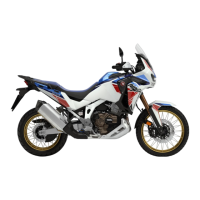
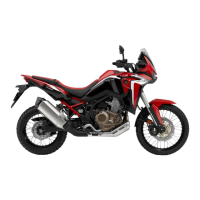
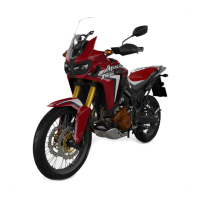
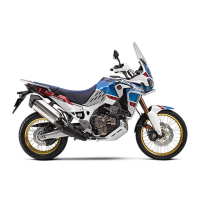
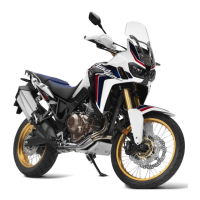
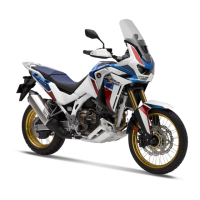
2020 / 2021 Africa Twin and
Africa Twin Adventure Sports ES
System Update Instructions.
1 of 3© 2021 Honda Canada Inc. – All Rights Reserved. Published by HCI
This latest version, designed for 2020-2021 Africa Twin and Africa Twin
Adventure Sports ES, oers the following improvements: Download Software Manual
●
Android Auto added (Ensure that you use the factory USB cable that came with your phone when connecting your
Android phone to your unit)
●
Passenger volume control added
●
Average speed shows until the first decimal place
WHAT YOU WILL NEED
●
A USB flash drive, 2.0 applicable with more than 512MB storage.
●
A computer with a high-speed Internet connection.
●
Between 30-60 minutes of time.
●
Connect a battery charger to the unit if unsure of the charge state of the battery.
FORMAT THE USB DRIVE
Windows
●
Insert the USB drive into an available USB port on your computer.
●
On your computer, locate the “removable disc” for the flash drive.
●
Right-click and the select “Format” from the sub-menu. (Note: This step will erase all existing content from the drive.)
●
Select “FAT32,” from the drop down menu.
●
Click “Start”, then “OK” when the “Warning” message appears.
●
Click “OK” when the “Format Complete” message appears.
Mac
●
Plug the USB drive into your Mac. (May need type C to type A adaptor).
●
Go to Applications>Utilities and launch Disk Utility.
●
Click on the USB drive in the sidebar in Disk Utility.
●
Click Erase in the Disk Utility toolbar.
●
Type in a name for the formatted disk.
●
Click on the Format menu and choose Mac OS Extended.
●
Click Erase.
DOWNLOAD THE SOFTWARE
●
Download the software to your USB. Download File Here
●
Save the file to your USB drive.
Do not change the file name (File name: CRF1100_v.3.10.update)
●
Disconnect the USB drive from your computer.
NOTES:
Various settings are not changed by this update.
Please perform this update procedure after parking in a safe place.
Change setting of PC to “show the extension of file” before update.

 To Next Page
 Need help?
 General