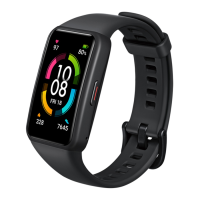
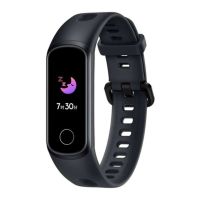
The Honor Band 4 Running Activity Tracker is a smart band designed to monitor various aspects of your health and activity. It supports two primary wearing modes: Wrist mode and Foot mode, each offering a distinct set of features.
Function Description:
In Wrist mode, the band provides comprehensive daily activity tracking and monitoring, including step count, workout distance, and calories burned. It also features sleep monitoring, message reminders, incoming call notifications, and alarm reminders. Additionally, it can help you find your phone if it's within Bluetooth range by making it play a ringtone.
In Foot mode, the band focuses on professional running form monitoring. It tracks seven types of running data: cadence, step length, ground contact time, foot strike pattern, landing impact, eversion excursion, and swing angle. This mode allows the band to record running data even without your phone, with data syncing to the Huawei Health app after the run.
The band also includes Activity reminders, which, when enabled, monitor your activity level within a designated period (defaulting to 1 hour).
Important Technical Specifications:
The Honor Band 4 features a PMOLED 0.5-inch black and white screen with a resolution of 48 x 88 pixels. It includes a touch key on the bottom of the screen for interaction. The band connects to your smartphone via Bluetooth for pairing and data synchronization.
Usage Features:
Wearing the Band:
- Assembly: The band body is attached and fixed into the wrist strap.
- Wearing: The strap uses a U-shaped buckle design. To wear it, one end of the strap is inserted through the buckle and then fastened.
- Foot Mode Attachment: For Foot mode, the band body is aligned with a shoe buckle. The shoe buckle is slotted under the shoelace with the arrow facing front. The metal charging end of the band body is then aligned with the metal spring on the shoe buckle and pushed down to fasten it.
Screen Control:
- Turning on the screen: Raise your wrist or rotate it inward. The screen stays on for 5 seconds.
- Switching between screens: With the screen on, rotate your wrist.
- Turning off the screen: Lower your wrist. The screen automatically turns off after 5 seconds of inactivity.
- Operation:
- Single touch: Switches screens.
- Touch and hold: Enables related functions.
Pairing with your Phone:
- Activation: Connect the band to its charging cradle to activate it for first-time use. It's ready for Bluetooth pairing by default.
- App Installation: Install or update the Huawei Health app from the Google Play Store (Android) or App Store (iOS).
- Pairing Process (Android/iOS):
- Open the Huawei Health app.
- Navigate to the device details screen (e.g., touch the '+' icon, or Me > My devices > Add).
- Select "Smart Band" and then "honor Band 4 Running."
- Click "Pair." The app will search for the band (e.g., "honor Band 4R-XXX").
- Once the band vibrates, touch the touch key on the band screen to confirm pairing.
- Synchronization: After pairing, the time zone and language settings from your phone will automatically sync to the band.
Charging:
- Disassembly: Remove the band body from the strap.
- Connection: Align the metal charging end of the band with the charging cradle.
- Charging Time: A full charge takes approximately 2 hours. The battery level is displayed on the band screen and in the Huawei Health app.
Incoming Calls:
- Notification: If worn on the wrist, the band vibrates and displays incoming call information. (No notifications in Foot mode).
- Mute: Touch the touch key to mute an incoming call.
- Reject: Touch and hold the touch key to reject an incoming call.
Message Reminders:
- Android Users: In the Huawei Health app, go to Me > My devices > Notifications management > Notice and enable "Notice" to select desired app notifications.
- iOS Users: In the Huawei Health app, go to Devices > Notifications management > Message alerts and enable "Message alerts." Also, enable notification functions for apps on your phone.
- Display: The band vibrates and turns on its screen to show new messages when app notifications appear on your phone's status bar.
Finding a Phone:
- Ensure the band is on your wrist.
- Access the "Find phone" screen on the band.
- Touch and hold the touch key to activate "Find phone."
- If within Bluetooth range, your phone will play a ringtone (even in Silent mode).
Daily Activity Tracking and Monitoring (Wrist Mode):
- The band automatically identifies walking and running status.
- Viewing Data:
- On Band: Touch the touch key to view step count, workout distance, and calories burned.
- In App: View fitness data through the Huawei Health app.
Sleep Monitoring:
- Viewing Data:
- On Band: Wear the band on your wrist. Touch the touch key on the band screen to access and view sleep data.
- In App: View sleep data through the Huawei Health app.
Setting a Smart Alarm:
- Android Users:
- Open Huawei Health app, touch the band icon (top-right corner under Home), and go to Alarm > Smart alarm.
- Set alarm time, Smart wake-up, and repeat cycle.
- Save settings.
- Swipe down on the app's home screen to ensure the alarm syncs to the band.
- iOS Users:
- Open Huawei Health app and touch Devices.
- Touch the band's Bluetooth name from the device list.
- Go to Alarm > Smart alarm.
- Set alarm time, Smart wake-up, and repeat cycle.
- Touch Save.
- Swipe down on the app's home screen to ensure the alarm syncs to the band.
Maintenance Features:
Restoring to Factory Settings:
- Method 1 (Using the band):
- Double-knock the time screen twice with one knuckle.
- Touch the touch key to access the factory settings screen.
- Touch and hold the touch key to restart the band.
- Method 2 (Using Huawei Health app):
- Open the Huawei Health app.
- Touch the band icon (top-right corner under Home).
- Touch "Restore factory settings" to reset the band.
- Method 1 (Using the band):
- Double-knock the time screen twice with one knuckle.
- Touch the touch key to access the version details screen.
- Method 2 (Using Huawei Health app):
- Touch the band icon (top-right corner of the Huawei Health app home screen).
- Touch "Firmware update" under Devices to view the current band version.
Updating your Band:
- Method 1 (Using Huawei Health app):
- Connect your band to the Huawei Health app.
- Touch the device icon (top-right corner of the home screen) to access the device details screen.
- Touch "Firmware update" and follow on-screen instructions.
- Method 2 (Using Huawei Health app):
- Connect your band to the Huawei Health app.
- Go to Me > My devices.
- Access the device details screen.
- Touch "Firmware update" and follow on-screen instructions.
Updating the Huawei Health App:
- Android Users: Open the Huawei Health app and go to Me > Settings > Check for updates.
- iOS Users: Update the Huawei Health app in the App Store.

 Need help?
 General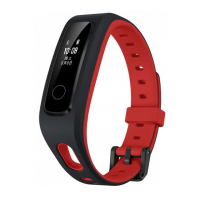

 To Next Page