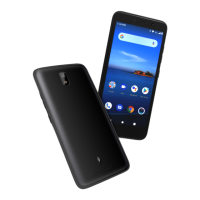
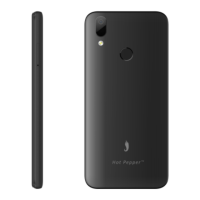
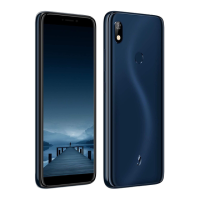
Long press the power key until a menu shows. Choose “Power off’’ to turn off the phone.
Restart the phone
Option 1: Long press the power key until a menu shows. Choose “Restart’’ to restart the phone.
Option 2: Long press the power key above 10 seconds to auto restart the phone.
Lock the screen
Option 1: Press the power key to turn off the screen and lock it
Option 2: The screen will auto lock if you don't use the phone for a while.
Unlock the screen,When the user is not in use, the system defaults to standby time and
automatically locks the screen.
Press the power key, and then slide to top for unlocking.
Home screen
The Home screen is your starting point to access all the features on your phone. It displays application
icons, widgets, and other features. You can customize the Home screen with different wallpaper and
display the items you want.
Status Bar
At the top of the screen, it displays the time, signal, battery information, and icons for notifications
that you’ve received.
Notification Center
Swipe down from the top edge to see more detail of the new notification, such as messaging,
missed call, Wi-Fi network available etc. Tap the notification and drag to left or right to delete it.
Control Center
Slide down on the top of the screen to open the control center.
In the control center, it’s a quick access to Flashlight, Wi-Fi, Mobile data, Bluetooth, Do Not Disturb,
Auto-rotate,Location, Airplane mode and Battery Saver. Tap “Edit”, and then drag to adjust the icons
in control center.
Move an application
Touch & hold the icon you want to move. Drag the icon to move or cross at the edge of the screen to
move into another screen.
Uninstall an application
Touch & hold the icon you want to uninstall. On the top of the icon will appear “App info”. Tap it to
app info page to uninstall it.
Touch screen
The way to control mobile phone is using your finger on touch icons, buttons, menu items, the onscreen
keyboard, and other items on the touch screen.
Touch: To act on items on the screen, such as application and settings icons, to type letters and
symbols using the onscreen keyboard, or to press onscreen buttons, you simply touch them with


 To Next Page