HOUSEGARD NOTE - QUICK GUIDE English
CREATE A NEW SCENARIO
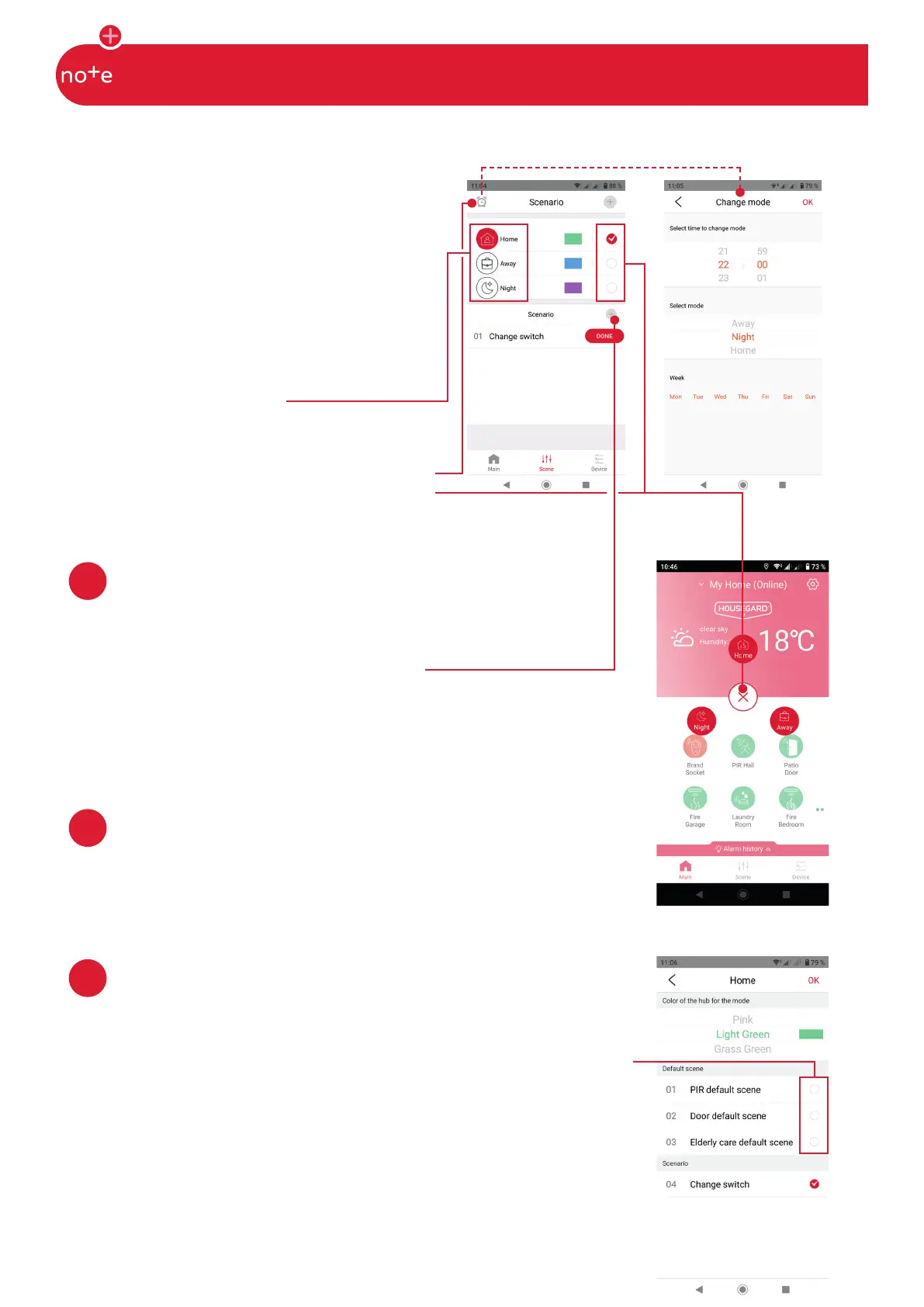
Step 1: Select whether to execute the scenario in Home, Away or Night
mode.
Step 2: Click the plus sign next to Scenario.
Step 3: Add device (s) that trigger and add device (s) that performs so-
mething.
Step 4: Name the scenario.
SCENARIOS
With a scenario, you can create a sequence of
events, if your devices are triggered, then ac-
tions are performed. For example. a door and
window contact alerts the hub and telephone.
A mode is a state where only the scenarios
added there will be executed if triggered.
By default, there are 3 modes Home, Away
and Night. For example. Do you want a mo-
tion detector to do dierent things whether
you are Home or Away.
You can change mode automatically, click on
the clock at the top left, select the time when
it should switch. You can also select the mode
manually on the Scenario/Scene and Main tab.
REMOVE A SCENARIO
Hold down the scenario you want to delete and click OK (Android).
Swipe left and click Delete (Iphone).
ADD OR CHANGE SCENARIOS IN ONE MODE.
Step 1: Click the name of the mode you want to change.
Step 2: Choose here which scenarios you want in the selected mode. There
are also 3 standard scenarios for Motion Detector, Door Contact and Elder-
ly Care.
PIR standard scenario: Motion detector will alarm to mobile and hub when
someone is there.
Door standard scenario: Door contact will alarm to mobile and hub when
the door / window is open.
Elderly care standard scenario: Motion detector will alarm to mobile and
hub when no one has triggered it in 5 hours.
5
6
7



 To Next Page