14 HP Webcam 3100/3110 User’s Guide
Adjusting Webcam Settings
You can adjust most of your webcam’s settings in ArcSoft WebCam Companion.
1 Double-click the WebCam
Companion 3 icon on the
Windows desktop.
2 Click Capture .
3 Click the WebCam
Settings icon.
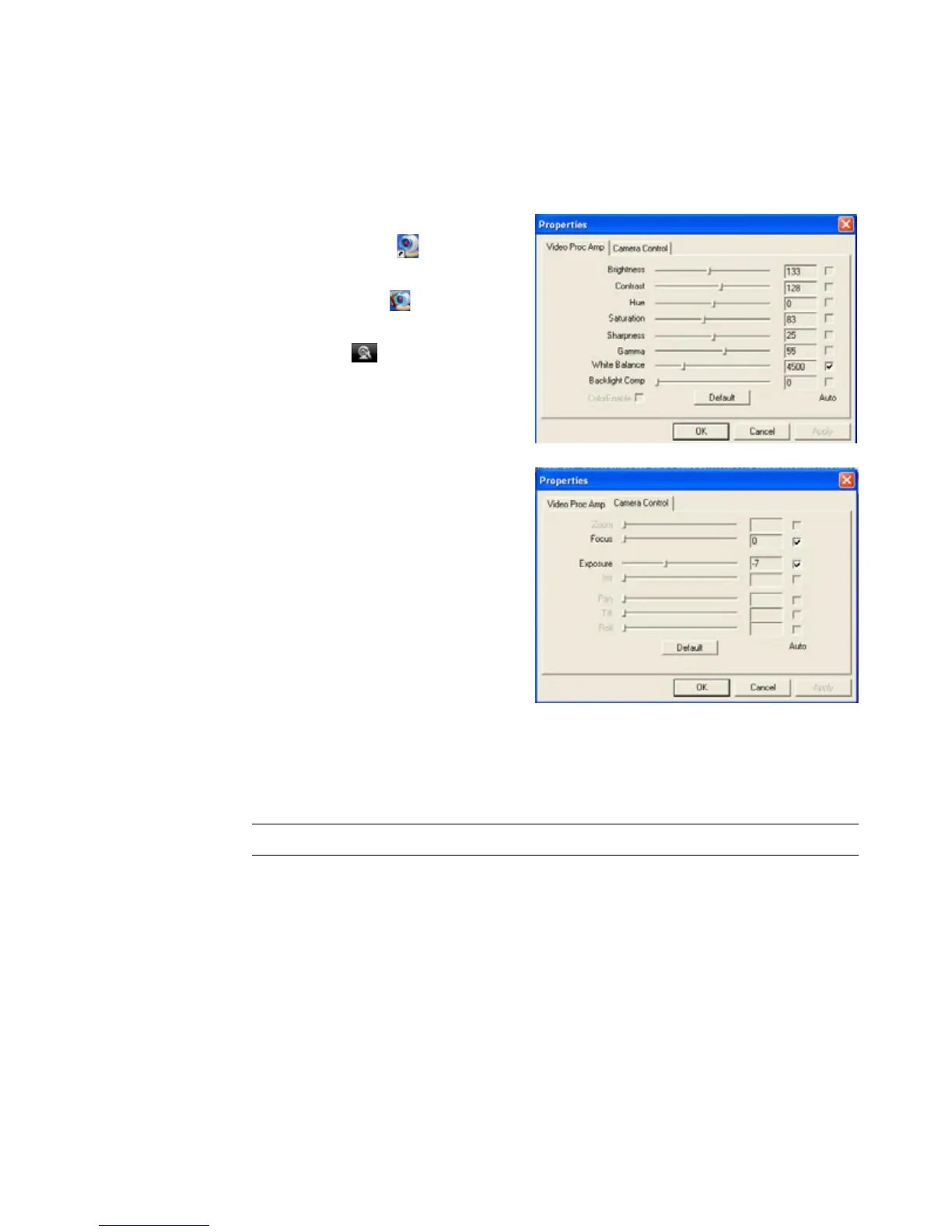
4 On the Video Proc Amp tab do
either of the following:
To manually adjust a setting,
drag the slider for that setting.
To let the webcam auto-detect
a setting, place a check in the
Auto check box to the right of
that setting.
5 Click the Camera Control tab
and do any of the following:
To manually adjust the focus
(HP Webcam 3110 only),
remove the check from the
Auto Focus check box, and
then drag the Focus slider.
To manually adjust the
exposure, remove the check
from the Auto Exposure
check box and then drag the
Exposure slider.
6 Click OK.
To learn about customizing the Capture, Monitor, Fun Frame, and Masque settings in
ArcSoft WebCam Companion, click Extras and select Application Help.
NOTE: To restore the factory settings, click Default.



 To Next Page