EasyManua.ls Logo

HP Executive Tablet Pen - User Manual

HP Executive Tablet Pen
2 pages
Print Icon
To Next Page IconTo Next Page
Loading...
© Copyright 2013 Hewlett-Packard Development Company, L.P. The information contained herein is subject to change without notice. The only warranties for HP products and services are set
forth in the express warranty statements accompanying such products and services. Nothing herein should be construed as constituting an additional warranty. HP shall not be liable for
technical or editorial errors or omissions contained herein.
Updated March 2013. HP Confidential.
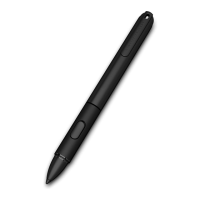
HP Executive Tablet Pen
The HP Executive Tablet Pen is
designed to work on the HP ElitePad
900 and the EliteBook Revolve as an
alternative to touch input, specifically
with Windows 8 applications in
desktop mode. The pen can be used
for selecting objects, drawing, taking
notes, and signing documents.
Features
Unlike the more familiar “Passive” or “Off-the-
Shelf Capacitive” stylus pens, The HP Executive
Tablet Pen is an “Active Capacitive” pen and
uses a digitizer built in to the screen to allow
communication between the tablet screen and
the pen. When the pen is near the screen, the
screen detects the pen and deactivates finger
touch functionality while the pen is present
and writing on the tablet. After writing has
stopped and the pen is no longer detected by
the screen, finger touch functionality remains
off for 1.5 seconds and then becomes active.
This delay allows the user to write without
“ghost” touch artifacts appearing after they
stop writing with the pen.
Some active pens also provide pressure
sensitivity and include side buttons to quickly
access tools and other functionality. The HP
Executive Tablet Pen features a barrel button
on the side for right-clicking functionality and
a pressure sensor on the tip to allow the user
to see the text on the Tablet screen as they are
writing it.
Different from active pens in form and
functionality, passive pens provide scrolling
and touch functions similar to the way a finger
interacts with the Tablet. For writing, some of
these pens may show palm marks depending
on how the user holds the pen. The HP
Executive Tablet pen, powered by a single AAA
battery, blocks stray marks from the user’s
hand resting on the screen or the sweep of a
user’s palm during writing, so that only the pen
marks appear on the tablet. This functionality
is known as palm rejection.
Usage and Best Practices
To activate the pen, press the tip of the pen
against the screen. To save power, the pen will
automatically deactivate if the tip has no
pressure for one minute. If the pen has not
been used within the last minute, be sure to
press the tip against the screen before you use
the pen.
To perform a left click with the pen, simply
press the tip of the pen against the button or
object you want to click. To drag and select
multiple objects or text on the screen, press
the tip against the screen and drag it, the same
way a mouse is used.
To perform a right click, place the tip of the pen
on the object that you want to right click, hold
down until a circle appears, and then release.
The same experience is possible by pressing
the pen’s barrel button and then placing the tip
of the pen on the object.
While initiating pen activity, be sure not to
touch the screen with your palm or your
fingers. You can rest your palm against the
screen after the tablet recognizes the pen. To
switch from pen to touch, lift the pen off the
screen and wait about 1.5 seconds before
using touch.
Since this pen is designed to work more like a
finger rather than a mouse, there are some
differences in how it is used. For example, the
pen does not support hover capability or in-
range detection, meaning that the presence of
the pen is not detected unless it actually
physically touches the screen. At this time, the
pen cannot be used to activate cascading
menus or tooltips by moving the pen over the
screen. As a result, there are some limitations
to using the HP Executive Tablet Pen with
some Windows 8 modern apps.
Calibration
Since every user will hold the pen differently,
HP recommends that users calibrate the pen
before use. To do so, please follow these
steps:
Calibrate pen precision
1. Make sure that the device is undocked.
2. Swipe in from the right side of the screen
and tap Search.
3. Enter calibrate in the search box, tap on
Settings, and then tap Calibrate the screen
for pen or touch input.
4. Tap the Calibrate button.
5. Follow the instructions on the screen. For
best results, quickly tap all of the crosshairs
on the screen before the pen deactivates.
Calibrate pressure sensor
If you are having problems with the pen’s
pressure sensor, you can calibrate the sensor
by following these steps:
1. Unscrew the pen cap to remove power from
the pen, but do not remove the AAA battery.
2. Press and hold the barrel button. While
doing this, screw the pen cap back on to
power the pen. Do not over tighten the cap.
3. Continue holding down the button for 10
seconds.
4. Release the barrel button.
5. Fully depress and hold down the pen tip.
While doing this, press and release the
barrel button. Wait 2 seconds.
6. Release the pen tip.
7. Press and release the barrel button. Wait 2
seconds.
8. Press and release the barrel button. The pen
is now ready to use.

Question and Answer IconNeed help?

Do you have a question about the HP Executive Tablet Pen and is the answer not in the manual?

Summary

HP Executive Tablet Pen Features

Pen Technology and Capabilities

Explains the pen's active capacitive technology, pressure sensitivity, and palm rejection for improved accuracy.

HP Executive Tablet Pen Usage

Pen Interaction and Best Practices

Details how to activate, click, drag, and switch between pen and touch input for optimal use.

HP Executive Tablet Pen Calibration

Calibrate Pen Precision

Steps to calibrate pen precision for accurate input on the screen, ensuring precise cursor placement.

Calibrate Pressure Sensor

Procedure to calibrate the pen's pressure sensor for a better writing feel and responsiveness.

HP Executive Tablet Pen Troubleshooting

Common Pen Issues and Solutions

Provides solutions for common problems like pen not writing, short battery life, or inaccurate input.

Overview

The HP Executive Tablet Pen is an active capacitive pen designed for use with the HP ElitePad 900 and EliteBook Revolve, serving as an alternative to touch input, particularly for Windows 8 desktop applications. It facilitates tasks such as selecting objects, drawing, note-taking, and signing documents.

Function Description:

The pen utilizes a digitizer built into the tablet screen to enable communication. When the pen is near the screen, the tablet detects its presence and temporarily deactivates finger touch functionality. This "palm rejection" feature ensures that only the pen's input is registered, preventing accidental marks from a user's hand resting on the screen. After the pen is no longer detected, finger touch functionality remains off for 1.5 seconds before reactivating, preventing "ghost" touch artifacts.

The pen supports pressure sensitivity, allowing for varied input based on the force applied to the tip. It also features a barrel button that enables right-clicking functionality.

Important Technical Specifications:

The HP Executive Tablet Pen is an "Active Capacitive" pen. It is powered by a single AAA battery. The pen's palm rejection functionality ensures that only pen marks appear on the tablet, blocking stray input from the user's hand.

Usage Features:

  • Activation: To activate the pen, press its tip against the screen. The pen automatically deactivates after one minute of no pressure to conserve power. If unused for a minute, press the tip against the screen to reactivate it.
  • Left Click: Simply press the pen tip against the desired button or object on the screen.
  • Drag and Select: Press the pen tip against the screen and drag it, similar to using a mouse.
  • Right Click: Place the pen tip on the object, hold until a circle appears, then release. Alternatively, press the pen's barrel button and then place the tip on the object.
  • Palm Rejection: While initiating pen activity, avoid touching the screen with your palm or fingers. Once the tablet recognizes the pen, you can rest your palm on the screen.
  • Switching between Pen and Touch: To switch from pen to touch, lift the pen off the screen and wait approximately 1.5 seconds.
  • Limitations: The pen does not support hover capability or in-range detection; it must physically touch the screen to be detected. It cannot activate cascading menus or tooltips by hovering. Some Windows 8 modern apps may have limitations when used with this pen.
  • Calibration: HP recommends calibrating the pen for precision and pressure sensitivity before use.
    • Precision Calibration:
      1. Ensure the device is undocked.
      2. Swipe in from the right side of the screen and tap "Search."
      3. Type "calibrate" in the search box, tap "Settings," then "Calibrate the screen for pen or touch input."
      4. Tap the "Calibrate" button.
      5. Follow on-screen instructions, quickly tapping all crosshairs before the pen deactivates for best results.
    • Pressure Sensor Calibration:
      1. Unscrew the pen cap to remove power (do not remove the AAA battery).
      2. Press and hold the barrel button.
      3. While holding the button, screw the pen cap back on (do not overtighten).
      4. Continue holding the button for 10 seconds.
      5. Release the barrel button.
      6. Fully depress and hold the pen tip.
      7. While holding the tip down, press and release the barrel button. Wait 2 seconds.
      8. Release the pen tip.
      9. Press and release the barrel button. Wait 2 seconds.
      10. Press and release the barrel button again. The pen is now ready.

Maintenance Features:

  • Battery Replacement: If the pen does not write, replace the AAA battery, ensuring correct polarity.
  • Battery Life: To conserve battery life, store the pen flat without pressure applied to the tip.
  • Troubleshooting:
    • Pen not writing: Tap or apply pressure to activate, replace the battery, recalibrate the pressure sensor, or check if the application is selected and active.
    • Short battery life: Store the pen flat without pressure.
    • Touchscreen not working after pen use: Wait approximately 1.5 seconds between pen and touch use.
    • Inconsistent writing with fist/palm down: Keep the pen tip 5mm away from the fist or palm.
    • Inaccurate object selection: Recalibrate the pen or try holding it at a different angle.
    • Cannot scroll in Windows 8 start menu: This is by design; tap the bottom of the screen and drag the scroll bar.
    • Inaccurate/skipping when docked/charged: Undock or disconnect power from the device before using the pen.
    • Cannot scroll with pen in middle of screen: Not all programs allow finger-type scrolling; use scroll bars on the side with the pen.

HP Executive Tablet Pen Specifications

General IconGeneral
BrandHP
ModelExecutive Tablet Pen
CategoryAccessories
LanguageEnglish

Related product manuals