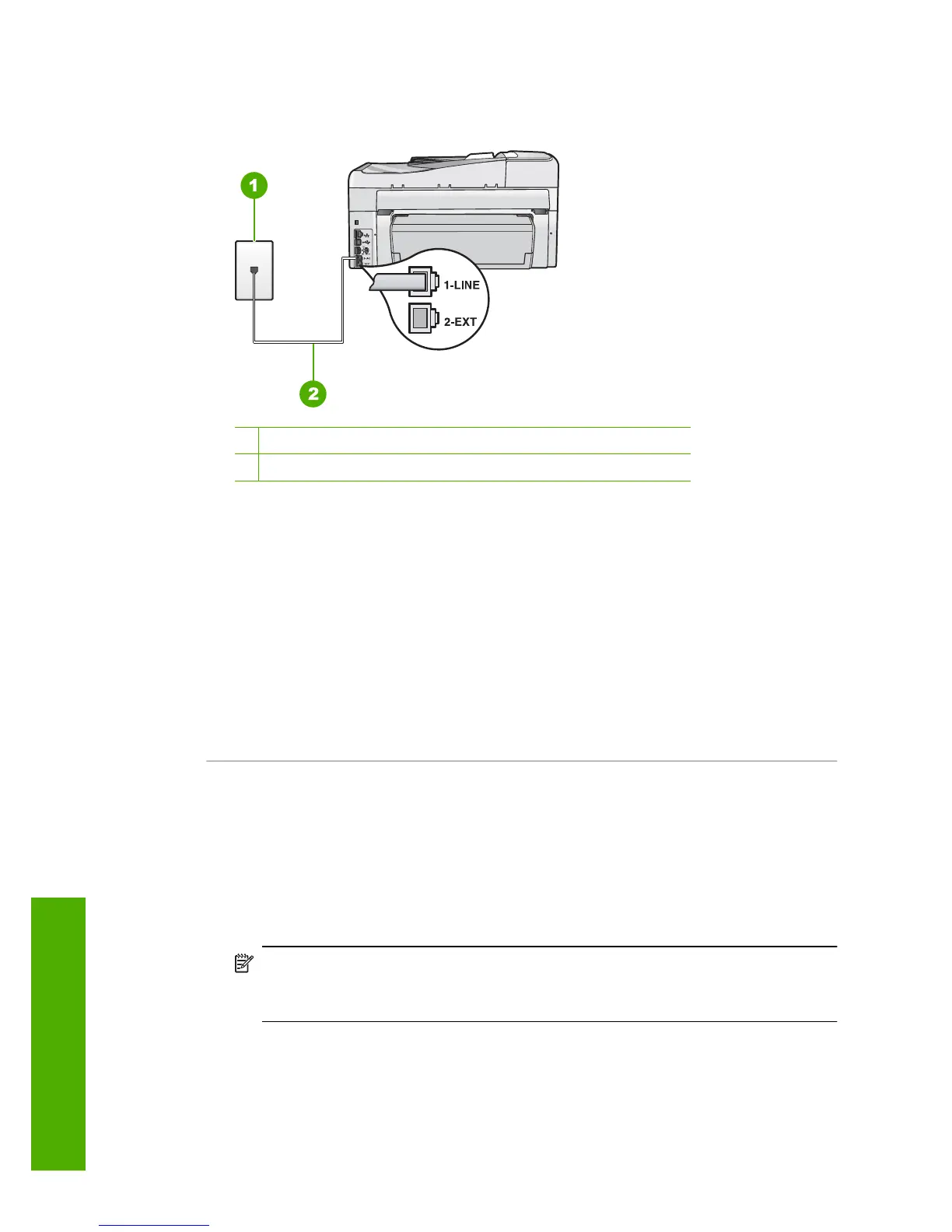
1-LINE on the back of the HP All-in-One. For more information on setting up the
HP All-in-One for faxing, see the printed documentation.
1 Telephone wall jack
2 Use the phone cord supplied in the box with the HP All-in-One
• If you are using a phone splitter, this can cause faxing problems. (A splitter is a
two-cord connector that plugs into a telephone wall jack.) Try removing the splitter
and connecting the HP All-in-One directly to the telephone wall jack.
• Try connecting a working phone and phone cord to the telephone wall jack that
you are using for the HP All-in-One and check for a dial tone. If you do not hear
a dial tone, contact your telephone company and have them check the line.
• Try to send or receive a test fax. If you can send or receive a fax successfully,
there might not be a problem.
After you resolve any problems found, run the fax test again to make sure it passes
and the HP All-in-One is ready for faxing.
Cause: The "Phone Cord Connected to Correct Port on Fax" test failed.
Solution: Plug the phone cord into the correct port.
What to do
1. Using the phone cord supplied in the box with the HP All-in-One, connect one end
to your telephone wall jack, then connect the other end to the port labeled 1-LINE
on the back of the HP All-in-One.
NOTE: If you use the 2-EXT port to connect to the telephone wall jack, you
will not be able to send or receive faxes. The 2-EXT port should only be used
to connect other equipment, such as an answering machine or a telephone.
Chapter 15
252 Troubleshooting
Troubleshooting



 To Next Page
 Loading...