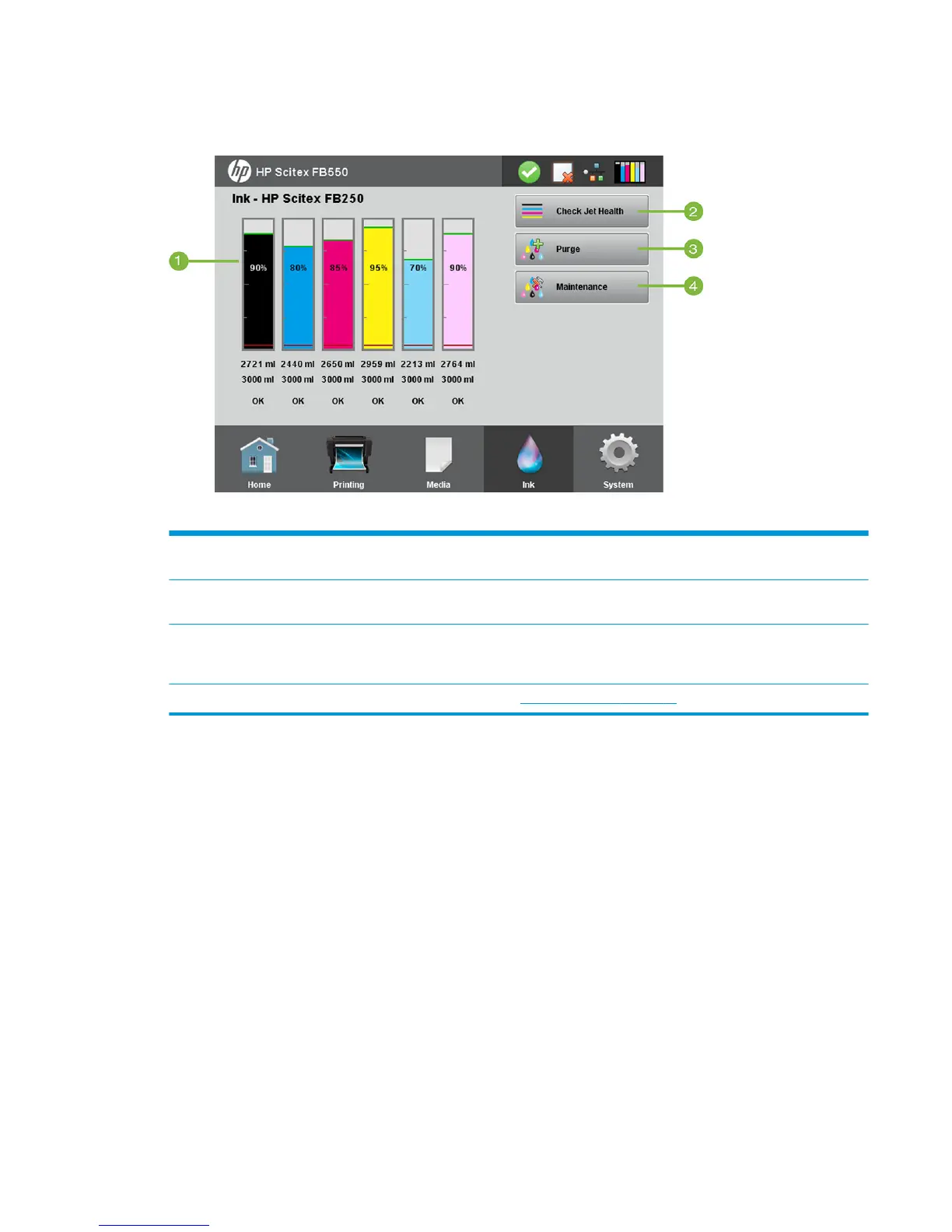
Ink page
Figure 6-5 Ink page
To switch to the Ink page, press the Ink icon in the Activity Tray at the bottom of the screen.
1
Ink levels and status — Displays the amount of ink remaining in a bar graph and numerical display, the capacity of the
ink supply, and ink status.
2 Check Jet Health — Fires all jets by printing a test pattern. This is a good way to inspect and prepare the jets for printing
after they have been idle.
3 Purge — Purges the printheads to help recover missing jets. You can purge all colors or any combination of colors,
Standard or enhanced Performance purges, and print a prime bars pattern to see whether jets are recovered after each
purge.
4 Maintenance — Displays the Maintenance menu (see Maintenance menu on page 41).
Maintenance menu
●
Check Jet Health — Prints a test pattern that shows working and non-working jets.
●
Perform An Air Purge — Purges the printheads with air to clear ink clogs. You can select the printheads
to purge, and whether to perform a Standard or Performance purge (the Performance purge is more
effective but expels more ink).
●
Access Carriage — Moves the printhead carriage to the center of the rail for inspection.
●
Print Recover Jets Pattern — Prints a special pattern designed to recover missing inkjets. After
printing this pattern, the Check Jet Health pattern is printed.
●
Printhead Procedures
◦
Load Ink in All Heads — Fills all printheads with ink. Typically used only when installing a new
printer.
◦
Fill Heads with Ink — Fills the printheads that you select with ink.
◦
Empty Heads (Fill With Air) — Fills the printheads that you select with air.
ENWW
Ink page 41



 To Next Page