Chapter 7 : Email, text, multimedia, and instant messaging 101
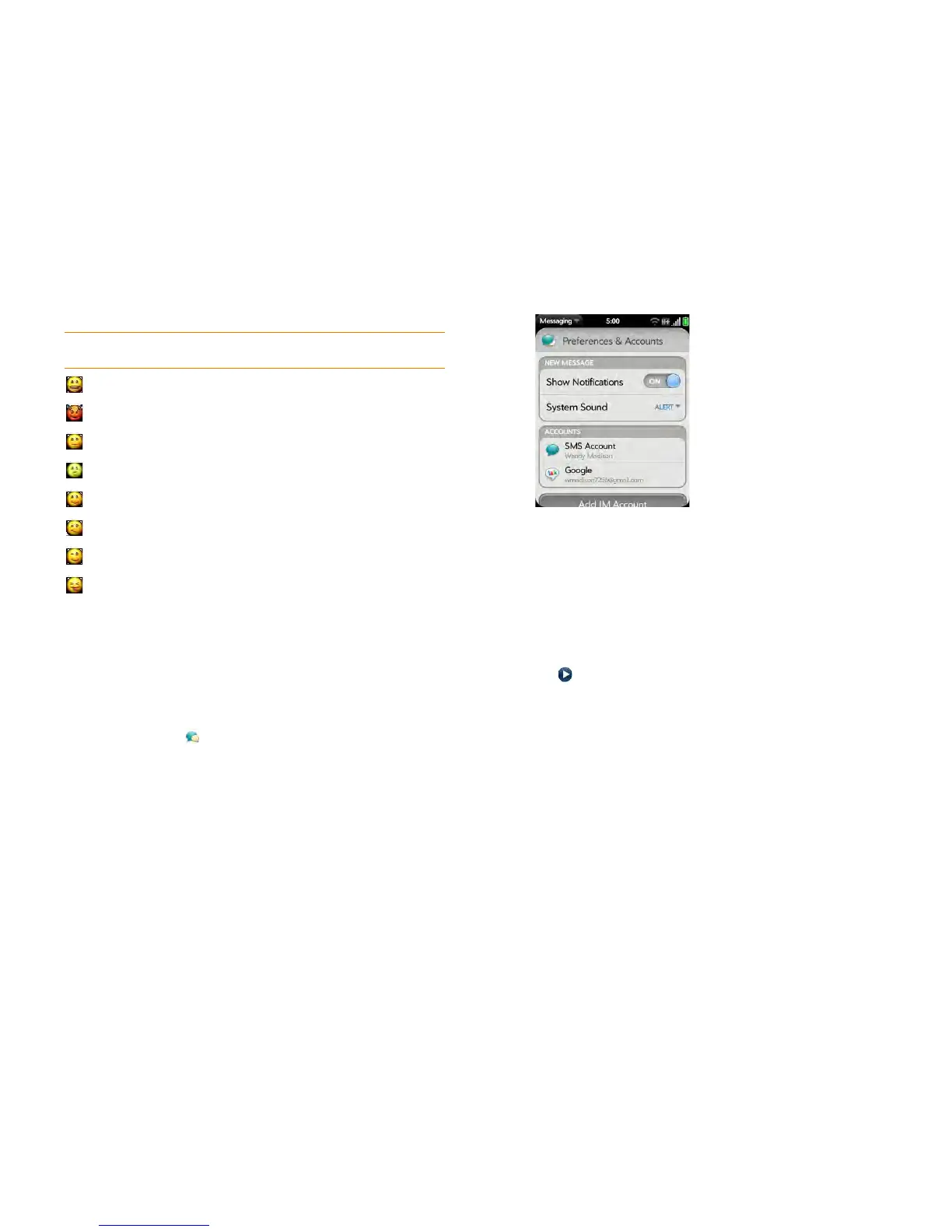
Customize messaging notifications
You can set your smartphone to show a notification and/or play a sound
when a new message arrives. These settings apply to all your Messaging
accounts.
1 Open Messaging .
2 Open the application menu and tap Preferences & Accounts.
3 In Show Notifications, tap On or Off.
4 When Show Notifications is on, tap Alert, and tap any of the
following:
Vibrate: The smartphone vibrates with no other sound.
System Sound: The system sound plays. If the ringer is off, the
smartphone vibrates.
Ringtone: Tap a ringtone. To change a ringtone for messages, below
Alert, tap Ringtone. Tap a ringtone name. To hear the ringtone:
Tap to the right of its name.
Mute: No sound plays and the smartphone does not vibrate.
Messaging: Text and multimedia messaging
Create and send a text or multimedia message
Each text message can have up to 160 characters. You can send a message
of more than 160 characters, but the message may be split into several
messages. If you send a text message to an email address, the email address
is deducted from the 160-character count.
:-D:D=D=-D:laugh:lol
>:-) >:) >:-> >:> :evil :twisted
:| :-| :neutral :meh
:-&:&=&=-&:-@:@=@=-@:sick
:) :-) =) =-) :smile
:/:-/:\:-\=/=-/=\=-\:doh
;) ;-) :wink
:P :-P :p :-p :b :-b =p =P =b =-b =-p
=-P :yuck :razz
Table 1. Supported emoticons
To display this
emoticon...
Enter any of these keyboard character combinations...


 To Next Page