Chapter 7 : Email, text, multimedia, and instant messaging 103
Receive and view text and multimedia messages
You can view pictures, videos, and animated GIFs, and listen to music files
included in a multimedia message. You can save pictures in JPG format to
your smartphone for viewing in the Photos application. Animated GIF files
appear as JPG files in the Messaging app.
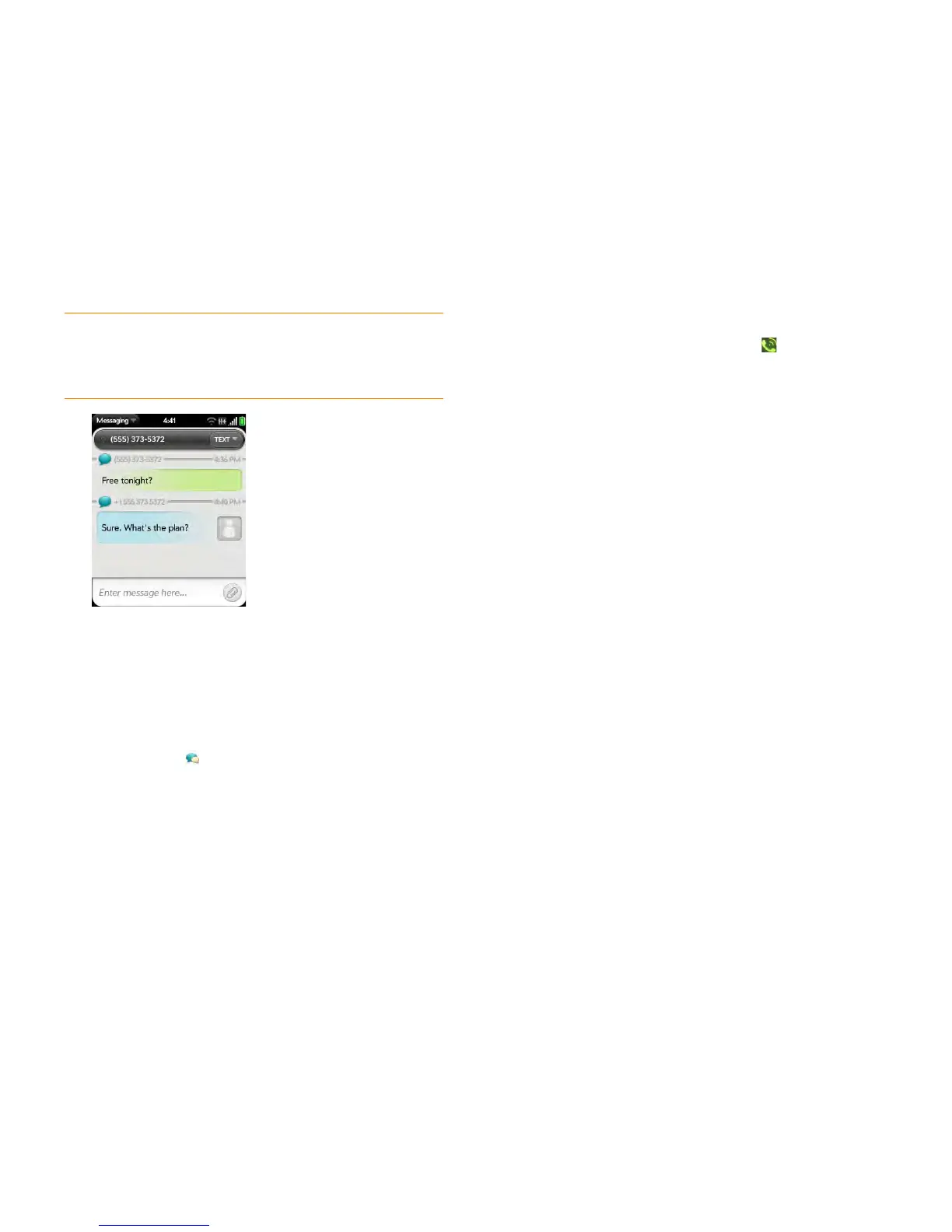
1 Open Messaging .
2 Tap a conversation to view messages.
3 To view an attached file in a multimedia message: Tap a music, video,
or vCard file name.
4 Attached pictures are displayed within the message. To view an
attached picture: Tap the picture and tap View. Tap Copy To Photos
to save an attached JPG picture.
5 (Optional) Do any of the following from the body of the message:
• To call a number: Tap the number, and tap .
• To add a number to Contacts: Tap and hold the number, and tap
Add to Contacts. Tap Save As New to create a new contact, or tap
Add To Existing to add this number to an existing contact.
• To send an email: Tap the email address.
• To go to a web address: Tap it.
Add a contact from a text or multimedia message
To add a message sender as a contact:
1 In Conversations view, tap a conversation with someone who is not a
contact.
2 Tap the header at the top of the screen.
3 Ta p Add To Contacts.
4 Tap one of the following:
Add New Contact: Create a new contact for the number.
Add To Existing: Tap the contact you want to add the number to.
Forward a message
1 In a conversation, tap a message.
2 Do one of the following:
• To forward the message through Messaging: Tap Forward, and
enter the recipient’s number or address in the To field.
• To forward the message in an email: Tap Forward Via Email, and
enter the recipient’s name or email address in the To field.
TIP You can include emoticons in your message (see Use emoticons in a
message).
TIP You can also send a contact entry as part of a multimedia message. Do this in
the Contacts app (see Send contacts).


 To Next Page