Chapter 8 : Contacts, Calendar, and other personal information 113
Find a contact
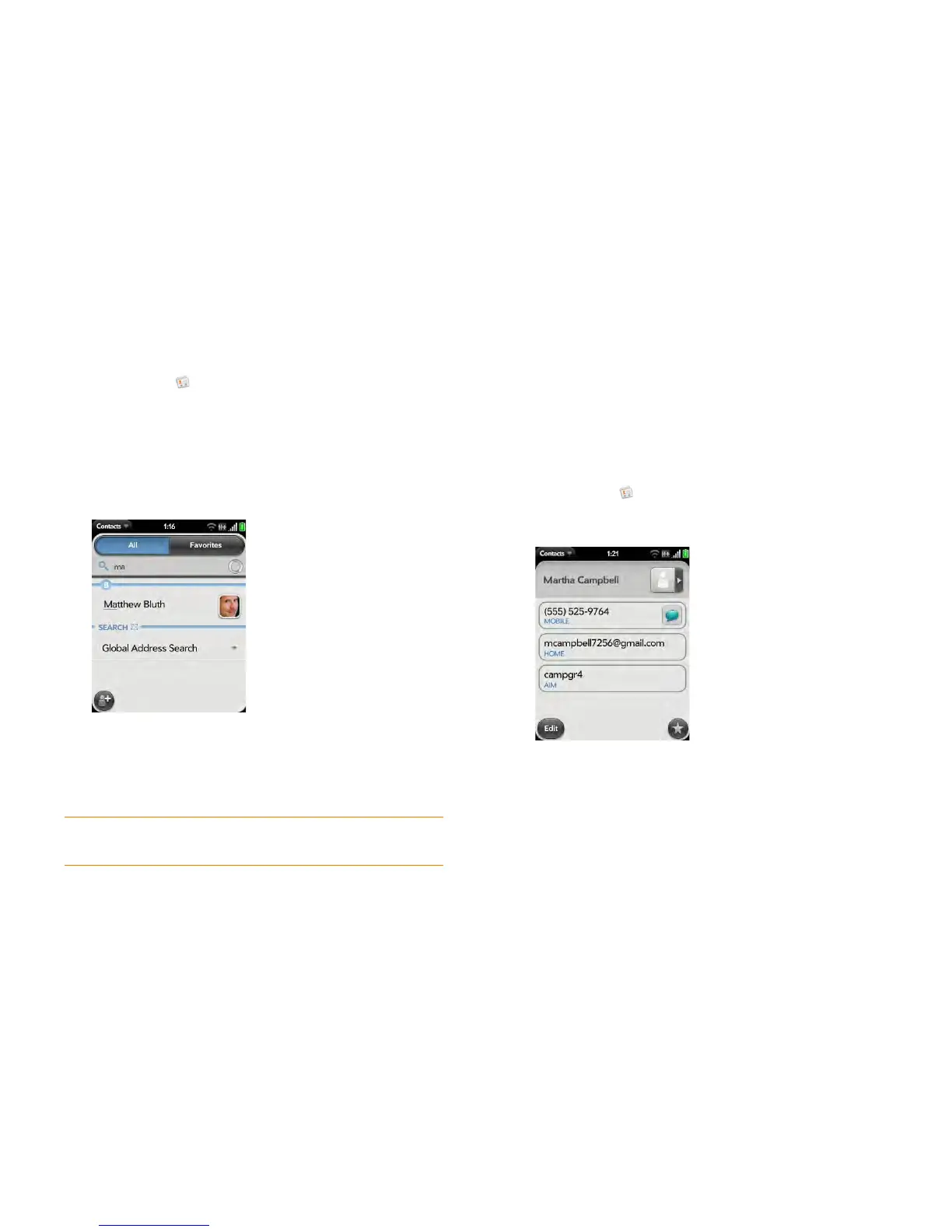
To find a contact within the Contacts app, use these steps.
1 Open Contacts .
2 Begin typing any of the following:
• First, middle, or last name
• First and last initial (no space between)
• Company
• Nickname
3 For more search options, tap Global Address Search. (This option is
available if you are using Microsoft Exchange with a Global Address
List.)
4 Tap the c o n tact.
If you have contacts that you call frequently, you can do any of the following
to help access their numbers quickly:
• Create a favorite in Phone (see Create a favorite) or in Contacts (see
Create a favorite).
• Create a speed dial (see Assign a speed dial to a contact).
• Add a contact to the Launcher (see Add a contact entry to the Launcher).
View, edit, or delete contact information
1 Open Contacts .
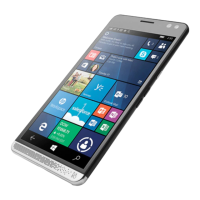
2 Search for a contact (see Find a contact), and tap the contact name.
3 (Optional) To copy a contact, open the application menu, tap Edit, and
tap Copy All.
The contents of the contact entry are copied as plain text, with
carriage returns between each element.
4 To edit a contact, tap Edit.
Info that’s dimmed means it originates from an account that you can’t
edit on your smartphone (like Facebook).
TIP You can also use Just Type to find a contact from Card view or the Launcher.
Start typing a name or initials and scroll down the list of search results.


 To Next Page