Chapter 8 : Contacts, Calendar, and other personal information 129
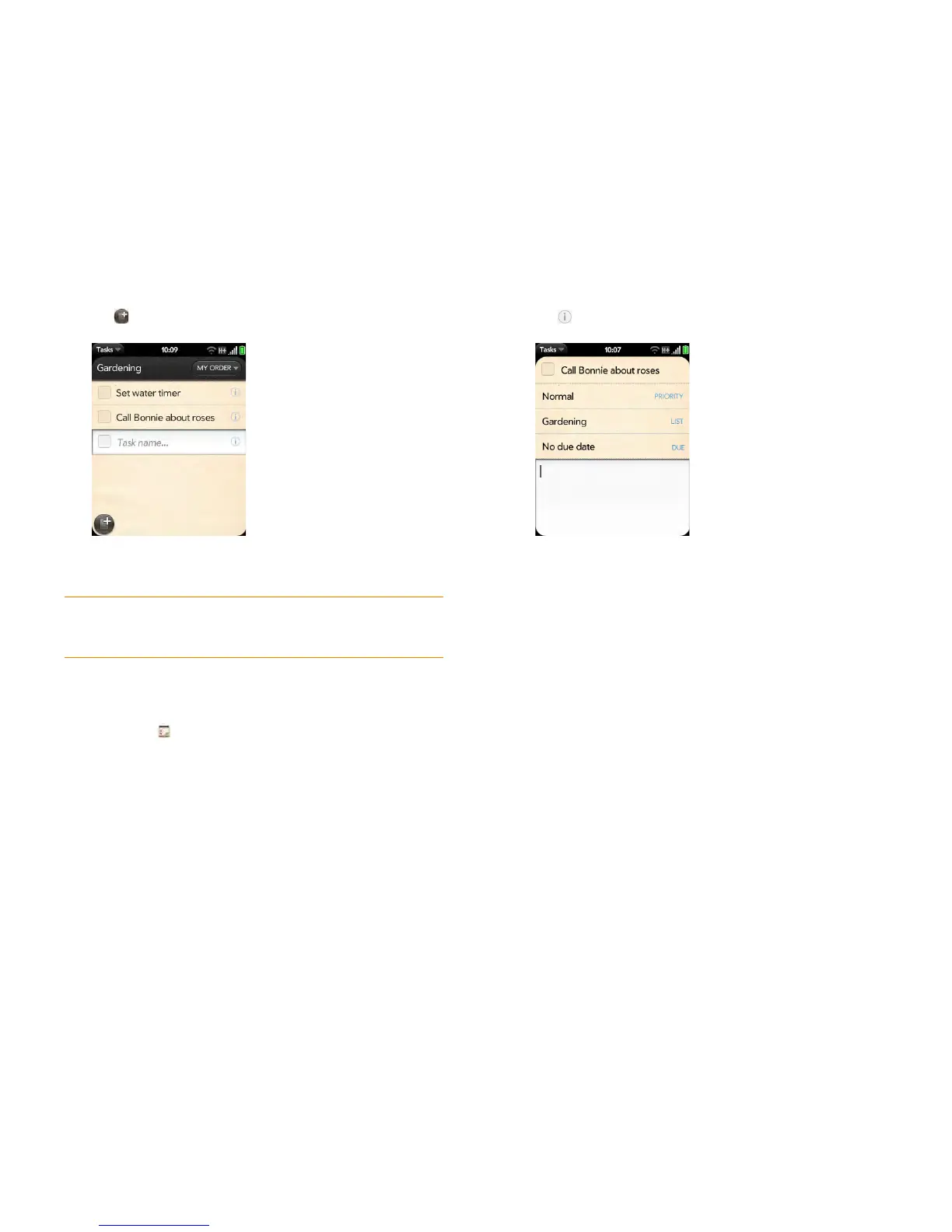
3 Tap .
4 Enter the task name in the Task name field. To set the task priority, see
Set task priority, due date, and other details.
Set task priority, due date, and other details
1 Open Tasks .
2 Tap the list containing the task.
3 Tap to the right of the task name.
4 Set any of the following:
Priority: High priority tasks appear in red. Normal priority tasks appear
in bold text, and low priority tasks appear in gray text.
List: Assign the task to a different list.
Due: Ta p No due date, and tap a due date option. If you set a due
date, a notification appears at the bottom of the screen on the due
date. Tap the notification to open the task.
5 To enter a note about the task, tap the blank field at the bottom of the
screen and enter the note.
TIP You can also use Just Type to create a task directly from the Launcher or Card
view. Start typing the task text and, under Quick Actions, tap New Task. The Tasks
application opens at a new task, with the text you entered in the body of the task.


 To Next Page