26 Chapter 2 : Basics
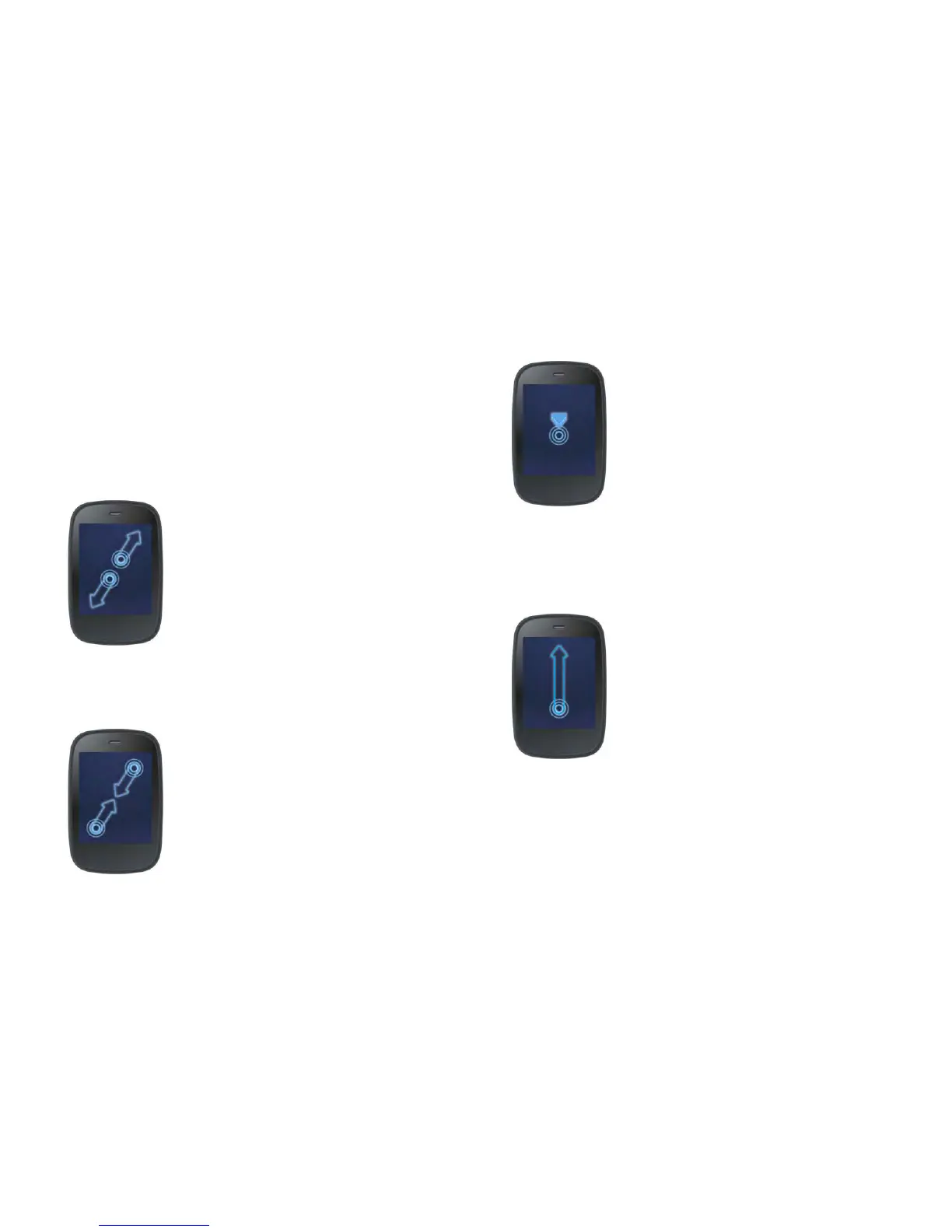
Display Card view or the Launcher: If an application is maximized, you
can flick up from the gesture area to the screen to minimize the app and
display Card view. This is the up gesture. If you make the up gesture when
Card view is displayed, you open the Launcher.
Pinch (zoom gestures)
Zoom in/pinch out to increase the size of items on the screen (Email, Web,
Photos, PDF View, and Google Maps): Place two fingers on the screen and
spread them slowly apart.
Zoom out/pinch in to decrease the size of items on the screen (Email, Web,
Photos, PDF View, and Google Maps): Place two fingers on the screen and
bring them together.
Zoom in or out a fixed amount (Web, Photos, Quickoffice
®
mobile office
software, PDF View): Double-tap the screen.
Scroll gestures
Scroll slow: Drag the screen in the desired direction.


 To Next Page