46 Chapter 4 : Work with applications
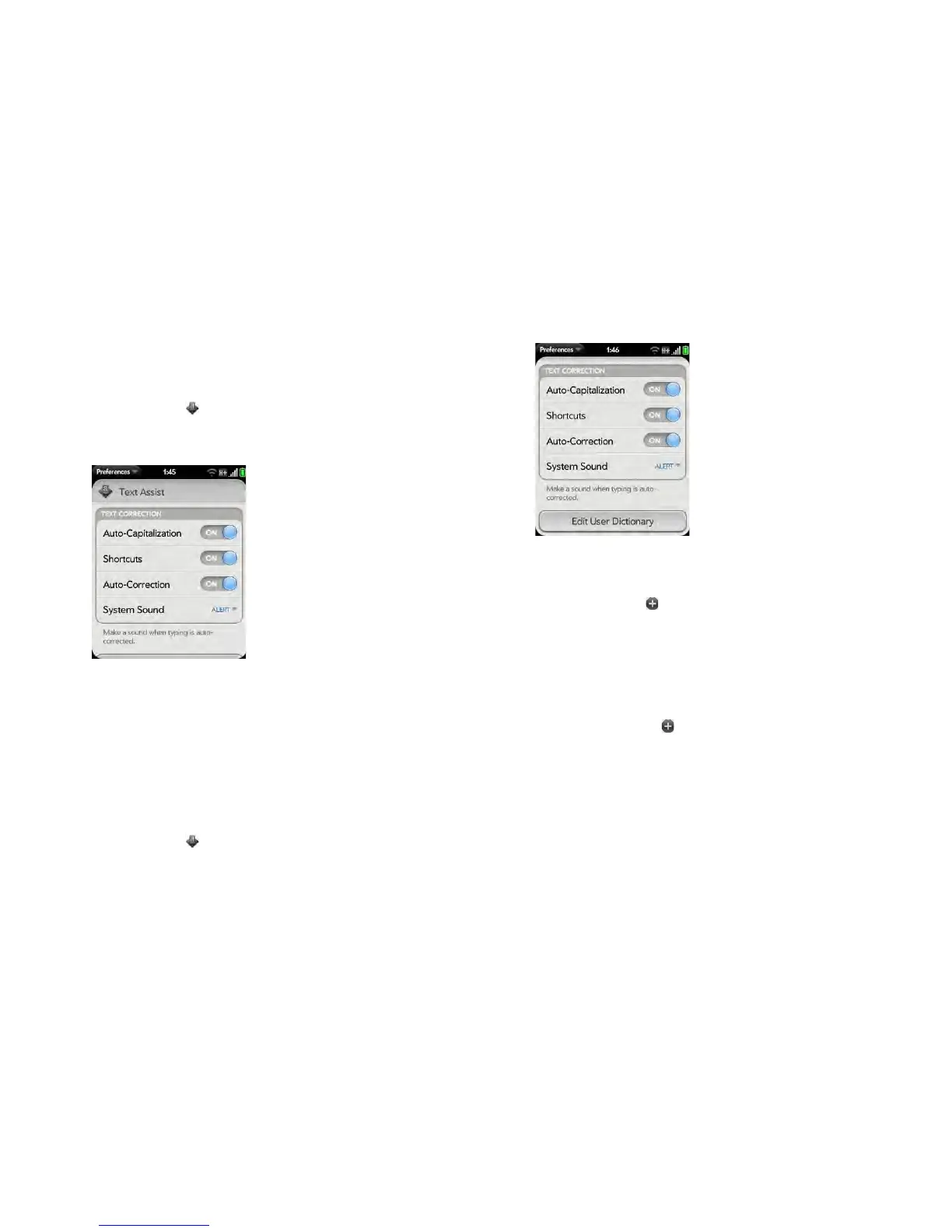
Customize Text Assist settings
You can customize individual Text Assist features: auto-correction,
auto-capitalization, and shortcuts. To customize the user dictionary, see Add
your own words and shortcuts.
1 Open Te x t A s s i s t .
2 Do any of the following:
• To turn auto-capitalization, shortcuts, or auto-correction on or off:
Ta p Off or On for that entry.
• To change whether a tone plays, the smartphone vibrates, or neither
happens when an auto-correction takes place: Tap Alert, and then
tap System Sound, Vibrate, or Mute. The Alert option is available
only if auto-correction is turned on.
Add your own words and shortcuts
1 Open Te x t A s s i s t .
2 Ta p Edit User Dictionary.
3 To edit the auto-correction dictionary, tap Learned Words and do any
of the following:
• To add a word: Tap , enter the new word, and then tap Add.
• To change the spelling of a word: Tap the word, and then type the
correction to the word. Tap Done.
• To delete a word: Throw the word off the side of the screen. Tap
Delete to confirm.
4 To edit the shortcuts list, tap Shortcuts and do any of the following:
• To add a shortcut: Tap , enter the new shortcut and replacement
text, and then tap Add.
• To change a shortcut and/or its replacement text: Tap the shortcut
you want to change. Tap the Shortcut field or the Replace With
field, and then enter the new shortcut or replacement text. Tap
Done.
• To delete a shortcut: Throw the shortcut off the side of the screen.
Ta p Delete to confirm.


 To Next Page