68 Chapter 6 : Phone
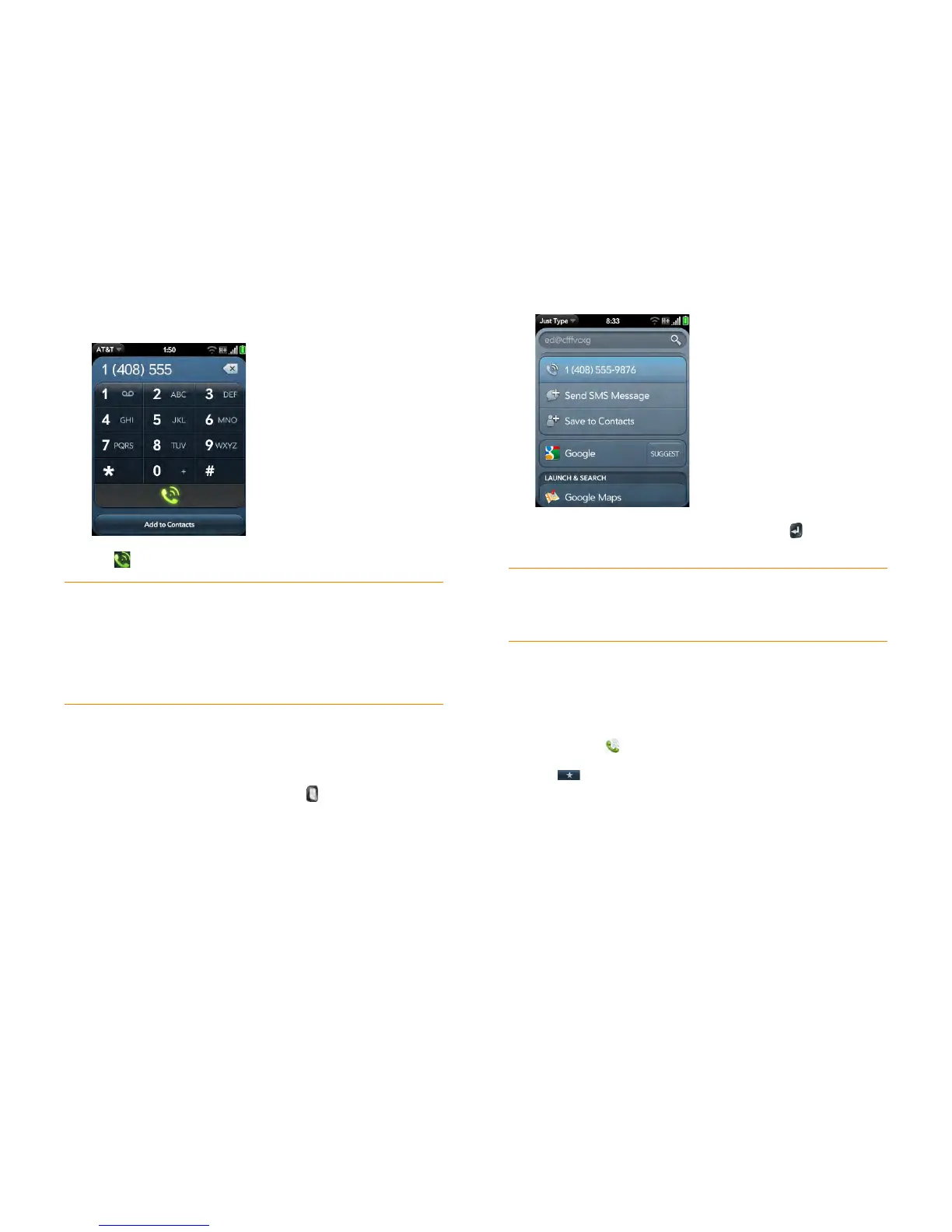
2 Tap the dial pad numbers to enter the number.
3 Tap to d ial.
Dial using the keyboard
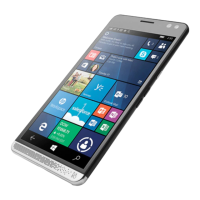
1 In the Launcher, Card view, or Phone, use the keyboard to enter the
number. You do not need to press Option to enter numbers, *,
or #.
2 When you finish entering the number, press Enter or tap the
number to dial.
Dial a favorite
See Create a favorite for instructions on creating a favorite.
1 Open Phone .
2 Tap .
TIP Press Backspace or tap the onscreen backspace icon (at the top of the screen,
to the right of the number you entered) to delete numbers one at a time. Tap and
hold the icon to delete all the numbers.
TIP You can paste numbers copied from other applications—for example, from an
email message or a memo—into the dial pad.
TIP To enter +, tap and hold 0 onscreen.
TIP If you turn off the preference to show contact matches in the dial pad (see
Turn contact match display on/off), this changes how you dial using the keyboard
in the Phone application. In Phone, after you enter the number with the keyboard,
tap the onscreen dial icon to dial.


 To Next Page