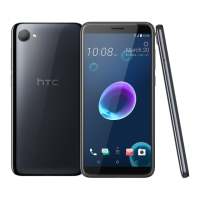
Restoring your wallpaper from your old phone may depend on screen resolution compatibility of
both your old phone and HTC Desire 12s.
Resetting network settings
Reset the network settings when you're having problems connecting HTC Desire 12s to your mobile
data or Wi-Fi network and Bluetooth devices.
1. From the Home screen, swipe up and then tap Settings System Reset options.
2. Tap Reset Wi-Fi, mobile & Bluetooth.
3. Tap Reset settings.
4. Tap Reset settings.
Resetting HTC Desire 12s (Hard reset)
If HTC Desire 12s has a persistent problem that cannot be solved, you can perform a factory reset
(also called a hard reset or master reset). A factory reset reverts the phone back to its initial state—
the state before you turned on the phone for the first time.
Factory reset will remove all data on your phone storage, including apps you've downloaded and
installed, your accounts, your files, as well as system and app data and settings. Be sure to back up
any data and files you want to keep before you do a factory reset.
1. From the Home screen, swipe up and then tap Settings System Reset options.
2. Tap Erase all data (factory reset).
3. Tap Reset Phone.
4. Tap Erase Everything.
A factory reset may not permanently erase all data from your phone, including personal
information.
64 Backup and reset



 To Next Page