
 Need help?
Do you have a question about the Huawei Band 3e and is the answer not in the manual?
Explains the meaning of various icons displayed on the band, covering wrist and foot modes.
Provides instructions on how to attach and wear the band for comfort and accurate data collection.
Details the touch key and wrist gestures for interacting with the band, including waking and switching screens.
Guides users on connecting the band to their smartphone via the Huawei Health app for initial setup.
Explains how the band's time automatically synchronizes with the paired phone's time zone and language.
Instructs on charging the band using the provided cradle and a USB port, including charging time and battery level viewing.
Covers the procedures for turning the band on, off, and restarting it using the touch key.
Details methods to reset the band to its original factory configuration, including data clearing.
Explains how the band notifies users of incoming calls and how to mute them using the touch key.
Describes how to enable and receive app notifications on the band via the Huawei Health app.
Informs about the feature that reminds users to move around and stay active throughout the day.
Explains how the band congratulates users with vibration and screen display upon achieving set daily goals.
Details how to use the band to locate a misplaced phone by triggering a ringtone via Bluetooth.
Explains how to switch between wrist and shoe modes for different types of activities and data tracking.
Guides on using the band in Foot mode for detailed analysis of running form metrics like cadence and step length.
Covers how the band automatically records steps, distance, calories, and other activity data in Wrist mode.
Explains the band's automatic sleep monitoring capabilities, including determining sleep status and data collection.
Details how to share fitness and health data with third-party apps and compare with friends.
Describes connecting the band with another Huawei/Honor wearable for combined heart rate and running form monitoring.
Instructions for setting a smart alarm that wakes users during light sleep within a preset period.
Guides on setting up to five event alarms for reminders of work and social activities.
Explains how to find the band's current firmware version using the band or the Huawei Health app.
Provides steps for updating the band's firmware via the Huawei Health app, including auto-update options.
Details how to check the band's Bluetooth name and its unique MAC address.
Explains the band's 5ATM water resistance rating and provides guidelines on activities to avoid.
Provides guidance on cleaning the band strap after workouts and general maintenance for longevity.
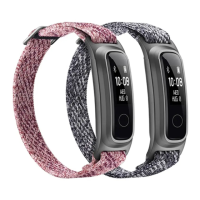
This document outlines the features, usage, and maintenance of a smart band, designed to be worn on either the wrist or attached to a shoe. The band offers a range of functionalities for daily life, fitness tracking, and health monitoring, with an emphasis on seamless integration with a smartphone via the Huawei Health app.
The smart band serves as a versatile personal assistant, providing smart reminders, comprehensive fitness and health tracking, and essential device management features.
For smart reminders, the band handles incoming calls by vibrating and displaying the caller information when worn on the wrist. It supports muting incoming calls with a tap of the touch key and rejecting calls by touching and holding the touch key. Notifications from various phone apps, including SMS, Email, Calendar, and social media, are delivered to the band, causing it to vibrate and turn on its screen. The band also includes an integrated activity reminder, prompting users to move if inactive for an hour, and a goal completion alert that vibrates and congratulates the user upon reaching daily step goals. An integrated "Find Phone" feature allows users to locate their connected smartphone by triggering a ringtone, even in silent mode.
In terms of fitness and health, the band offers two primary wearing modes: Wrist mode and Foot mode. In Wrist mode, it provides daily activity tracking, sleep monitoring, message reminders, incoming call notifications, alarm reminders, and the "Find Phone" feature. Foot mode expands on this by offering professional running form monitoring data, including cadence, step length, ground contact time, foot strike pattern, landing impact, eversion excursion, and swing angle, in addition to daily activity tracking. The band automatically records sleep data, categorizing it into deep sleep, light sleep, or wake-up times, and collects data from 8:00 PM to 8:00 PM the following day. It also supports syncing and sharing fitness data with third-party apps, allowing users to compare progress with friends. A unique dual device connection feature enables the band to work in conjunction with another Huawei/Honor wearable device that supports heart rate monitoring. In this setup, the band focuses on running form, while the second device handles heart rate tracking during workouts.
For setting alarms, the band supports both Smart alarms and Event alarms. Smart alarms are designed to wake users during a light sleep phase within a preset period, promoting a more refreshed feeling. Event alarms allow users to set up to five reminders for work or social activities, displaying a custom tag if provided.
The band is designed for intuitive interaction and ease of use, primarily through its touch key and wrist gestures.
Getting started with the band involves attaching the body to the wrist strap and fastening it with the U-shaped buckle. For initial activation and pairing, the band needs to be connected to its charging cradle. Pairing with a smartphone is done through the Huawei Health app, not directly via Bluetooth, to ensure correct time and step count synchronization. The time zone and language set on the phone are automatically synced to the band upon pairing.
Gestures simplify navigation and interaction. Tapping the touch key switches between screens, while touching and holding it enables the corresponding feature. To wake the screen, users can raise their wrist or rotate it inward. Rotating the wrist when the screen is on allows switching between screens. Lowering the wrist turns off the screen. The "Raise wrist to wake screen" and "Rotate to switch screen" features can be enabled or disabled in the Huawei Health app.
Charging the band involves removing the band body from the strap, aligning its metal contacts with the charging cradle, and inserting it. The charging icon and battery level are displayed during charging. A full charge takes approximately 2 hours. The battery level can be viewed on the band's watch face or in the Huawei Health app. A low battery alert vibrates the band when the charge drops below 10%.
Powering on/off and restarting the band are straightforward. The band powers on automatically when charged and powers off when the battery is empty. To manually power off or restart, users navigate to the respective screens using the touch key and then touch and hold the key.
Restoring factory settings can be done in two ways: either by knocking the time screen twice with a knuckle, tapping the touch key to find the "Restore" screen, and then touching and holding the key; or by using the Huawei Health app.
Switching between wearing modes is crucial for accessing specific features. The band automatically switches to Foot mode when secured to the shoe buckle. Alternatively, users can manually switch modes via the Huawei Health app or by navigating to the mode switch screen on the band and touching and holding the touch key.
Running form monitoring can be initiated directly from the band or through the Huawei Health app. When starting a run from the band, it records data independently and syncs with the phone later. When using the app, both the phone and band are required to ensure real-time data syncing.
Daily activity tracking in Wrist mode automatically identifies walking or running status and records step count, distance, and calories burnt. This data can be viewed directly on the band by tapping the touch key or in the Huawei Health app.
Sleep tracking data can be viewed on the band by tapping the touch key or in the Huawei Health app. For accurate sleep data, it's recommended to wear the band snugly on the wrist.
Updating the band firmware can be done through the Huawei Health app. The app checks for available updates, and users can enable auto-update over Wi-Fi for convenience.
Viewing version information and the Bluetooth name and MAC address can be done by removing the band body from the strap, placing it on a flat surface, and performing specific knuckle knocks and touch key presses on the time screen. Alternatively, this information is available in the Huawei Health app.
Proper maintenance ensures the longevity and optimal performance of the smart band.
Water resistance is rated at 5ATM, allowing the band to be worn while washing hands, in the rain, or swimming in shallow water. However, it is not suitable for showering, diving, scuba diving, or surfing. Factors that can affect water resistance include dropping the band, exposure to alkaline substances (like soap, body wash, perfume, oil), and use in humid, high-temperature conditions (hot showers, saunas).
Cleaning and maintenance involve timely cleaning of the strap, especially after intense workouts, to prevent bacterial growth. After washing, the strap should be placed in a well-ventilated area to dry, and it's advisable not to wear it while it's wet.
 General
| Waterproof | Yes |
|---|---|
| Device type | Wristband activity tracker |
| Closure type | Single prong strap buckle |
| Control type | Touch |
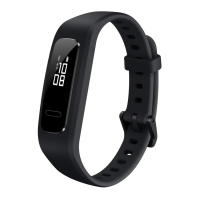
| Product color | Black |
| Housing material | - |
| Water resistance | 5 ATM |
| Waterproof up to | 50 m |
| Maximum strap length | 226.15 mm |
| Display type | PMOLED |
| RAM capacity | 0.000384 GB |
| ROM capacity | 1 MB |
| Display diagonal | 0.5 \ |
| Battery life | 14 day(s) |
| Standby time | 504 h |
| Connectivity technology | Wireless |
| Mobile operating systems supported | Android 4.4, Android 5.0, Android 5.1, Android 6.0, Android 7.1, Android 7.1.2, iOS 10.0, iOS 11.0, iOS 9.0, iOS 9.1, iOS 9.2, iOS 9.3 |
 Weight and Dimensions
| Depth | 40.5 mm |
|---|---|
| Width | 14.8 mm |
| Weight | 17 g |
| Thickness | 11.2 mm |



 To Next Page

