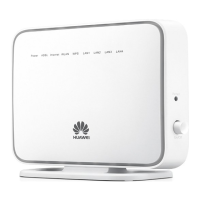
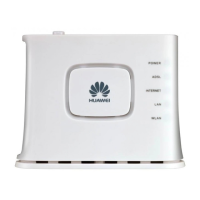
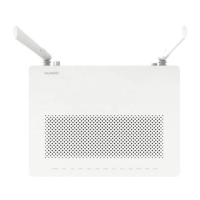
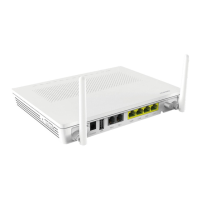
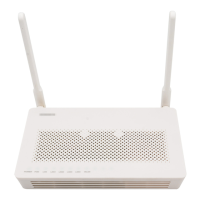
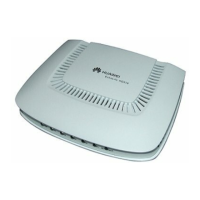
1 Power adapter 2 Computer 3 Set top box
4 Switch 5 Electrograph 6 Telephone
Use the cables and power adapter provided with the product.
The cable connecting figure is only for your reference. You only need to connect devices
you want to use to the CPE.
When the cables are connected correctly, the CPE will search the WiMAX network auto-
matically, and can be used after the network is connected successfully.
Take the Windows XP operating system, Internet Explorer 6.0 browser as an example.
When the CPE is connected to the PC, perform the following steps:
Configure the IP address of the PC and ensure that the IP address of the PC is in the
same network segment as that of the CPE.
The default IP address of the CPE is
192 .168. 1.1
. The default subnet mask of the CPE is
255.255.255.0
.
Enter
http://192.168.1.1
in the address bar of the Internet Explorer, and then press
Enter
.
Enter the correct user name and password in the displayed Web page, and then click
the
Login
button.
The initial user name is
user.
The initial password is
user
.
After the verification of the user name and password is passed, you can log in to the
Web page successfully.
1.
2.
3.
4.
1
Logging in to the Web page
You can restart the CPE in the following two ways:
Pressing the
RESET
button on the side panel.
Operating in the Web page of the CPE.
Perform the following steps to restart the CPE through the Web page:
Log in to the Web page of the CPE.
Choose
Maintain
>
Device
to expand the navigation tree, and click the
Reset
tab.
Click the
Reboot
button to restart the CPE.
•
•
1.
2.
3.
2
Restarting the CPE
For details about the advanced parameters configuration, refer to the Web page.
To read the Online Help, you need to install the Adobe Reader 6.0 or later versions.
•
•
To use the device properly and safely, read these warnings and precautions carefully and strictly observe them during operation.
NOTE: Unless otherwise specified, the device described in this section includes the device and its accessories.
Basic Requirements
During storage, transportation, and operation of the device, keep it dry and prevent it from colliding with other objects.
Do not dismantle the device. In case of any fault, contact an authorized service center for assistance or repair.
Without authorization, no organization or individual can change the mechanical, safety, or performance design of the device.
When using the device, observe all applicable laws and regulations and respect the legal rights of other people.
•
•
•
•
Environmental Requirements for Using the Device
Before connecting and disconnecting cables, stop using the device, and then disconnect it from the power supply. Ensure that
your hands are dry during operation.
Keep the device far from sources of heat and fire, such as a heater or a candle.
Keep the device far from electronic appliances that generate strong magnetic or electric fields, such as a microwave oven or a
refrigerator.
Place the device on a stable surface.
Place the device in a cool and well-ventilated indoor area. Do not expose the device to direct sunlight. Use the device in an area
with a temperature ranging from 0℃ to 40℃.
Do not block the openings on the device with any object. Reserve a minimum space of 10 cm around the device for heat
dissipation.
Do not place any object (such as a candle or a water container) on the device. If any foreign object or liquid enters the device,
stop using the device immediately, power it off, remove all the cables connected to it, and then contact an authorized service
center.
During thunderstorms, power off the device, and then remove all the cables connected to it to prevent it from getting damaged
due to lightning strikes.
•
•
•
•
•
•
•
•
Precautions for Using Wireless Devices
Do not use the device where using wireless devices is prohibited or may cause interference or danger.
The radio waves generated by the device may interfere with the operation of electronic medical devices. If you are using any
electrical medical device, contact its manufacturer for the restrictions on the use of the device.
Do not take the device into operating rooms, intensive care units (ICUs), or coronary care units (CCUs).
•
•
•
Areas with Inflammables and Explosives
Do not use the device where inflammables or explosives are stored, for example, in a gas station, oil depot, or chemical plant.
Otherwise, explosions or fires may occur. In addition, follow the instructions indicated in text or symbols.
Do not store or transport the device in the same box as inflammable liquids, gases, or explosives.
•
•
Accessory Requirements
Use only the accessories supplied or authorized by the device manufacturer. Otherwise, the performance of the device may get
affected, the warranty for the device or the laws and regulations related to telecommunications terminals may become null and
void, or an injury may occur.
Do not use the power adapter if its cable is damaged. Otherwise, electric shocks or fires may occur.
Ensure that the power adapter meets the specifications indicated on the device nameplate.
Ensure that the power adapter meets the requirements of Clause 2.5 in IEC60950-1/EN60950-1 and it is tested and approved
according to national or local standards.
•
•
•
•
Safety of Children
Keep the device and its accessories out of the reach of children. Otherwise, they may damage the device and its accessories by
mistake, or they may swallow the small components of the device, causing suffocation or other dangerous situations.
Maintenance
If the device is not used for a long time, power it off, and then remove all the cables connected to it.
If any exception occurs, for example, if the device emits any smoke or unusual sound or smell, stop using the device immediately,
power it off, remove all the cables connected to it, and then contact an authorized service center.
Do not trample, pull, or overbend any cable. Otherwise, the cable may get damaged, causing malfunction of the device.
Before cleaning the device, stop using it, power it off, and then remove all the cables connected to it.
Use a clean, soft, and dry cloth to clean the device shell. Do not use any cleaning agent or spray to clean the device shell.
•
•
•
•
•
Reduction of Hazardous Substances
This device is compliant with the EU Registration, Evaluation, Authorisation and Restriction of Chemicals (REACH) Regulation
(Regulation No 1907/2006/EC of the European Parliament and of the Council) and the EU Restriction of Hazardous Substances
(RoHS) Directive (Directive 2002/95/EC of the European Parliament and of the Council). For more information about the REACH
compliance of the device, visit the Web site www.huaweidevice.com/certification. You are recommended to visit the Web site
regularly for up-to-date information.
EU Regulatory Conformance
The antenna(s) used for this transmitter must be installed to provide a separation distance of at least 20 cm from all persons.
Hereby, Huawei Technologies Co., Ltd. declares that this device is in compliance with the essential requirements and other relevant
provisions of Directive 1999/5/EC.
For the declaration of conformity, visit the Web site www.huaweidevice.com/certification.
Notice: This device can be operated in all European countries.
France: Outdoor use limited to 10 mW e.i.r.p. within the band 2454-2483.5 MHz.
Italy: For private use, a general authorisation is required if WAS/RLAN's are used outside own premises. For public use, a general
authorisation is required.
Luxembourg: General authorisation required for network and service supply.
Norway: This subsection does not apply for the geographical area within a radius of 20 km from the centre of Ny-Ålesund.
•
•
•
Button Description
WLAN Press this button to enable or disable the WLAN function.
RESET
Press and hold the button for one second to eight seconds to restart the
CPE.
Press and hold the button for over eight seconds to restore the default set-
tings of the CPE.
Once you restore the default settings, all the customized data will
be lost. Use this function with caution.
The following table lists the buttons on the side panel.
Selecting a Proper Installation Position
Obstacles such as concrete or wooden walls may affect the transmission of WiMAX
network signals. Install the CPE in an open space without any obstacle between the
CPE and the PC.
Keep the CPE away from any household appliance that emits strong electric field or
magnetic field, such as a microwave oven, a refrigerator, or a satellite dish antenna.
•
•
5
Preparing for Installation
Positioning the CPE
Rotate the end of the support close to the center of the base 90 degrees anticlockwise as
shown in the following figure to make the support perpendicular to the CPE.
4
Connecting the External Antenna (Optional)
You can connect two external antennas to the CPE. If only one antenna can be connected,
connect it to the main antenna interface with . Otherwise, the CPE may fail to work
normally. Power off the CPE and connect the external antenna.
Do not place the external antenna outdoors.
During lightning weather, stop using the external antenna, and disconnect it from the CPE.
•
•
During lightning weather, power off the CPE and disconnect it from the power supply. Do not
touch the antenna.


 To Previous Page
 Loading...