Huawei IP Phone eSpace
6805&6810&6830&6850&6870
Administrator Guide
Huawei Proprietary and Confidential
Copyright © Huawei Technologies Co., Ltd.
4 Troubleshooting
4.1 Methods of Locating Faults
4.1.1 Displaying Debugging Logs
To locate the cause of the fault on an IP phone or learn the operation of an IP phone, you often
need to use logs of the IP phone. The logs of the IP phone including the SIP information
during the call and key debugging information of the IP phone can be displayed on the server
so that maintenance personnel can query the logs.
Setting the IP Phone
Log in to the Web configuration page and proceed as follows:
1. Access the ADVANCED SETTINGS page.
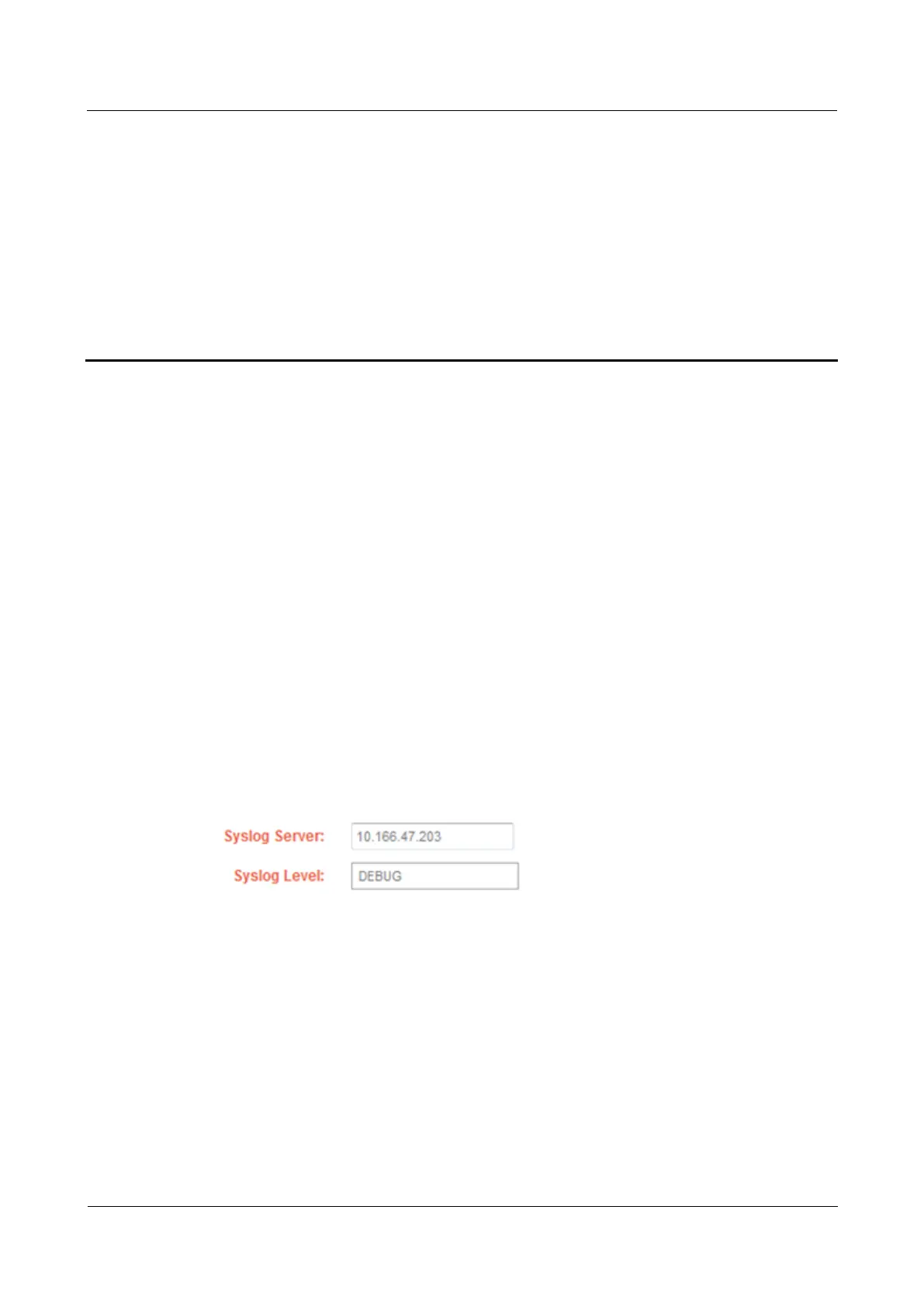
2. Enter the log server address (IP address or domain name) in the Syslog Server text box
and select the output log information level from Syslog Level. By default, the syslog
level is debug.
Figure 4-1 Setting Syslog Server and Syslog Level
3. Click Update to save the setting.
4. Click Reboot to reboot the IP phone. The setting takes effect after the IP phone reboots.
----End
Setting the Log Server
Enable the log server (a common file server can function as a log server and 3CDaemon is
recommended) and proceed as follows:
1. Choose Syslog Server and click Configure Syslog Server to set the storage path of the
log server.



 To Next Page