This document provides a quick start guide for the HUAWEI MateBook models HN-W19, HN-W29, HN-W19R, and HN-W29R. It covers essential information for getting to know your computer, initial setup, basic usage, charging, features, and safety information.
Function Description
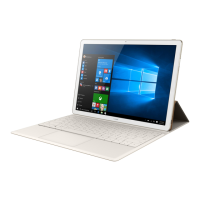
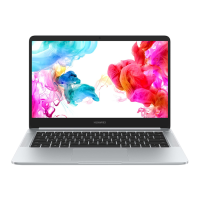
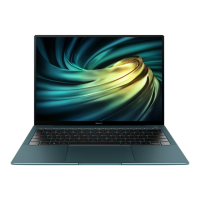
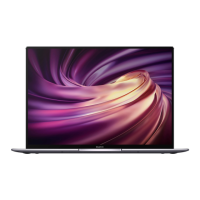
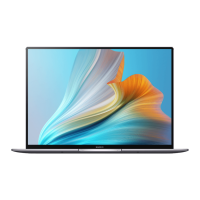
The HUAWEI MateBook is a portable computer designed for general use, featuring a built-in rechargeable battery and a range of ports for connectivity. It includes a camera, camera indicator, fingerprint power button, Huawei Share icon, touchpad, power port, headset jack, charging indicator, USB-C port, and microphone. The device runs on Windows and supports various Microsoft services.
Important Technical Specifications
- Model Numbers: HN-W19, HN-W29, HN-W19R, HN-W29R
- Operating Temperatures: Ideal operating temperatures are 0 °C to 35 °C.
- Storage Temperatures: Ideal storage temperatures are -10 °C to +45 °C.
- SAR Values (Portable Exposure):
- HN-W19/HN-W29: 1.00 W/kg
- HN-W19R/HN-W29R: 1.12 W/kg
- Radio Equipment Frequency Bands and Power:
- Wi-Fi 2.4G: 20 dBm
- Bluetooth: 20 dBm
- Wi-Fi 5G (5150-5350MHz): 23 dBm
- Wi-Fi 5G (5470-5725MHz): 23 dBm
- Wi-Fi 5G (5725-5850MHz): 14 dBm
- Charger Specifications: The device uses an adapter and USB-C charging cable. The power port on the left side of the device is used for charging and data transfer. The USB-C port on the right side is a DisplayPort and can also be used for data transfer.
- Battery: Built-in rechargeable battery.
- Software Version: 2.191.0.7(C001).
- Recommended Accessories:
- Adapters: HW-200325XP0 (with various plug types depending on region: C, U, J, E, B, A, I, R, Z, or K)
- Batteries: HB4593J6ECW
- Docking station: AD11 (Note: MateDock is not a necessary part of the power network supply system and connecting it between the power adapter and MateBook charging port is not recommended).
Usage Features
- Initial Setup:
- First-time use: Connect to the power adapter, wait for the screen to turn on, and follow on-screen instructions to complete setup. This includes connecting to a wireless network, logging in with a Microsoft account (e.g., Outlook.com), setting up Windows Hello with a fingerprint, and setting a PIN.
- Subsequent power-on: Press and hold the power button until the keyboard lights up.
- Force shutdown: Press and hold the power button for more than 10 seconds (note: this will result in data loss).
- Windows Activation: Windows activates automatically upon first connection to the Internet. Fan noise or warmth during this process is normal due to automatic system updates.
- Start Menu: Access computer settings, power off, restart, or enable sleep mode.
- Action Center: Quickly access settings, VPN, projector screens, and change frequently-used settings like Airplane mode and screen brightness.
- One-touch Login (Password-free): The fingerprint sensor power button allows for quick and secure power-on and unlock without a password after setting up Windows Hello and adding a fingerprint. You can add up to 10 fingerprints.
- Press the power button to log in when the computer is off or in sleep mode.
- Touch the power button to unlock when the screen is on.
- Huawei Share OneHop: This feature requires the Huawei Share icon on the computer to be intact. It is supported by certain HUAWEI/HONOR phone models. The NFC detection area on phones varies but is typically near the rear camera.
Maintenance Features
- Restore to Factory Settings:
- Before restoring, connect the computer to power and back up data in Disk C. You can also access the backup and restore screen first to back up data.
- During power-on, press and hold F10 to access the factory settings restore screen and follow the on-screen instructions.
- Cleaning and Maintenance:
- Keep the device and accessories dry. Do not use external heat sources to dry.
- Avoid extreme heat or cold, as these can interfere with function or cause fire/explosion.
- Avoid collisions.
- Before cleaning, stop using the device, close all applications, and disconnect all cables.
- Use a clean, soft, dry cloth for cleaning. Do not use chemical detergents, powder, or other chemical agents (e.g., alcohol, benzene).
- Do not place magnetic stripe cards near the device for extended periods.
- Do not dismantle or remanufacture the device or accessories, as this voids the warranty. Contact a Huawei authorized service center for damage or repair.
- If the screen is broken, stop using the device immediately and contact a Huawei authorized service center.
- Software Updates: The manufacturer will release software updates to fix bugs or enhance functions. All released software versions are verified and compliant with relevant rules. Users cannot access or modify RF parameters.
- Battery Safety:
- Do not connect battery poles with conductors.
- Keep the battery away from excessive heat and direct sunlight.
- Do not modify, remanufacture, insert foreign objects, or immerse the battery in liquids.
- If the battery leaks, avoid contact with electrolyte and flush with clean water if contact occurs, then consult a doctor.
- Stop using the device if the battery deforms, changes color, or overheats.
- Do not put batteries in fire.
- Dispose of used batteries according to local regulations.
- Do not allow children or pets to bite or suck the battery.
- Do not smash, pierce, or expose the battery to high external pressure.
- If the device or battery is dropped, it may be damaged.
- Replace the battery if standby time shortens significantly.
- The device contains a built-in battery; do not attempt to replace it yourself. Contact a Huawei authorized service center for replacement.
- Use only IEEE-Std-1725 standard qualified charging systems and batteries.
- Do not disassemble, open, crush, bend, deform, puncture, or shred the battery.
- Electronic Device: Do not use where prohibited or if it causes danger/interference.
- Interference with Medical Equipment: Follow hospital rules. Some wireless devices may affect hearing aids or pacemakers. Maintain a minimum distance of 15 cm between the device and a pacemaker.
- Protecting Hearing: Do not listen at high volumes for long periods. Lower headset volume to a safe level. High volumes while driving can cause distraction.
- Flammables and Explosives: Do not use where flammables or explosives are stored (e.g., gas stations, chemical plants). Do not store/transport in containers with flammable liquids, gases, or explosives.
- Traffic Security: Observe local laws. Do not use wireless devices while driving. Concentrate on driving. RF signals may affect motor vehicle electronic systems. Do not place the device over airbags. Wireless devices may interfere with airplane flight systems.
- Child's Safety: Comply with child safety precautions. Detachable parts may present a choking hazard. Children should use the device with adult supervision.
- Personal Information and Data Security:
- Keep the device in a safe place.
- Set screen lock and password/unlock pattern.
- Periodically back up personal information.
- Do not open messages/emails from strangers.
- Avoid visiting insecure websites.
- Set passwords for Wi-Fi hotspot and Bluetooth services.
- Install security software and scan for viruses regularly.
- Obtain third-party applications from legitimate sources and scan them.
- Install security software/patches from Huawei or authorized third-party providers.
- Update the device through online update features or official packages from Huawei.
- Be aware that some applications require/transmit location information or collect detection/diagnostic information.
The crossed-out wheeled-bin symbol indicates that electronic products and batteries must be taken to separate waste collection points at the end of their working lives, not disposed of with household garbage. Users are responsible for disposing of equipment at designated collection points for separate recycling of WEEE and batteries according to local laws. Proper collection and recycling help conserve valuable materials, protect human health and the environment. For more information, contact local authorities, retailers, or household waste disposal services, or visit http://consumer.huawei.com/en/.
Reduction of Hazardous Substances
The device and its electrical accessories comply with local rules on the restriction of hazardous substances (e.g., EU REACH, RoHS, and Batteries regulations). Declarations of conformity can be found at http://consumer.huawei.com/certification.
- Body Worn Operation: The device complies with RF specifications when used at 0.0 cm from the body. Accessories should not contain metal components.
- Declaration of Conformity (DoC): Huawei Technologies Co., Ltd. declares that this device complies with Directive 2014/53/EU. The latest DoC can be viewed at http://consumer.huawei.com/certification.
- Usage Restrictions: The device can be operated in all EU member states. Observe national and local regulations. Use may be restricted depending on the local network.
- 2.4 GHz Band Restrictions: Norway: This subsection does not apply to the geographical area within a radius of 20 km from the center of Ny-Ålesund.
- 5 GHz Band Restrictions: According to Article 10 (10) of Directive 2014/53/EU, the WLAN function is restricted to indoor use only when operating in the 5150 to 5350 MHz frequency range in certain EU countries (BE, BG, CZ, DK, DE, EE, IE, EL, ES, FR, HR, IT, CY, LV, LT, LU, HU, MT, NL, AT, PL, PT, RO, SI, SK, FI, SE, UK, TR, NO, CH, IS, LI).
Huawei Technologies Co., Ltd. declares that its products conform to the Energy-related Products Directive (ErP) 2009/125/EC. Detailed ErP information and user manuals are available at http://consumer.huawei.com/en/certification. The HUAWEI MateBook has an independent USB-C adapter input interface. Connecting the MateDock between the power adapter and the MateBook charging port is not recommended as the MateDock is not essential for the power network supply system.

 Need help?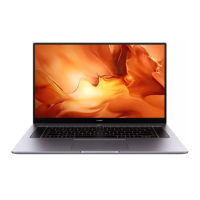


 To Next Page
 General