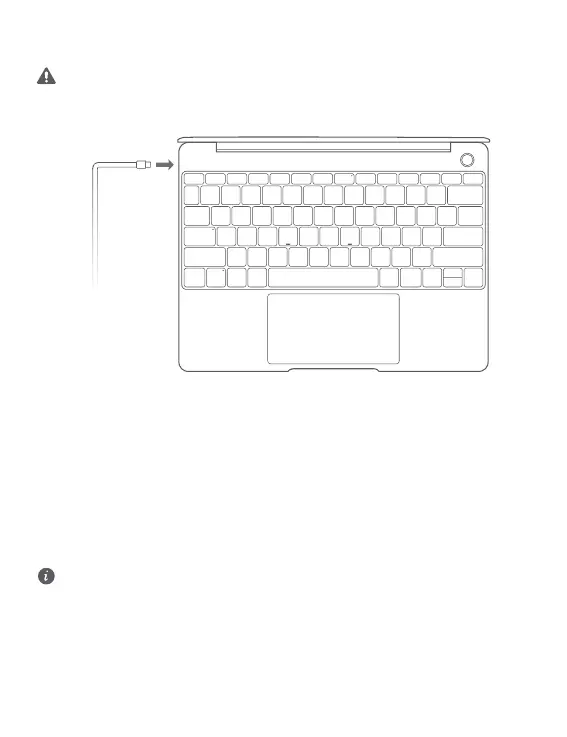
Initial setup
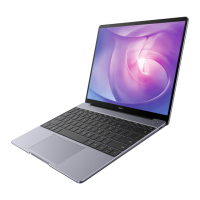
l When you turn on your MateBook 13 for the rst time, connect it to the power adapter, and
wait for the screen to turn on to access the setup screen.
l When you turn on your MateBook 13 again, press and hold the power button until the Keyboard
lights up.
When you use your MateBook 13 for the rst time, follow the onscreen instructions to complete the
setup.
l Set up your login name and password.
Set up the login name and password on the MateBook 13.
l Set up Windows Hello and add a ngerprint
The ngerprint sensor power button allows you to turn on your MateBook 13 without the need to
enter a password. It is quick and secure.
l Set a PIN
Use your PIN to log in to your MateBook 13 and access other apps and services.
After desktop is displayed, complete the following promptly.
l Activate Windows: When your computer is connected to the Internet for the rst time, Windows is
activated automatically.
After your computer is connected to the Internet for the rst time, you may hear noises generated
by the fan or feel that the computer is getting hot. This is normal during an automatic Windows
system update.
2



 To Next Page