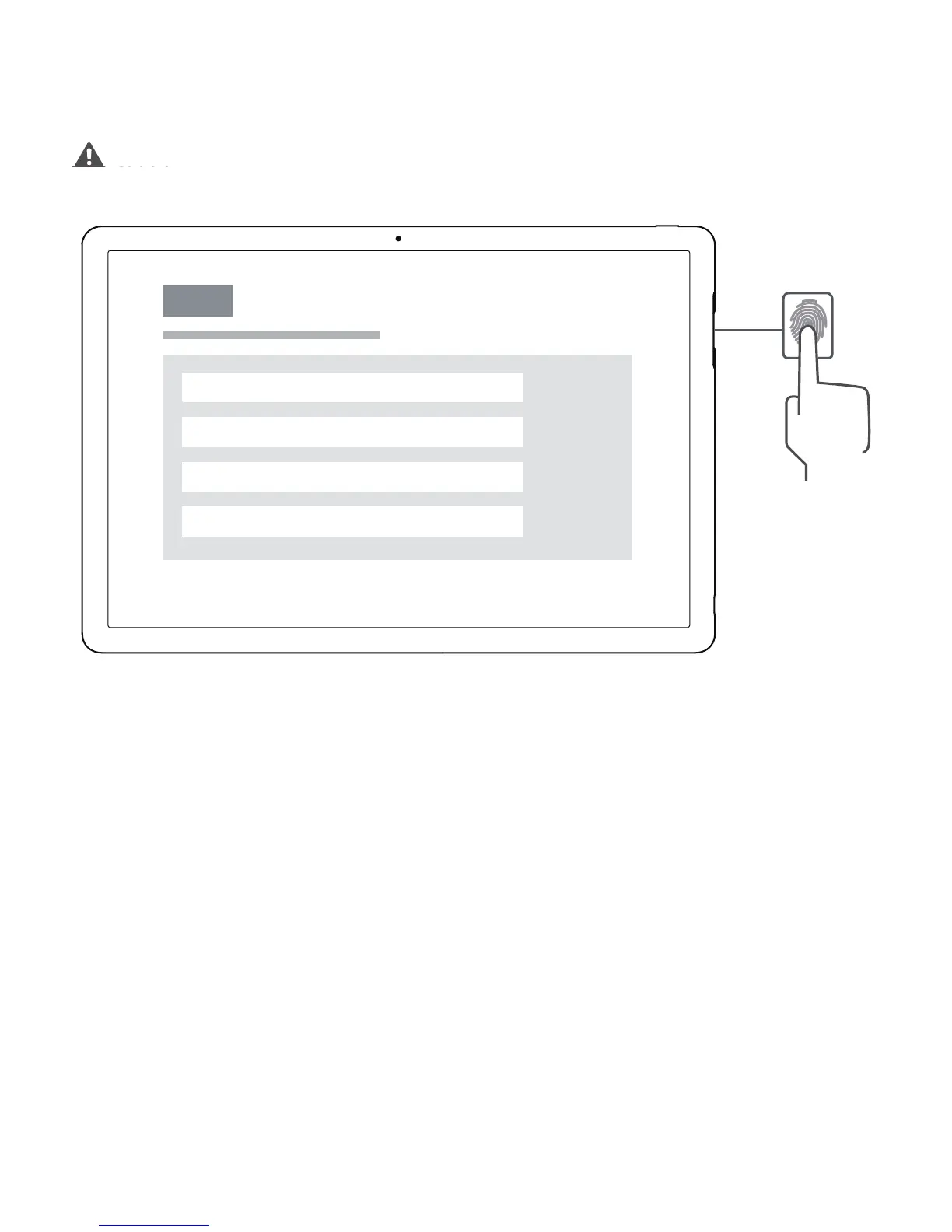
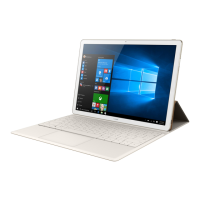
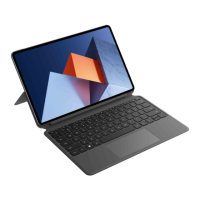
Charge your MateBook E before using it for the first time. Press and hold the power
button to turn your MateBook E on.
When you use your MateBook E for the first time, follow the onscreen instructions to
complete the setup.
•
Connect to a wireless network
•
Log in to your MateBook E using a Microsoft account
Log in with your Microsoft account (such as O
utlook.com) to access a range of
Microsoft services on your MateBook E.
•
Set a PIN
Use your PIN to log in to your MateBook E and other apps and services.
•
Set up Windows Hello and add a fingerprint
Touch the fingerprint sensor to unlock the screen, even when the screen is off.



 To Next Page