10
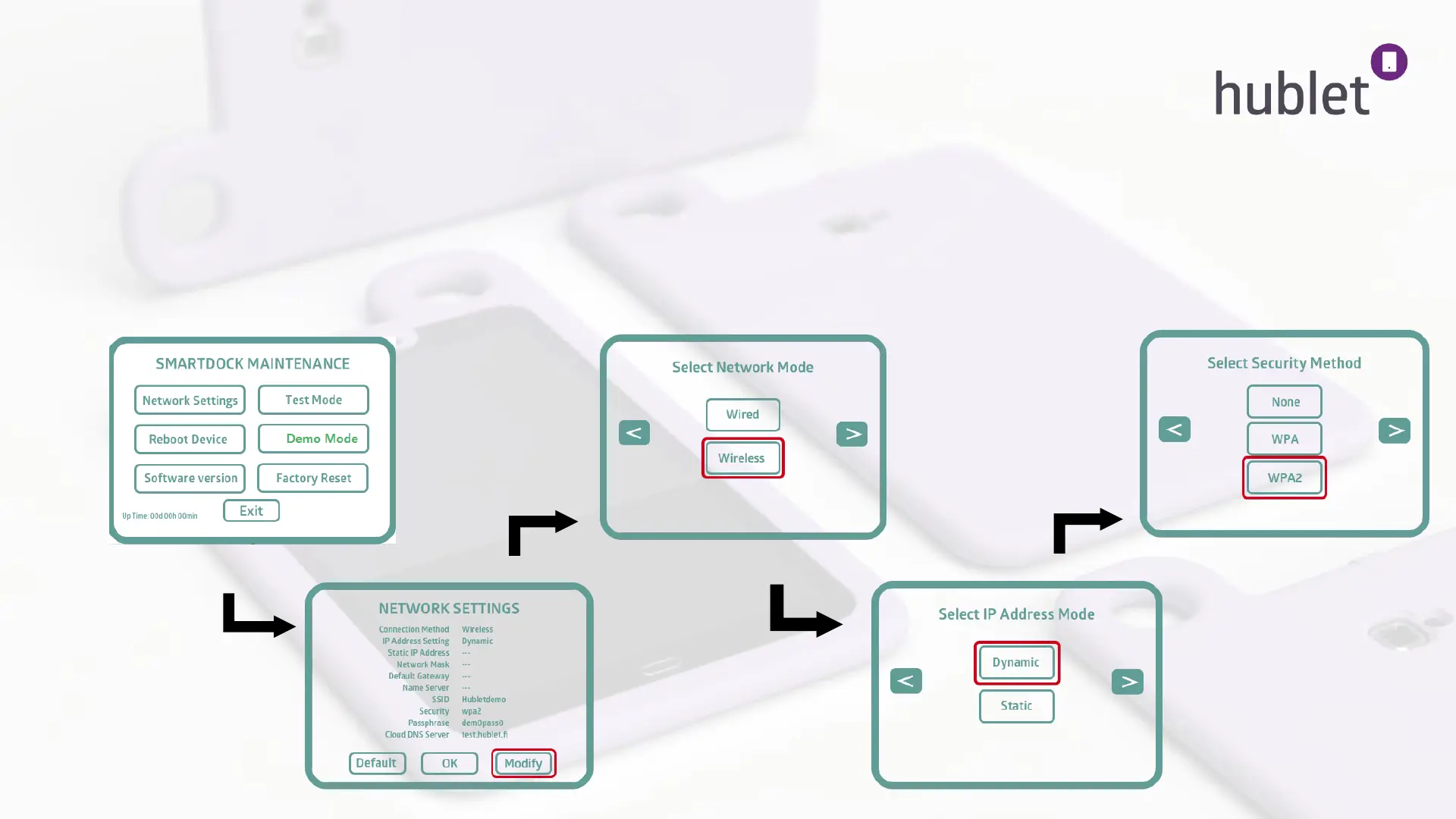
6. You are now on the Smartdock Maintenance screen. Press Network Settings and then Modify.
7. First select the Network Mode. To connect the dock to a WiFi network, choose Wireless and press forward.
8. *If you are using an ethernet cable, connect it to the back of the dock, choose Wired > Dynamic.
Then skip to step 12.
9. Next, select the IP Address Mode Dynamic, move forward.
10. Select the Security Method the network is using. In this example the network is protected with a WPA2 password. If
the network doesn’t require a password, choose None. After making the selection, press forward.
Taking into use: Connecting Hublet Dock to a network 3/4
Dock: Maintenance mode
start screen view
Dock: Network Settings
Dock: Network mode
Dock: Security method
Dock: IP address mode
13/03/2019


 To Next Page
 Loading...