The HuddleCamHD Serial Joystick Controller (Model No. HC-JOY-G4 V1.0) is a device designed for controlling PTZ (Pan, Tilt, Zoom) cameras. It offers a comprehensive set of features for managing multiple cameras, adjusting their settings, and recalling presets.
Function Description
The joystick controller allows users to precisely control camera movements (pan, tilt, zoom), adjust focus, iris, and white balance settings, and manage camera presets. It supports various control protocols, including VISCA, PELCO-D, and PELCO-P, making it compatible with a wide range of PTZ cameras. The device features a 3-axis joystick for intuitive camera movement, momentary push buttons for various functions, and an LCD display for showing connection info and menu settings.
Key Functions:
- Speed Control Dial: Adjusts control speeds for pan, tilt, and zoom.
- Mode Change Button: Switches between Basic and Matrix modes.
- LCD Display: Shows connection information.
- Set & Call Presets: Allows setting and recalling up to 255 presets.
- Exposure Control: Manages exposure modes and settings.
- White Balance Control: Adjusts white balance modes and settings.
- Joystick Controller: Provides pan, tilt, and zoom control.
- Focus Control: Adjusts or locks focus.
- Camera Select: Selects the camera to be controlled (up to 255 cameras).
- Numeric Buttons: Used for presets and data entry.
- Backlight Toggle: Increases backlight.
- OnePush Trigger: Calculates white level.
- Joystick Setup Menu: Enters the joystick setup menu.
- Camera OSD: Adjusts camera settings via the On-Screen Display.
Important Technical Specifications
- Control Interfaces: RS232 full-duplex, RS485 semi-duplex, RS422 full-duplex.
- Supported Protocols: VISCA, PELCO-D, PELCO-P.
- Baud Rate: Variable, from 1200 to 19200 bps (1200, 2400, 4800, 9600, 19200).
- Maximum Communication Distance: RS485: 3,937ft [1200m] using 24 gauge twisted pair cabling.
- Maximum Cameras: Can control a maximum of 255 cameras via Pelco-D/P.
- Power: 12VDC, 2000mA power supply.
- Power Consumption: 6W Max.
- Display: LCD.
- Working Temperature: 14°F ~ 122°F [-10° ~ +50° C].
- Working Humidity: 10 ~ 90% (non-condensation).
- Weight: 3.4 lbs. [1.6 kg].
- Dimensions: 12.6"(W) x 7.1"(D) x 4.3"(H) [320mm x 181mm x 110mm].
- Housing: All Metal housing.
- Warranty: 2 Year Warranty.
Usage Features
The controller is designed for ease of use with intuitive controls and a clear LCD display.
Basic Control:
- Pan & Tilt Control: Joystick movement provides variable speed pan and tilt of the camera head.
- Zoom Control: Rotation of the joystick controls variable speed zoom of the lens. Clockwise rotation zooms in, counter-clockwise zooms out.
Manual Control Options:
- Focus Control: VISCA Protocol only. Pelco-D & P do not support Manual Focus commands. Users can adjust focus level by twisting the Focus knob. The knob is twisted to automatically enable focus. Twisting clockwise focuses far, and counter-clockwise focuses near. Auto Focus mode can be re-entered by pressing the Focus knob.
- Exposure Control: VISCA Protocol only. Pelco-D & P do not support Manual Exposure commands. The Iris / Shutter / Gain knob allows adjusting the corresponding Exposure settings. Pressing the knob changes the selection. Note: Some cameras may not have an "Iris" or "Shutter" mode. Use Manual Exposure mode for best results.
- White Balance Control: VISCA Protocol only. Pelco-D & P do not support Manual White Balance commands. The R Gain / B Gain knob allows adjusting the corresponding Red or Blue Gain level. Pressing the knob changes the selection. Note: The camera must be set to Manual White Balance mode to manually define the Red and Blue Gain levels.
- Speed Control: Users can adjust Pan, Tilt, Zoom, Focus, and Preset speeds by twisting the Speed knob. Pressing the knob changes the selection. Pan (0 – 24), Tilt (0 – 20), Zoom (1 – 7), Focus (1 – 7), and Preset Speed (1 – 24) can be adjusted.
Selecting a Camera:
- Quick Camera Select: Press the CAM # button associated with the camera to control.
- CAM ID Button: Press the CAM ID button, input the Camera ID, then press Enter.
PTZ Presets:
- Set a PTZ Preset: Press and hold one of the 0 - 9 buttons for 3+ seconds to set a preset in the current position.
- Set Button: Press the Set button, input the Preset number, then press the Enter button.
- Call a PTZ Preset: Quickly press one of the 0 - 9 buttons to call that preset.
- Call Button: Press the Call button, input the Preset number, then press the Enter button.
- Notes on using presets with VISCA: The HC-JOY-G4 uses the same presets as the IR remote controller, VISCA, Pelco-D, or Pelco-P protocols. This is in contrast to Sony's traditional offset of 1 between the IR remote and VISCA commands.
Joystick Setup Menu - LCD Menu:
- Key Tone: Options include: On, Off.
- Restore Default: Press Enter twice to restore default settings. Press the Escape button to cancel.
- ADD: Options include: VISCA, Pelco-D, Pelco-P. To add a camera to the joystick, select the desired control protocol, then press the Enter button. Use the joystick to select the camera ID. Left and Right move in increments of 1. Up and Down move in increments of 5.
- Version: Displays the firmware version.
- Invert Pan: Options include On, Off.
- Invert Tilt: Options include On, Off.
Maintenance Features
The manual provides troubleshooting steps for common issues:
Cannot Control Camera at all:
- Check that LCD is in the Main Menu. Press "Esc" key to return to main menu, if needed. Repeated presses may be required depending on how deep you are in a menu (e.g. this can often happen after setting presets and then attempting to Call presets without exiting the Set menu).
- Check both KB settings and camera settings to ensure that the following ALL match:
- Camera ID (e.g. 01, 02, etc…)
- Camera Protocol (e.g. VISCA, PELCO-P, PELCO-D)
- Baud Rate (e.g. 9600)
- Check all KB-camera connections and cabling per "Connection Wiring and Indicators" section.
Controlling more than 1 camera at a time:
- Check all cameras to ensure that each has a unique ID.
- Check all camera settings in KB menu to make sure that the protocol setting for that camera ID matches that of the actual camera.
- Note, you cannot typically mix VISCA, Pelco-P or Pelco-D cameras in the same daisy chain.
- Check control wiring:
- For RS232, cabling must flow from KB into the VISCA-in port of the first camera and then from VISCA-out port of first camera to VISCA-in port of next camera, etc… A VISCA cross-over cable must be used for all camera to camera connections. These are available from HuddleCamHD in various lengths as well as from other sources.
- For RS485 and RS422, all connections are in parallel (e.g. all cams’ 485+ are connected to KB’s 485+ and all cams’ 485- are connected to KB’s 485-) and termination may be required depending upon overall cabling distances involved.
Warranty:
HuddleCamHD includes a limited parts & labor warranty for all HuddleCamHD manufactured joystick controllers. The warranty is valid only if HuddleCamHD receives proper notice of such defects during the warranty period. HuddleCamHD, at its option, will repair or replace products that prove to be defective. HuddleCamHD manufacturers its hardware products from parts and components that are new or equivalent to new in accordance with industry standard practices.
Precautions:
- Read the manual carefully before using the joystick.
- Avoid damage from stress, violent vibration or liquid intrusion during transportation, storage or installation.
- Do not apply excessive voltage.
- Keep the joystick controller away from strong electromagnetic sources.
- Do not clean the joystick controller with any active chemicals or corrosive detergents.
- Do not disassemble the joystick controller or any of the joystick’s components. If problems arise, contact your authorized dealer.
- After long term operation, moving components can wear down. Contact your authorized dealer for repair.

 Need help?
 General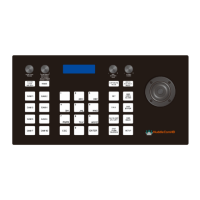

 To Next Page