EasyManua.ls Logo

HUHD HW-399M - User Manual

HUHD HW-399M
11 pages
Print Icon
To Next Page IconTo Next Page
Loading...
Optical wireless gaming headset instruction manual
Item name : 2.4G optical wireless gaming headset Model : HW-399M
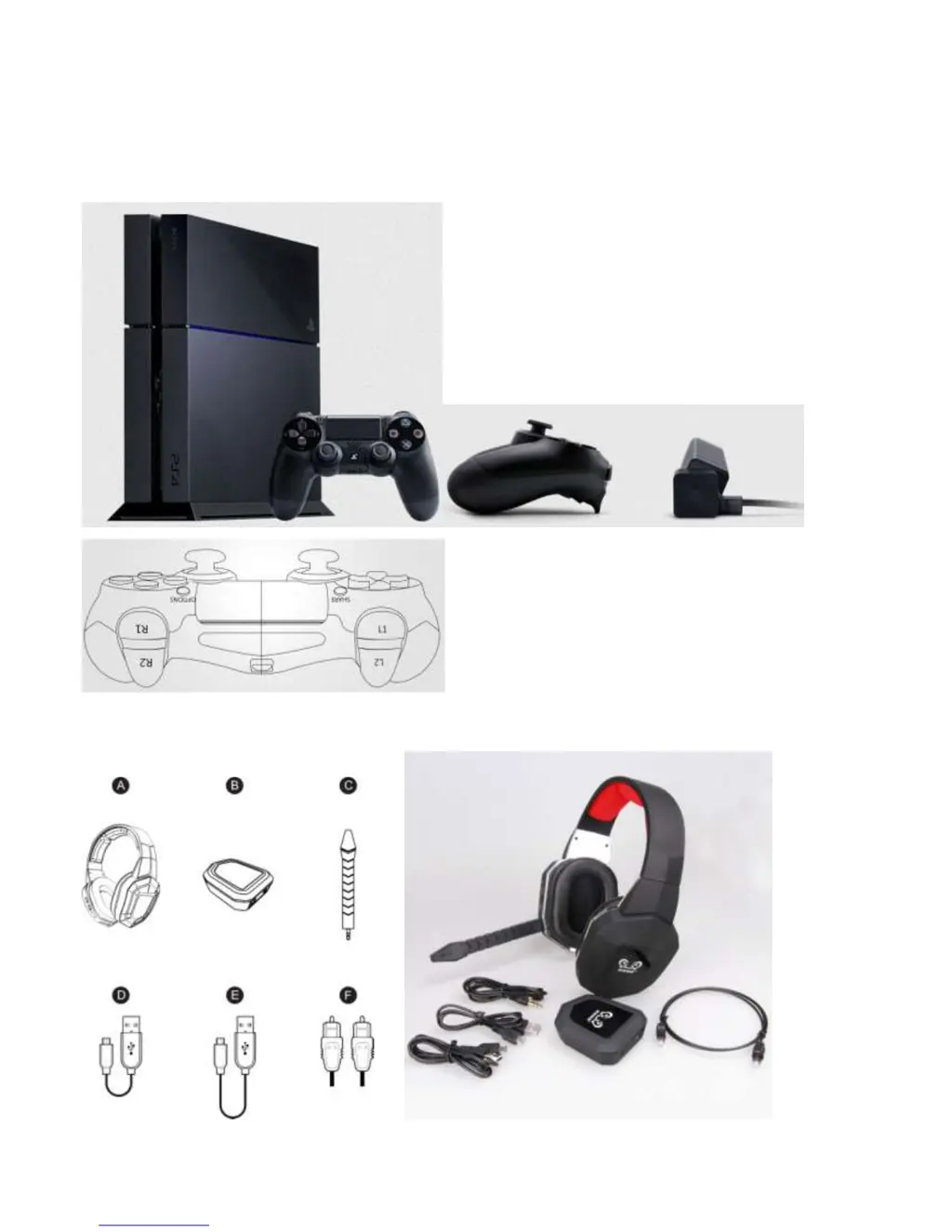
AFor PS4 console
BProduct & accessories :
AHeadset ------------------------1PCS
BTransmitter---------------------1PCS

Questions and Answers

  • O
    ohallAug 2, 2025
    What to do if HUHD HW-399M Headsets have no mic sound?
    • W
      Wendy NelsonAug 2, 2025
      If your HUHD Headsets have no mic sound, ensure the microphone is properly plugged in. Use a short USB cable for audio transmission. Also, check that the mic isn't muted by pressing the mute/pair button to activate the mic sound. Finally, the settings should be: Settings-Accessory Settings-Audio Device Settings-Input Device and Output Device - Select all options: 2.4G Wireless headset-OK-Enter.
  • K
    kimberly60Aug 8, 2025
    What to do if HUHD HW-399M have no background sound?
    • K
      Kaylee SimsAug 8, 2025
      If your HUHD Headsets have no background sound, first ensure that the optical cable is connected correctly, removing the protection cover and connecting it in the right direction. Additionally, the console setting should be: Settings--System--Console settings--Audio-- Digital Output -- DigitalStereo (don’t choose Dolby Digital 5.1 or Dolby Digital with WMA Pro), Sound Effects--Enable Sound Effents Ratings Collection Sound ---Turn On.
  • S
    Scott KleinAug 17, 2025
    How to fix HUHD HW-399M Headsets that power off after 10 mins?
    • L
      Luke VillaAug 17, 2025
      To prevent your HUHD Headsets from powering off after 10 minutes, fully charge the headset for 5 hours before use.
  • D
    donald40Aug 25, 2025
    How to power on HUHD HW-399M Headsets?
    • L
      leslie66Aug 25, 2025
      To power on your HUHD Headsets, long press the power button for 3 seconds. If that doesn't work, use a USB cable to charge the headset. The red indicating light will be on during charging and off after fully charged, which takes about 5 hours.

Summary

Product & Accessories

Headset

Main audio device for wireless gaming.

Transmitter

Device that connects the headset to the gaming console.

Detachable Microphone

An accessory microphone that can be attached to the headset.

Micro USB-USB Short Cable

Short cable for connecting devices via USB.

Micro USB-USB Long Cable

Long cable for connecting devices via USB.

Optical Cable

Cable used for optical audio connections.

Connection Ports Function

Transmitter Ports

Details on the optical and USB ports of the transmitter.

Headset Ports and Controls

Description of headset ports, buttons, and volume controls.

Connection Method

Initial Charging

Instructions for charging the headset via USB.

Connecting to PS4 Console

Steps for connecting the headset and transmitter to a PS4.

Detail Connection Diagram

Visual guide illustrating the connection setup.

PS4 Console Settings

Navigate to Sound and Screen Settings

Guide on accessing audio settings on the PS4.

Configure Audio Output Settings

Steps for setting up audio output preferences.

Select Primary Output Port

Choosing the digital optical port for audio output.

Set Audio Format Priority

Configuring audio format to Linear PCM.

Configure Audio Devices

Setting the headset as the input and output device.

Select Output to Headphones

Assigning audio output to the connected headset.

Set Chat Audio Output

Configuring the headset for chat audio.

Operation Method

Connecting and Pairing

Steps for connecting the transmitter and pairing the headset.

Muting Microphone

How to mute the headset microphone.

Adjusting Volume

Using the volume controls for game and chat audio.

Specifications

Transmitter Specifications

Technical details of the transmitter unit.

Headset Specifications

Technical details of the headset unit.

Common Issues and Solutions

Troubleshooting Power Issues

Solutions for headset not powering on.

Troubleshooting Charging Indicator

Resolving issues with the charging light.

Troubleshooting No Background Sound

Solutions for lack of game audio.

Troubleshooting No Mic Sound

Solutions for microphone not working.

HUHD HW-399M Specifications

General IconGeneral
BrandHUHD
ModelHW-399M
CategoryHeadsets
LanguageEnglish

Related product manuals