Need help?
Do you have a question about the Humanware Brailliant BI 20X and is the answer not in the manual?
Details on using the Brailliant Braille keyboard for typing with various braille tables and JAWS settings.
Covers command keys, braille navigation, Windows commands, and navigation commands for the Brailliant device.
Explains how to use the Brailliant keyboard to emulate PC keyboard functions, including modifier and function keys.
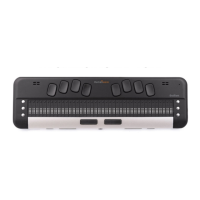
The Brailliant BI X Series is a refreshable braille display designed to control JAWS screen reader software, enabling users to read, write, and navigate in a braille environment on a Windows PC. It offers flexible connectivity options, supporting up to five simultaneous Bluetooth connections and one USB connection. This document outlines the setup process for the Brailliant BI X series with JAWS versions 18 and later, along with useful braille shortcuts.
The Brailliant BI X Series serves as a tactile interface for the JAWS screen reader, translating on-screen text into braille characters on its display. This allows visually impaired users to interact with their computer in a braille-centric manner, enhancing accessibility and productivity. The device supports various braille tables, including computer Braille, US Grade 2 Braille, Unified English Braille, uncontracted, and contracted braille, which can be configured in the JAWS braille settings. Beyond displaying braille, the Brailliant BI X features a braille keyboard that allows users to type text directly into PC applications and simulate PC keyboard commands. This dual functionality makes it a comprehensive tool for braille users.
The Brailliant BI X series requires JAWS version 18 or later to function. For JAWS versions 18-20, specific drivers for the Brailliant BI X series must be installed. These drivers can be downloaded from the HumanWare support page or via a provided link, and the installation process involves running an executable file ("Braille_terminal_drivers") and following an InstallShield Wizard. During installation, users must select "Install drivers for JAWS 18 or later," confirm any User Account Control prompts, and choose "HumanWare Brailliant BI 40X or BI 20X" as the device to install. For JAWS 2021 and above, the Brailliant BI X Series driver is pre-installed, but JAWS must be configured to use the display. This involves navigating to the JAWS window, opening the Braille options, adding the Braille display, selecting the HumanWare Brailliant BI X display, and restarting JAWS.
The device offers two primary connection types:
The Brailliant BI X provides extensive control over JAWS through its braille keyboard and command keys. The six command keys (Dots 1-2-3 on the left and Dots 4-5-6 on the right) are integral to executing commands. For example, pressing command keys 2-3-4-5 simulates the braille letter 'T'.
The Brailliant's keyboard can emulate PC keyboard keystrokes, including modifier keys (CTRL, ALT, WINDOWS Key, SHIFT, JAWS Key, INSERT key) and function keys (F1-F12). To use a modifier key, the user presses and holds SPACE with DOT 8, followed by the corresponding modifier key's braille representation. For example, SHIFT is SPACE with DOTS 7-8, CTRL is SPACE with DOTS 3-8, ALT is SPACE with DOTS 2-8, WINDOWS Key is SPACE with DOTS 1-8, Function Keys are SPACE with DOTS 4-8, JAWS Key is SPACE with DOTS 5-8, and INSERT Key is SPACE with DOTS 6-8. After entering the modifier, the user releases the keys and then presses the remaining portion of the keystroke. For function keys, SPACE with DOTS 4-8 is followed by letters A through L (representing F1-F12). For example, F7 is SPACE with DOTS 4-8 followed by G (DOTS 1-2-4-5).
The document does not explicitly detail maintenance features. However, it provides troubleshooting advice for connection issues: if a USB or Bluetooth connection is unsuccessful, restarting JAWS and the PC is recommended. For Bluetooth connections, ensuring proximity to the computer is advised to avoid signal loss. The device also includes a "reconnect devices" option within the menu of the connected device to address Bluetooth connection issues, which can disconnect and reconnect active Bluetooth connections. Users can define their own commands in the JAWS keyboard manager, accessible in the utility submenu of JAWS, allowing for customization and adaptation to individual needs.
 General
| Display Type | Braille |
|---|---|
| Number of Cells | 20 |
| Battery Life | Up to 20 hours |
| Category | Personal Care Products |
| Model | Brailliant BI 20X |
| Manufacturer | Humanware |
| Connectivity | Bluetooth, USB |
| Compatibility | iOS, Android, Windows, macOS |


 To Next Page