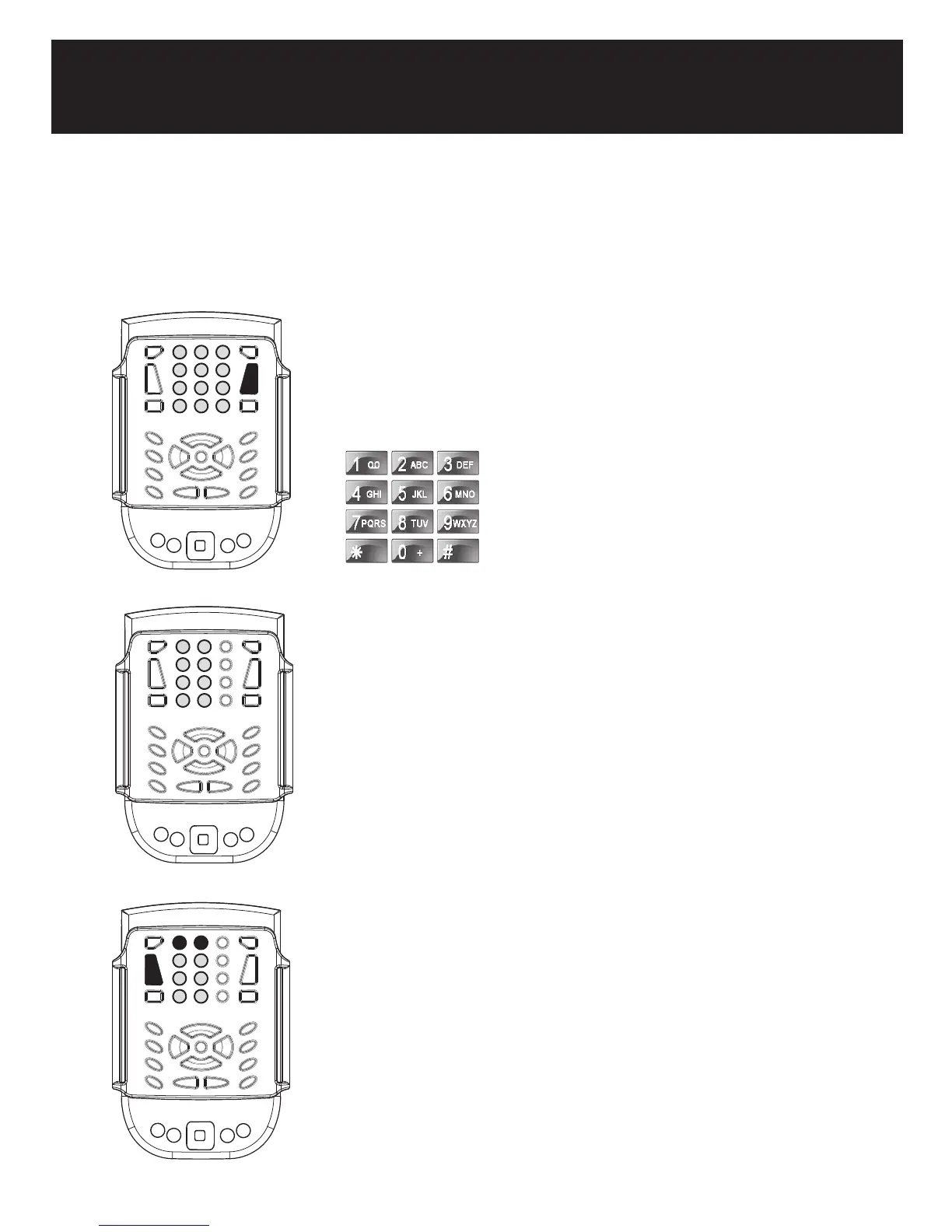
Data input
Telephone keyboard
Keys are used like those on a cellular telephone.
a. Select a key and press repeatedly till you hear the desired value.
b. Press Validate.
For example to input b, press #2 three times, then Validate.
Preview a route
1- From the Trekker Application menu, select Route.
2- Arrow right to select the Browse submenu. Select pedestrian or
motorized.
3- The list of routes will appear. Use the Down arrow to select a route ,
then Enter to activate the route.
4- Use the Up Arrow and Down Arrow keys to go forward and back
ward through the route instructions. Press Escape to turn off Route
Browsing.
1
4
7
*
0
8
5
2 3
6
9
#
To enter text, the keypad can be used either as a Braille or a telephone keyboard. Press and hold F4 to
toggle between the Braille and telephone keyboard.
To enter a capital letter, select the value,
then press Shift + Validate
Press key #1 and # 0 for special
characters.
Pressing only Validate will enter a space. When using computer Braille, dot 7
is required for capital letters.
Braille keyboard
When used as a Braille keyboard, the 6 dots of a Braille cell are mapped
in the first 2 columns. Dots 7 and 8 for computer Braille are mapped in
the last row.
1
2
3
7 8
6
5
4
1
2
3
7 8
6
5
4
Type each Braille dot one at a time, then accept the character using one
of the Validate keys. For example, to input the letter c, press Braille dot
1, Braille dot 4, then Validate.
Pressing only Validate will enter a space.
When using computer Braille, dot 7 is required for capital letters.
b
1
4



 To Next Page