
 Need help?
Do you have a question about the hydrawise HWC-012-US and is the answer not in the manual?
Details on selecting a protected location with WiFi coverage for the controller.
Explains the two cable entry options: rear of the case or bottom conduit.
Step-by-step instructions for drilling and mounting the controller using screws.
Guide on wiring solenoid valves to the controller's common and zone terminals.
Detailed steps for connecting solenoid wires, including recommendations for sealing connections.
Instructions for connecting the 24V AC plug pack to the unit's terminal blocks.
Details on wiring standard rain/moisture sensors and flow meters to controller inputs.
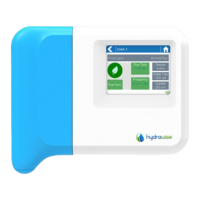
Explains the Home screen, navigation buttons, and color-coding of screen elements.
Steps for connecting the controller to a wireless router via the setup wizard or manual settings.
How to access and check the controller's current wireless network status and settings.
Procedure to select or manually enter a wireless network name for connection.
Guidance on matching the controller's security type with the wireless router's settings.
Instructions for entering the wireless router password on the controller's interface.
Explanation of various status messages displayed during Wi-Fi connection attempts.
Steps to resolve problems when the controller fails to connect to the wireless router.
How to check the controller's connection status to Hydrawise servers for data synchronization.
Detailed meanings of status messages like Sync'd, No Internet, Wireless Down, and Error XXX.
Tips to enhance Wi-Fi signal for better controller performance, like repositioning or using repeaters.
How to view IP/DNS settings and test network connectivity to ensure proper operation.
Tests connectivity to a public server (Google) to diagnose internet configuration issues.
Explains how time and date are synchronized and set via the Hydrawise app and location.
Displays the status of up to 6 zones at a time, with color coding for zone activity.
Details on accessing specific zone status, including name, sensor state, water usage, and current.
Steps to create a new account on the Hydrawise website for controller management.
Instructions for logging into an existing Hydrawise account and initiating controller setup.
Guide to naming your controller and entering its serial number for identification.
How to set the controller's physical address to retrieve local weather forecasts.
Instructions on how to add new irrigation zones to the controller's configuration.
Overview of adding and naming irrigation zones, specifying watering frequency or type.
How to define specific days and times when the controller is allowed to water.
Crucial step to connect the physical controller to the user's Hydrawise account for operation.
Method to manually set watering frequency and length, adjusted by watering triggers.
Automated watering based on environmental conditions like evaporation and rainfall.
Guide to navigate to the Zones & Schedules page and use the wizard to add new zones.
Details on setting zone name, number, icon, and selecting watering type (Smart or Time Based).
Options for Smart Watering: manual entry of time/frequency or using pre-configured schedules.
Manual input for watering length and peak season frequency for Smart Watering zones.
Option to select or create schedules based on predefined length/frequency for Smart Watering.
Feature to break watering time into cycle/pause periods for Smart Watering to improve soil absorption.
Allows fine-tuning of watering time for Smart Watering zones if they appear too dry or wet.
Options for Time Based Watering: manual entry of time/frequency or using pre-configured schedules.
Manual input for watering length, frequency, and schedule adjustment for Time Based Watering.
Select or create schedules based on predefined length/frequency for Time Based Watering.
Feature to break watering time into cycle/pause periods for Time Based Watering to improve soil absorption.
Allows fine-tuning of watering time for Time Based Watering zones if they appear too dry or wet.
Explains the function and connection of a master valve in the irrigation system.
Details on how a zone can be configured as a master valve within the Zones & Schedules page.
Explains how flow meters measure water usage, aid reporting, and help create alerts for flow issues.
Supports standard open/closed contact sensors for stopping irrigation or advanced applications.
Steps to create a new sensor in Hydrawise, including naming and selecting sensor type.
Select the controller to which the sensor is wired and choose the controller input.
Guide to creating custom sensor types for specific needs, like flow meter sizes or watering restrictions.
Configure minimum seconds before a sensor can trigger a zone to start again.
Set delay before stopping a zone or how long it should be disabled after sensor activation.
Options to suspend watering based on forecast temperature, rainfall, or wind speed.
Suspend watering based on actual rainfall over the past 24 hours or 7 days.
Adjust watering percentages based on forecast temperature and humidity for water savings.
Utilize evapotranspiration data and weather forecasts to predict and adjust watering schedules.
Details various alert types like high water usage (with/without zones running) and wiring faults.
Configure how alerts are delivered: event log, app notification, or SMS notification.
Information regarding CE and FC certifications for the device.
Compliance statement for Industry Canada license-exempt RSS standards, including operating conditions.
FCC compliance statement for Class B digital devices, addressing potential radio frequency interference.
Steps for users to correct radio frequency interference if it occurs.
 General
| Brand | hydrawise |
|---|---|
| Model | HWC-012-US |
| Category | Controller |
| Language | English |

 To Next Page