LED backlight modes:
There are six LED backlight modes: ► Solid (default) ► Breathing ► Trigger ► Explosion ►
Wave ► Custom.
Solid: Constant lightning (default setting).
Breathing: Slow rhythmic blinking that mimics breathing.
Trigger: Individuals keys will light up when pressed and slowly fade after one second.
Explosion: A lighting effect will radiate from individual keys when pressed.
Wave: Keys will light up from left to right in a wave pattern.
Custom: You can choose which keys you want to light up.
Follow these steps to customize:
1- Switch the backlight mode to Custom.
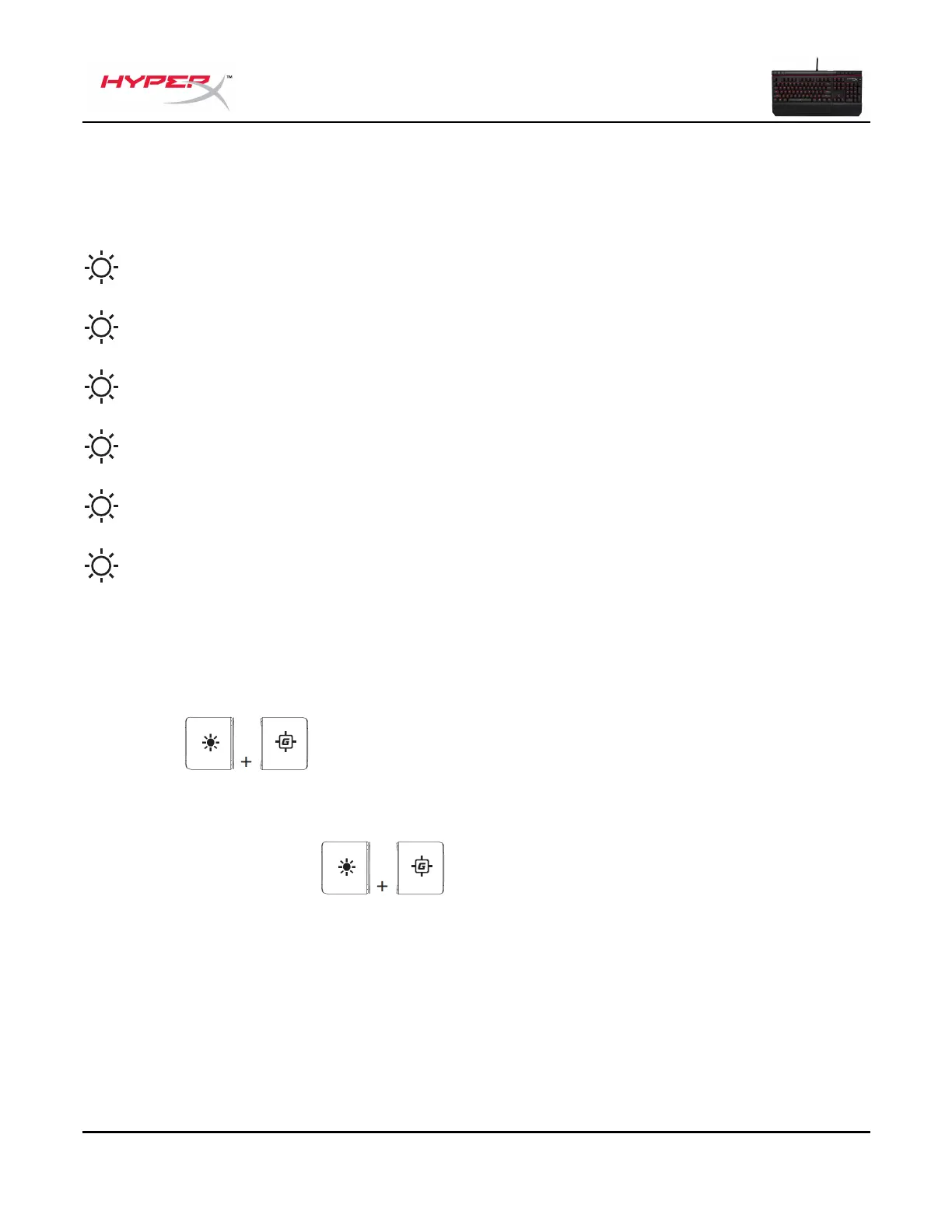
2- Hold until the backlight turns off.
3- Press the key or keys you want to have backlight ON.
4- When finished, press again to save your custom backlight profile.


 To Next Page