ENGLISH
Overview
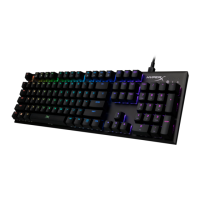
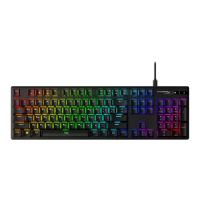
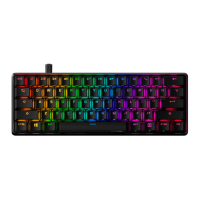
A - HyperX Alloy Rise
B - Top plate
C - Ambient sensor lens
D - Media control buttons
E - HyperX badge
Installation
Function Keys
Press “FN” and a function key at the same time to activate its secondary feature
as indicated on the keycap side-print.
HyperX NGENUITY Software
To customize lighting, Game Mode, and macro settings, download the HyperX
NGENUITY software athyperx.com/ngenuity
Questions or Setup Issues?
Contact the HyperX support team at hyperx.com/support
FUNCTION KEYS SECONDARY FEATURE
TOUCHES MULTIMÉDIA
Enter Switch Prole Select Mode long press for 1
second then select row of numeric keys 1~0. To exit
release FN and R-Shift to exit.
Enter Quick Switch Prole Mode short press to quick
switch between 1~3 proles, release FN to exit.
Enable Game Mode ( ) to disable the Windows
key and prevent accidental interruption during
gaming.
+
+
+ /
+
+
Toggle to enable and disable Ambient Light Sensor
( ) Sensor will automatically adjust backlighting
according to environment.
Increase ( ) or decrease ( ) the LED backlight
brightness. There are 5 levels of brightness.
Skip back ( ), play/pause ( ), or skip forward
( ) while listening to music or watching videos.
Use knob to Mute ( ), decrease ( ), or
increase ( ) computer audio.
F - Keyboard feet
G - USB-C port
H - Keycap puller
I - USB-C to USB-A cable



 To Next Page