
 Need help?
Do you have a question about the Hyundai ACCENT 2019 and is the answer not in the manual?
Connect phone via USB for Android Auto or Apple CarPlay setup.
Pair Bluetooth devices with Display Audio system.
Pair Bluetooth devices with Standard Audio system.
Use voice commands to make calls via Bluetooth on Display Audio.
Make calls using voice commands with Android Auto or Apple CarPlay.
Learn common voice commands for initiating and managing calls.
The 2019 Hyundai Accent Getting Started Guide provides comprehensive instructions for utilizing the vehicle's audio, connectivity, and navigation features, with a particular focus on smartphone integration and phone pairing. This guide is designed to help users quickly set up and enjoy their in-car technology, ensuring a seamless and connected driving experience.
The Hyundai Accent supports both Android Auto and Apple CarPlay, allowing users to integrate their smartphones with the vehicle's head unit screen. This feature enables access to various smartphone applications, including navigation, music, and messaging, directly through the car's display.
To begin smartphone integration, the user must first connect their phone to the vehicle's USB slot using a USB cable. Once connected, the phone will typically prompt the user to allow permission for the connection. For Android Auto users, a tutorial may be offered, which can be viewed or skipped as desired. After granting permission, the smartphone applications will be displayed on the vehicle's head unit screen, ready for use. This process ensures that drivers can safely access essential phone functions without needing to interact directly with their handheld device, promoting safer driving habits.
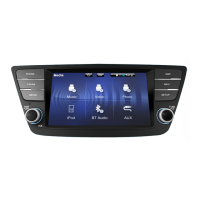
Phone pairing via Bluetooth is a crucial step for hands-free communication and audio streaming. For vehicles equipped with Display Audio, the process begins by ensuring the vehicle's shifter is in PARK. The user then presses the "SETUP" button on the display. On the setup screen, the user will locate and press the "BLUETOOTH®" icon, followed by "BLUETOOTH CONNECTION."
To add a new device, the user presses "ADD NEW." At this point, the phone's Bluetooth must be turned on, and the user should select "Accent D-Audio" from the list of available devices found on their phone. During the pairing process, the phone may require a PASSKEY, which should be entered if prompted. The vehicle will then confirm successful phone pairing. Following this, the vehicle will also confirm that the contacts download is complete.
It's important to note that Bluetooth settings are typically found in the "SETTINGS" app on most phones. Users can refer to their phone's owner's manual or visit HyundaiBluetooth.com for more detailed information. Some phones may require approval to download contacts, a process that can take a few minutes. The contact list may also start with either the first or last name, depending on the phone model. Additionally, some phones might require extra confirmation on the device to allow contacts to sync. The location of buttons and icons may vary slightly from the images shown in the guide.
For vehicles with Standard Audio, the phone pairing process is similar but with slight variations in the interface. As with Display Audio, the vehicle's shifter must be in PARK. The user presses the "SETUP" button, then the "BLUETOOTH®" icon on the screen, and finally "CONNECTIONS."
To add a new device, the user presses "ADD NEW." The phone's Bluetooth should be enabled, and the user should select "Accent" from the list of available devices on their phone. If a PASSKEY is required, it must be entered into the phone. The vehicle will then confirm successful phone pairing and the completion of contacts download.
Pairing will commence immediately if no phone has been previously selected. As with Display Audio, Bluetooth settings are found in the phone's "SETTINGS" app, and additional information can be found in the phone's manual or on HyundaiBluetooth.com. The same considerations regarding contact download approval, contact list sorting, and additional device confirmation apply to Standard Audio systems. Button and icon locations may also differ.
Before making a call using voice commands, it's essential to ensure that the phone has been paired and contacts have been downloaded. If these steps haven't been completed, the user should refer to the previous sections of the guide.
To initiate a voice command, the user presses the "PUSH TO TALK" button located on the steering wheel. A beep will indicate that the system is ready for a command. After the beep, the user says the command "CALL" followed by the name of the desired contact, for example, "CALL JOHN SMITH."
If multiple numbers are associated with a contact, the system will display the options, and the user can select the desired number by saying "1" or "2." Once the number is selected, the system will dial it, and the contact's name and phone number will appear on the screen. To end the call, the user presses the "END CALL" button, also located on the steering wheel.
When using Android Auto or Apple CarPlay for making calls, the process integrates with the smartphone's interface. First, connect a USB cable from the phone to the vehicle's USB slot. An icon indicating Android Auto or Apple CarPlay will be displayed on the screen.
To initiate a voice command, press the "PUSH TO TALK" button on the steering wheel. After a beep, say a command. For Apple CarPlay, screens will appear prompting "What can I help you with?" or showing "John Smith calling home..." with options to End, Mute, Keypad, or Add Call. For Android Auto, screens will show "You can say 'What can you do?'" or "John Smith Mobile 00:00" with call control options.
To end the call, press the "END CALL" button on the steering wheel. This method provides a consistent and intuitive way to manage calls while using smartphone integration.
The guide also lists common voice commands that can be used after a phone has been paired:
While the guide primarily focuses on usage, it implicitly touches upon maintenance through its emphasis on compatibility and performance. Users are advised that compatibility and performance may vary based on their phone, its software, and their wireless carrier. This suggests that keeping phone software updated and being aware of carrier limitations can contribute to optimal system performance. Regularly checking HyundaiBluetooth.com for updated information or referring to the phone's owner's manual for specific settings are also implied maintenance practices to ensure smooth operation of the connectivity features. The guide does not detail physical maintenance of the audio or connectivity systems but rather focuses on software and device compatibility aspects.
 General
| Touchscreen | Yes |
|---|---|
| Bluetooth | Yes |
| Rearview Camera | Yes |
| Radio Data System (RDS) | Yes |
| Display Type | LCD |
| Auxiliary Input | Yes |
| Apple CarPlay | Yes (optional on some trims) |
| Android Auto | Yes (optional on some trims) |
| Steering Wheel Controls | Yes |
| Number of Speakers | 4 |
| Screen Size | 5-inch or 7-inch (depending on trim) |









 To Next Page