Need help?
Do you have a question about the i-team i-vac co-botic 1700 and is the answer not in the manual?
Details the manual's aim to guide users on correct, efficient, and safe operation throughout the product's life.
Specifies that the manual is for operators, supervisors, partners, and importers of the co-botic 1700.
States that only persons who have read and understood the manual or are trained by such a person can operate the device.
Alerts to hazardous situations that can cause injury or damage if safety instructions are not followed.
Highlights hazardous situations that may lead to minor damage to the product or environment if instructions are not followed.
Indicates battery-operated machines and provides instructions for charging and disposal according to regulations.
Notifies about liability situations where the manufacturer is not accountable for damages due to non-compliance.
Specifies the product is designed for vacuuming small spaces in commercial environments, indoors and in dry conditions.
Warns that non-intended use can lead to safety consequences and void the product warranty.
Advises cleaning and checking for damage after each use to ensure a longer lifespan for the co-botic 1700.
States that modifications to the design are not permitted without manufacturer consultation and permission, as it affects the warranty.
Details the warranty period and states that using the product outside the manual's scope voids the warranty.
Explains that each unit has a unique serial number found on the bottom, needed by the i-team partner for parts and service.
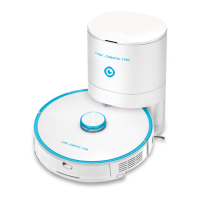
Illustrates and lists the components of the main cleaning unit, including wheels, brushes, and sensors.
Details the optional accessories available, such as the charging base and dust collector, for enhanced functionality.
Identifies and explains the function of buttons (charging, power, network config) and sensors on the main unit.
Instructs to stop operation immediately if the device malfunctions or makes unusual noises, advising service.
Prohibits using the device on damp or wet surfaces due to damage risk and danger, stating warranty non-coverage.
Lists critical precautions for battery use, including temperature limits, avoiding liquids, children, and sharp objects.
Provides first aid procedures for eye, inhalation, or ingestion exposure to battery chemicals and prohibits third-party parts.
Prohibits storing the co-botic 1700 outdoors, specifying it must only be kept in a dry place.
Mandates storing the co-botic 1700 exclusively in a dry environment to maintain its condition.
Recommends fully charging the battery before using the device again after storage, if applicable.
Details the installation process, including removing foam pieces and connecting the USB cable and wall plug.
Provides instructions for placing the charger base flat against a wall without leaving a gap.
Specifies required clearance around the charger base: 1.2m in front and 0.5m to the sides for optimal docking.
Instructs to place the co-botic 1700 on the floor in front of the charging base to initiate operation.
Details the action of long-pressing the power button to turn on the device and begin its functions.
Describes the device's ability to locate and return to its charging base automatically to begin charging.
Emphasizes the importance of fully charging the battery before the initial use of the co-botic 1700.
Guides on using the device for basic cleaning and map generation without the mobile application.
Lists the advanced functionalities enabled by the mobile app, including mapping, zone control, and statistics.
Details the process for downloading the app, creating an account, and logging in for device management.
Instructs to power on the device as the first step in establishing network and app connectivity.
Explains that a flashing blue POWER button indicates the machine is ready for network connection.
Provides instructions to reset the WiFi connection by pressing HOME and POWER buttons if the indicator is not blinking.
Mandates connecting the mobile device to a 2.4Ghz wireless network, as 5Ghz is not supported.
Guides the user to select the 'Add device' option within the mobile application.
Instructs the user to select the specific 'co-botic 1700' device from the list in the app.
Details the process of selecting the user's wireless network and entering the corresponding password.
Instructs to confirm the POWER light is flashing blue and tick a box to verify this status.
Guides the user to connect their phone to the cobot's own Wi-Fi network, named 'Smartlife-xXXXXXX'.
Explains that the app will proceed to connect the cobot to the user's designated wireless network.
Instructs to click 'Done' upon successful connection and confirms the successful integration.
Illustrates selecting a 2.4 GHz Wi-Fi network and entering the password for device connection.
Shows the process of resetting the device by holding specific buttons until the power key is blue and slow.
Demonstrates connecting the mobile phone to the device's hotspot for the setup process.
Visualizes the 'Adding device' progress, ensuring good Wi-Fi signal for successful integration.
Confirms that the cobotic 1700 has been successfully added to the app and is ready for use.
Guides on configuring buildings, rooms, and assigning devices for organizational clarity and management.
Explains how to share device access with other users by creating individual accounts and sharing organizational data.
Specifies that sharing organization access must begin from the account that initially set up the organization.
Guides users to tap the top-left location dropdown on the Home screen to manage sharing.
Instructs to select 'Home Management' to manage locations and initiate sharing processes.
Details selecting the specific location or building that will be shared with other users.
Instructs to press the 'Add member' button to initiate the process of inviting others.
Explains that a dialog will appear, providing a code to share with other members of the organization.
Provides methods for sharing the access code, including messaging apps or direct copying and sending.
Instructs the recipient to log into their app and return to Home Management to use the received code.
Guides the user to select 'Join Home' on the Home Management screen to accept a shared organization.
Instructs the user to enter the previously shared access code to join the organization.
Explains the automatic mapping process, storage, and retrieval of maps for cleaning operations.
Introduces the three main modes for zone-based cleaning: Pin and go, Zone, and Auto.
Guides on creating no-go zones by drawing areas on the map that the cobot should avoid.
Provides instructions on how to define specific rooms within the mapped area for targeted cleaning.
Emphasizes mapping the entire space, including hallways, when setting up multiple rooms for accurate zone definition.
Guides the user to select the 'Zone' button located below the map interface.
Instructs to select the 'Create area' button, typically found on the right side of the screen.
Explains how to draw and shape the area representing a room on the map interface.
Guides on naming the room by using the pencil icon located in the lower-left corner of the shape.
Instructs to press the 'Start' button to save the newly defined room.
Clarifies that the 'Area' button functions similarly to creating no-go zones, also impacting zone cleaning.
Warns about potential network latency causing delays in displaying zones, recommending a short wait.
Details the Auto, Zone, and Pin and Go cleaning modes and their operational characteristics.
Explains the functions of the main buttons: Dock, Start, Suction, and More.
Lists additional features accessible via the 'More' button, including scheduling, manual control, and finding the robot.
Guides on scheduling cleaning tasks by selecting desired dates and times and setting notification preferences.
Describes how to manually move the cobot using the app or an infrared remote, noting potential latency.
Explains the feature to locate the cobot, which will announce its presence when activated.
Explains that this option deletes the current map data, allowing a fresh map to be started.
Allows the vacuum suction to auto-adjust based on floor type, with an option to disable for manual control.
Requires the Automatic Dirt Disposal unit and selects how often the cobot empties its contents into it.
Shows cleaning records, including runtime and square meter coverage of the cobot's activities.
Allows users to adjust the sound levels and voice prompts emitted by the cobot.
Enables setting specific times when the cobot will not operate to avoid disturbing people.
Allows checking the levels of consumables like the filter, dust collector, and roller brush.
Explains how to use the remote's home button to send the cobot back to its charging station.
Instructs on how to activate the remote control functionality for device operation.
Details using the arrow buttons on the remote for manual directional control of the cobot.
Explains how to initiate automatic cleaning using the remote control's start button.
Describes the function to switch off the cobot's voice prompts using the remote control.
Explains starting section cleaning, which divides rooms into 4x4 m2 areas for autonomous cleaning.
Details adjusting the suction level (Quiet/Standard/Powerful) using the remote control.
Instructs to press a specific button for immediate switch to Powerful Mode, suitable for carpets.
Warns to turn off the device and remove the battery before starting any maintenance or part replacement.
Recommends wiping the machine with a dry microfiber cloth after use and before storage, avoiding wet cloths.
Stresses the importance of following recommended maintenance intervals for proper functioning and device lifespan.
Advises contacting an i-team partner for maintenance not covered in the manual, requiring model and serial number.
Details cleaning the exterior of the machine using a dry microfiber cloth.
States that damaged or worn parts must be replaced immediately and advises contacting a partner or visiting the website.
Recommends professional checks after the first 50 hours of use and every 125 hours thereafter.
Refers the user to Section 4 for detailed information regarding the storage of the device.
Provides a comprehensive list of fault codes and their corresponding explanations for diagnosing issues.
Highlights the owner's responsibility for proper and safe disposal of the co-botic 1700.
States that the product must be disposed of according to local laws and regulations for electrical equipment recycling.
Instructs to remove the battery separately for disposal, referencing section 5.4 for details.
Advises removing all loose components from the device as part of the decommissioning process.
Mandates disposing of all components and the device itself in accordance with local laws and regulations.
Suggests contacting an i-team partner to explore options for returning components at the product's end-of-life.
Identifies the product model as Co-botic™ 1700 (basic).
Provides the physical dimensions of the device: 350 x 350 x 98 mm.
States the weight of the device without the battery, marked as 'Not applicable'.
Specifies the total weight of the device with the battery included, listed as 3.4 kg.
Indicates the power source is the 220V docking station.
Lists battery specifications, marked as 'Not applicable'.
States the device can run for 270 minutes on a full battery charge.
Identifies the charger type as 'Docking'.
Specifies the USB-C charging time is approximately 240 minutes.
Lists i-charge 5 time, marked as 'Not applicable'.
Lists i-charge 7 time, marked as 'Not applicable'.
 General
| Brand | i-team |
|---|---|
| Model | i-vac co-botic 1700 |
| Category | Vacuum Cleaner |
| Language | English |

 To Next Page