Removing Microcode Fixes on the MAE
1. ____ Enter the Service Processor maintenance password (default is IBM3745).
2. ____ Double click on the Service Processor icon.
3. ____ Click on Change Management.
4. ____ Double click on Manage Microcode Fixes.
5. ____ Click on View, click on Change directory path
6. ____ Enter the directory path:
J:\MAE\ALL for MCF concerning the MAE
Then click on OK.
7. ____ Click on the lines of the MCFs to be removed (see Figure 2-8 on
page 2-7)
8. ____ Click on Options and from the Options pull down menu click on
Deactivate microcode fix
9. ____ Verify the MCFs status:
a. ____ Enter the Service Processor maintenance password
b. ____ Double click on the Service Processor icon.
c. ____ Click on Change Management.
d. ____ Double click on Manage Microcode Fixes
e. ____ Click on View, click on Change directory path
f. ____ Enter the directory path: J:\MCF.
g. ____ Click on OK and verify the MCFs status, it must be DEACT.
10. ____ Click on the System Menu icon, click on Close to exit from the function.
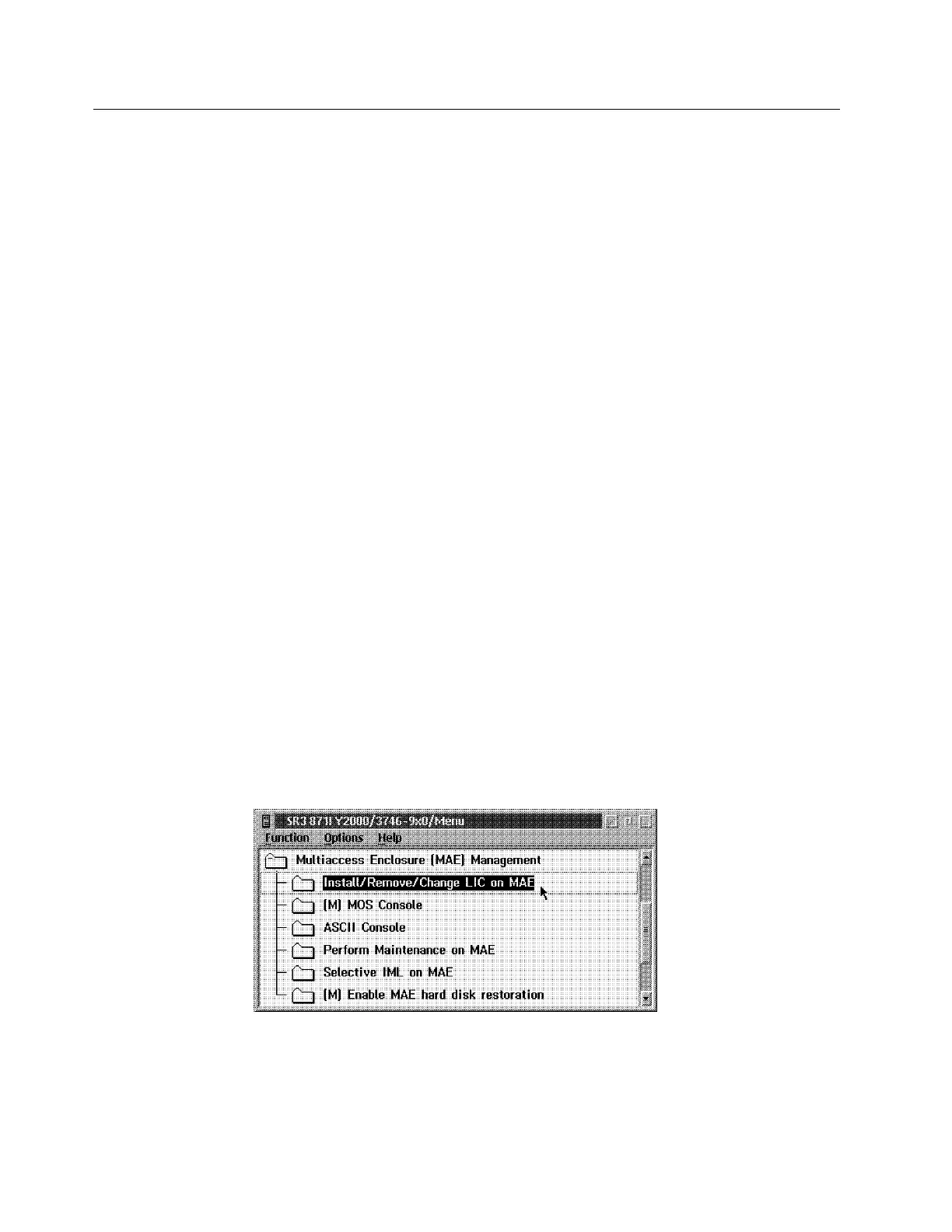
11. ____ Click on Multiaccess Enclosure Management, double click on
Install/Remove/Change LIC on MAE.
Figure 2-11. Multiaccess Enclosure (MAE) Management
12. ____ Click on Change LIC on MAE, the MAE code is now being copied from
the SP hard drive to the MAE hard drive
2-10 3746-9X0: MAE Installation and Maintenance



 To Next Page