EasyManua.ls Logo

ifi ZEN STREAM - Wi-Fi Set-Up; Wi-Fi Connection Steps; Hotspot LED; Network Status LED

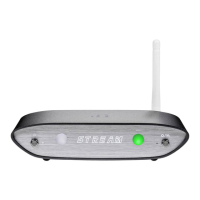
ifi ZEN STREAM
6 pages
Print Icon
To Next Page IconTo Next Page
To Previous Page IconTo Previous Page
Loading...
Network Status
LED
Power Button
Wi-Fi Set-Up
Wi-Fi Antenna
Frequency
LED
Hotspot
LED
Hotspot Button
0 Select
mode
1 (AIO),
connect
Wi-Fi Antenna,
DAC
via
SPDIF
/Coaxial
or
USB,
and Power Supply.
SPDIF/Coaxial
(/)
Ill
USB
Wi-Fi Antenna
8
Poweron.
C,
Wait
up
to
2 minutes.
DC
9V
(1.8
A)
- 1
SV
(0.8A)
0
Press
and hold
Hotspot
0
button
for 2
seconds.
-*-
,,,
e In
your
device's Wi-Fi settings,
connect
to
'iFi-Streamer'.
e The
hotspot
LED
will show solid
white
to
indicate
your
device
is
connected.
8 iOSII · · Enter "http://ifi.1oca1"or"192.168.211.1"
•i•
Enter "192.168.211.1"
[ 192.168.211.1
0 Connect
the
Stream
to
your local Wi-Fi
network.
.
.
.
.
.
Once connected you will
see
a yellow box
on
the
top
right.
Hotspot
LED
will
go
off.
Enter
the
network
password and press Connect.
Fast
(Internet)
Slow (Internet)
c)
0
Network
Status
LED:
(:3
(--
~
0 0
-----[
~
Fast
(Local
network
only)
Slow (No internet)
',
___
_
No connection
0 Connect device back
to
local
Wi-Fi
network
(if
not
already connected).
Go
to
Music Streaming section.

Related product manuals