Manual Configuration 1 of 4
You can log in to your modem settings to
1. On your connected computer or WiFi device, open
configure your connection, or simply adjust your
your web browser and go to http://10.1.1.1
WiFi settings.
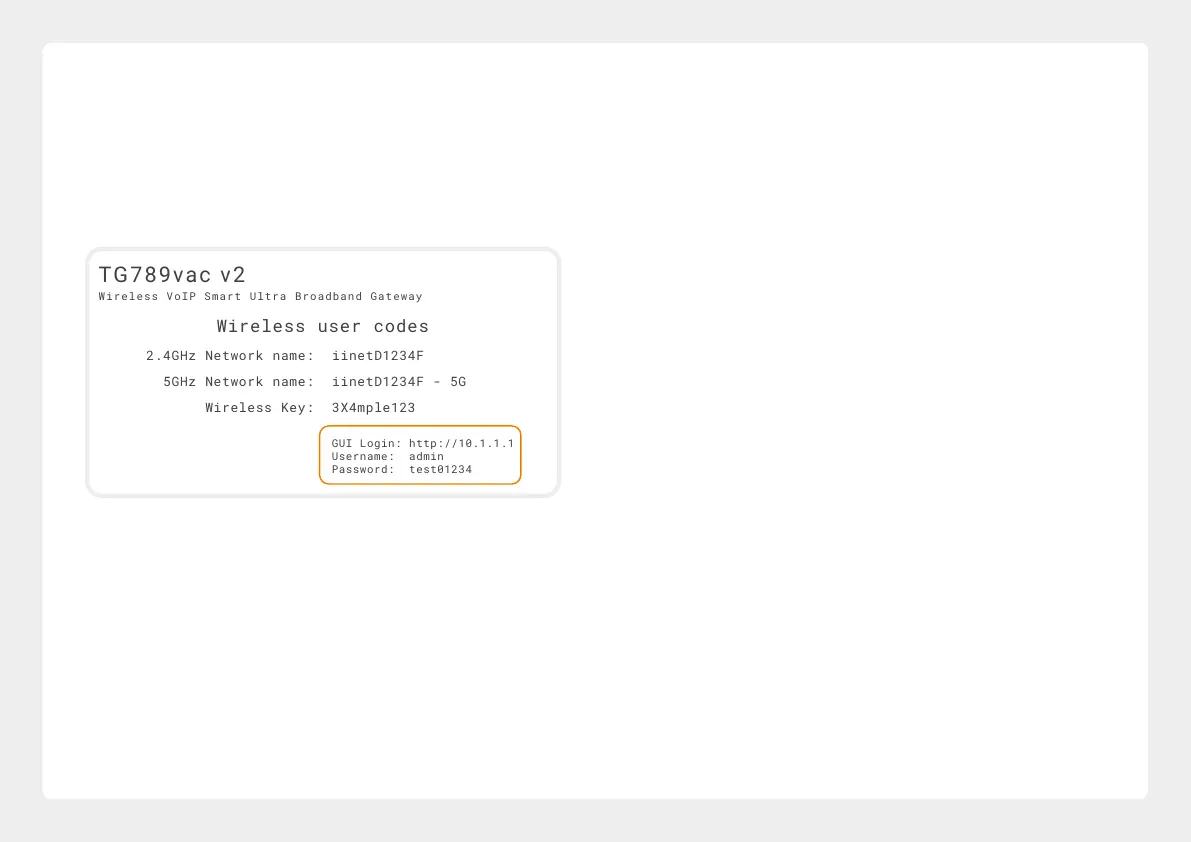
2. Log in with the default username and password,
which can be found under “GUI Login” on your
modem’s barcode sticker.
Wireless VoIP Smart Ultra Broadband Gateway
GUI Login: http://10.1.1.1
Username: admin
Password: test01234
Wireless VoIP Smart Ultra Broadband Gateway
GUI Login: http://10.1.1.1
Username: admin
Password: test01234
3. The Setup Wizard should run; if not, simply click
Setup Wizard on the dashboard.
4. Select your provider from the Internet Service
Provider list. For the rest of the settings, refer to
the table on the next page to the type of internet
that you have.
5. Click Next. If you have an active iiNet Netphone
(VoIP) service, you can enter its details here. If you
have VoIP with another provider or your service
isn't ready yet, click “I don’t have VoIP”. You can set
up VoIP later with the steps on page 20.
6. Click Next, and then turn to page 17 to continue
with your manual configuration.
15



 To Next Page
 Loading...