To download this User’s Guide in English, Spanish, or French, or to get answers to frequently asked questions, visit the support section at:
www.iliveelectronics.com
Para descargar este Manual del Usuario en inglés, español y francés, o para obtener respuestas a preguntas frecuentes, visite la sección de
apoyo en: www.iliveelectronics.com
Pour télécharger ce guide de l’utilisateur en anglais, espagnol ou français, ou pour obtenir des réponses à des questions fréquemment
posées, consultez la rubrique d’assistance sur: www.iliveelectronics.com
For Warranty Information and the most up-to-date version of this User’s Guide, go to www.iliveelectronics.com
Customer Service: 1-888-999-4215 | Email Support: prodinfo@dpiinc.com | Email Parts: partsinfo@dpiinc.com
Copyright © 2017 Digital Products International (DPI, Inc.) All other trademarks appearing herein are the property of their respective owners.
Specications are subject to change without notice.
Customer Support
Protect for Today
Made
Green
Aux In
Requires a 3.5mm audio cable (not included).
1. Connect a 3.5mm audio cable to the Aux In on the unit and the
audio output/headphone jack on an audio device.
2. Press the Source button to switch to Line In mode (“Line” on the display).
3. Use the controls on the connected device to select and play audio.
USB Drives
1. Load a USB thumb drive into the USB Port on the side of the speaker.
2. Press the Source button to switch to USB mode (“USb” on the display).
3. Use the controls on the speaker to select and play audio from the USB drive.
FM Radio
Radio Reception
An FM receiver is built into the speaker. Adjust the position of the unit to improve
FM radio reception.
Automatic Scan and Saving Presets
1. Press the Source button to switch to FM Radio Mode. The display will show
the station frequency, Ex: 101.1.
2. Press and hold the Play button, the radio will scan and save all available
stations (up to 20 max).
Bluetooth Wireless
Pairing & Playing Audio
After initial pairing, the unit will stay paired unless unpaired manually by the user
or erased due to a reset of the device. If your device should become unpaired or
you nd it is unable to connect, repeat the steps listed here.
1. Press the Source button to select Bluetooth Mode (“bt” on the display). The
pairing indicator on the display will begin ashing slowly.
2. Hold the
button to begin pairing. The pairing indicator will begin
quickly ashing blue. When pairing, remain within 3 feet of the unit.
3. Using the controls on your Bluetooth device, scan for and select ISB657 in
your Bluetooth settings to pair. If your device requests a password, enter the
default password 0 0 0 0 . Refer to the user’s manual for your specic device for
instructions on pairing and connecting Bluetooth devices.
4. When successfully paired, the pairing indicator will turn solid and an
audible chime will sound from the unit.
5. Use the controls on the connected device to select and begin playing
audio. Audio played through the connected Bluetooth device should
now be heard through the speaker. Use the controls on the speaker or the
connected device to play, pause, and adjust volume.
Manual Tuning and Saving Presets
1. Press the Source button to switch to FM Radio Mode. The display will show
the station frequency, Ex: 101.1.
2. Press the Skip/Tune buttons to tune to at station.
3. Press & hold Repeat/Memory until the display ashes “CH01”, press Skip/
Tune buttons repeatedly to select a preset number (up to 20 max).
4. Press Repeat/Memory button to save.
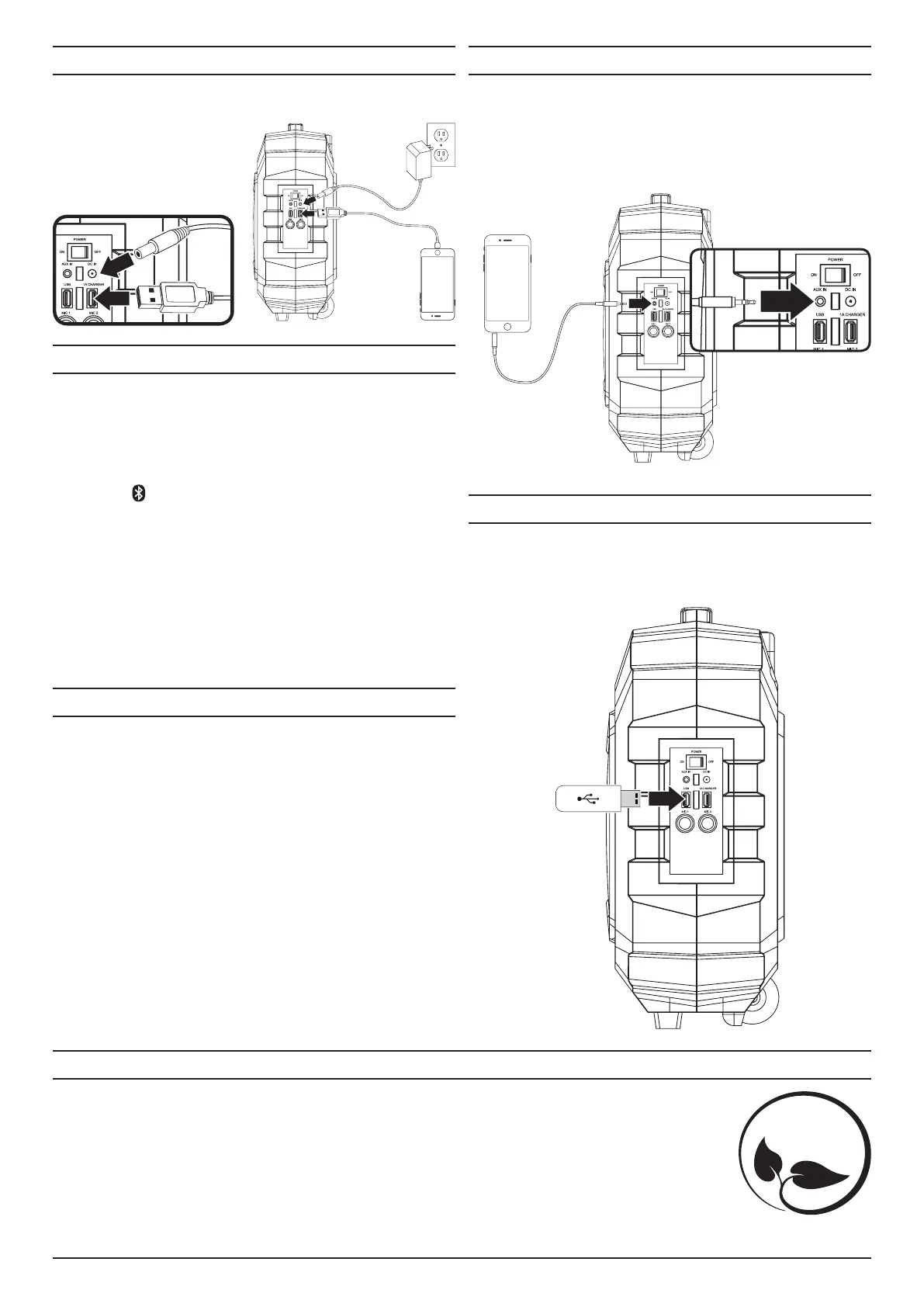
Power & Charging
To power the unit or charge the internal battery, plug the AC/DC power adapter
into the DC Power Input on the side of the unit and a standard power outlet.
Battery life is approximately 3 hours.
To charge mobile devices, use an
appropriate USB charging cable (not
included) to connect the USB charging
plug on the unit and the device you
wish to charge.


 To Previous Page
 Loading...