8
Audio Inputs
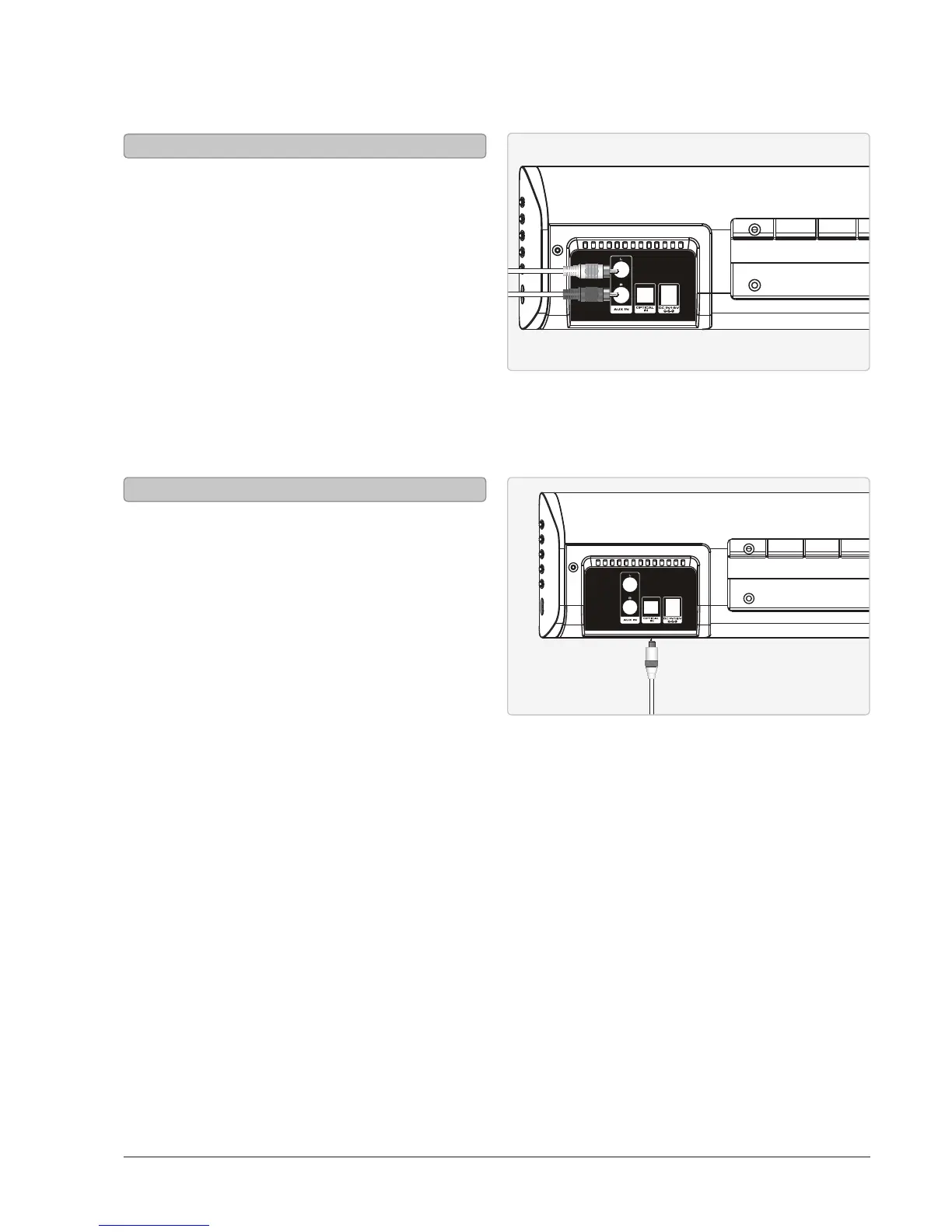
When connecting two products using an RCA
Cable, match the colored ports with the same
colored connection.
Before use, disconnect any cables connected to the
Line In.
1. Connect the RCA Cable to the RCA Stereo Inputs
located on the back of the unit, and to the audio
outputs on the television.
2. Press the Power button to power on the unit.
3. Press the Source button repeatedly to enter Aux
Mode, indicated by a white light.
4. Audio played through the television will now be
heard through the speakers.
Using the Stereo RCA Inputs
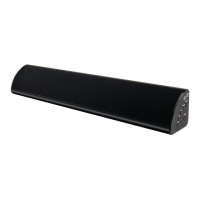
You will need: An audio source with an Optical
Audio Output and a Digital Optical Audio Cable (not
included)
1. Connect the Digital Optical Audio Cable to the
optical output on the audio source and to the
Optical Input on the speaker bar.
2. Press the Power button to power the unit on.
3. Press the Source button repeatedly to switch to
SPDIF Mode, indicated by a amber light.
4. Using the native controls on your connected device,
make sure the audio settings are set to PCM or Optical Audio and are turned On.
5. Audio from the connected audio source will now be played through the speakers.
Important tips:
Use the correct toslink cable and make sure that it is rmly seated in both source and sound bar sockets.
Optical output is activated on the source (they should see a red light emitting from the toslink socket).
It may be labeled SPDIF in the setting menu of the source.
The optical output is set to output PCM and not Dolby Digital.
Using the Optical Input


 To Next Page