12 - 5 TROUBLESHOOTING AND ROUTINE MAINTENANCE
Paper jams
To clear paper jams, please follow the steps in this section.
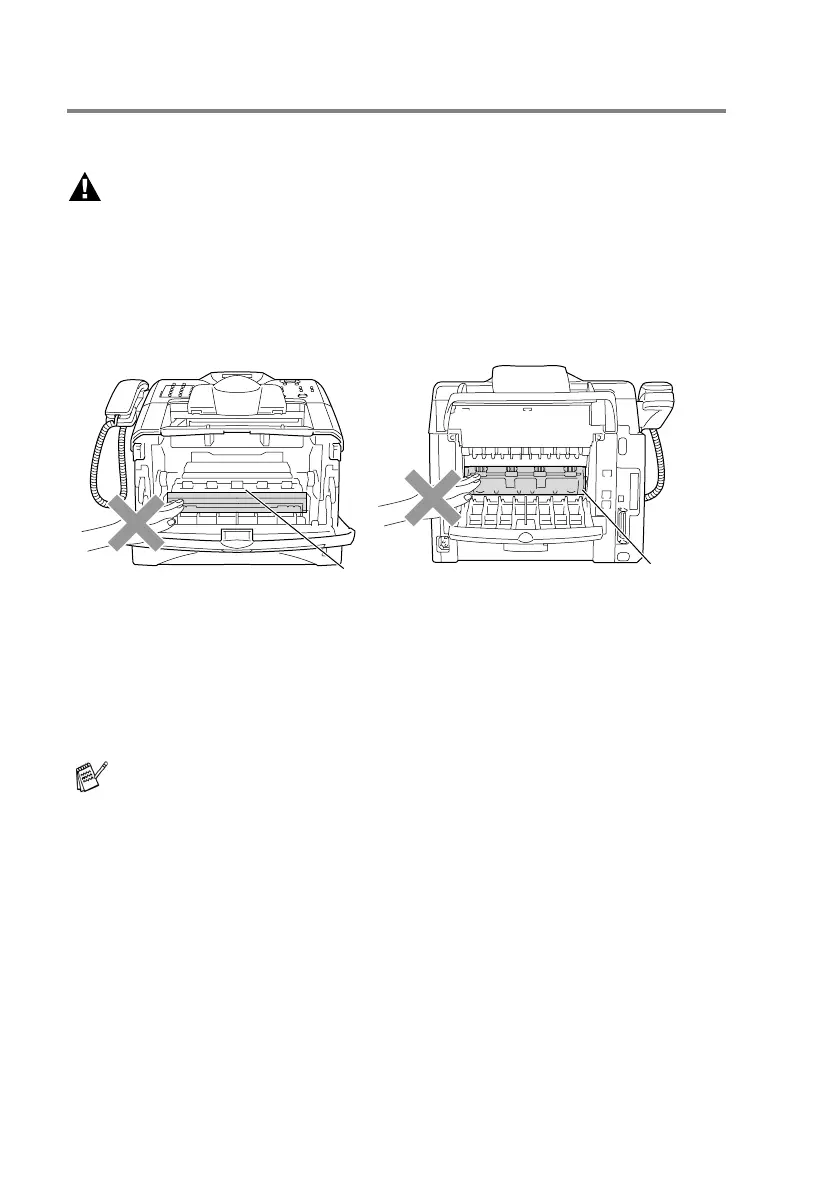
WARNING
Before you clear a paper jam, make sure you have switched off and
unplugged the machine. After you have just used the machine, some
parts inside the machine are extremely hot. When you open the front
cover or back output tray of the machine, never touch the shaded
parts shown in the following diagram.
Clear the jammed paper as follows.
If the jammed paper is removed completely by using the information
in the following steps, you can install the paper tray first, and then
close the front cover and the machine will resume printing
automatically.
■ If a paper jam occurs when using the optional lower tray unit,
check for correct installation of the upper paper tray.
■ Always remove all paper from the paper tray and straighten
the stack when you add new paper. This helps prevent
multiple sheets of paper from feeding through the machine
at one time and reduces paper jams.
HOT!
HOT!
Front view Back view



 To Next Page