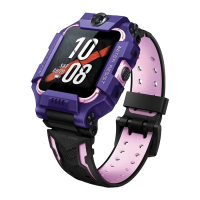
2. Device Layout
Watch Face:
Watch Back:
1. Package and Product Parameters
Package Contents:
Product Parameters:
Product: Watch Phone
Model: W2302AO
Battery: Lithium Polymer Battery Pack 3.85V 740mAh
Cameras: Front Camera 2MP, Rear Camera 5MP
Charge Input: DC 5V 1200mA
Working Temperature: 0℃~35℃
Working Humidity: Noncondensable 15%~93%
Network Frequency Bands: 2G GSM
3G WCDMA
4G FDD-LTE
4G TD-LTE
3. Choose and Install the SIM Card
Step 1: Choose the Right SIM Card
(1)
· The Size of SIM Card: supports Standard Nano-SIM card only [as picture (1)].
Step 3: Install the SIM Card
5. Download the App & Bind the Watch
Step 1: Download & Install the App
Scan the QR code on the right to download and install the App or go to
Google Play or Apple App Store and search for “imoo Watch Phone”,
“imoo” or “Watch Phone” to download and install the app.
Step 2: Bind the Watch
· Open the imoo app, register or log in.
· Turn on your watch and follow the on-screen instructions to complete the binding, or
slide the watch interface to find the Bind Code, scan the QR code, or enter the bind
code manually to bind.
How to find the Bind Code?
4. Power On
Tap Bind Code in the More screen and
you will see a QR code and the Bind
Code digital numbers.
Bind Code
7. Charge
The watch is equipped with magnetic charging contacts. Please align the charging
contacts on the watch with the contacts on the charging cable until "Charging" is
displayed on the watch screen.
*Please use a CE certified power adapter when connecting the charging cable to charge the watch.
· Please activate Caller ID and enable GPRS data network. The watch can access to
either 2G/3G/4G network data. It's recommended that you choose at least a 500MB
watch plan per month.
Step 2: Activate “Caller ID” function & data plan
8. OTA Upgrade
Check the watch's firmware version on the imoo app and turn on
"Auto Update". The watch will then automatically download the
software updates and complete the upgrade when it is charged
and connected to the network.
* Note: There may be security risks with informal root or system upgrades. The
watch's operating system supports only official software updates. If the user
performs an unofficial root or system upgrade, any security risks or losses
resulting therefrom should be borne by the user (possible risks include, but
are not limited to theft of the user's personal data).
System Updating...
10. Basic Features
Wi-Fi Settings
Go to "Settings">"WLAN" on the watch to make the relevant settings.
Once you have bound your watch, go to imoo app > "More" > "Watch's networks" to
add a network.
11. Specifications
Specifications
57.9×41.5×15.2 (mm)
Dimension
Blue/Pink
1.3 inches TFT (240×240)
Color
Display
Network
2G GSM
3G WCDMA
4G FDD-LTE
4G TD-LTE
CPU UWS6131E
GSM900: (33dBm±2dB)
GSM1800: (30dBm±2dB)
WCDMA B1/B8: 24dBm(+1.7/-3.7dB)
FDD-LTE B1/B3/B8/B20: 23dBm(±2.7dB)
TD-LTE B34/B38/B39/B40/B41: 23dBm(±2.7dB)
WiFi<20dBm
Connectivity
Cloud Service
Operation
System
Supported
CaremeOS
Memory
VoLTE
RAM: 128MB ROM: 128MB+4GB
Supported
Motion Sensor, Hall Sensor, Heart Rate Sensor, Temperature Sensor,
Geomagnetic Sensor
WiFi: 2.4G 802.11b/g/n, Bluetooth 4.2
740mAh
Watch Phone Z7, Charging Cable, Manual, SIM Card Picker
Barometer, GPS, GLONASS, BDS, Galileo, QZSS, WiFi, LBS
Rated Output
Power
In the Box
Battery
Locating
Technology
900/1800MHz
B1/B8
B1/B3/B8/B20
B34/B38/B39/B40/B41
6. Watch Language Settings
· If you want to change the watch language to another language, you can go to Watch >
More > Settings > Language or go to imoo app > More > Watch settings > Watch
language to select the language you want to switch to.
· After setting, the language is switched and the watch automatically restarts as shown
below:
Switching language...
About to restart...
Watch Phone Z7
1 1
1Manual
Charging Cable
SIM Card Picker
1
900/1800MHz
B1/B8
B1/B3/B8/B20
B34/B38/B39/B40/B41
Front
Camera
Speaker
Touch Screen
On/Off
Mic
Lock Button
Rear Camera
Base
SIM Card Deck
Charging
Contact
Heart Rate & Body
Temperature Sensors
· Supported operators: Vodafone, O2, Three and Giffgaff. If you are using a SIM card from
a Mobile Virtual Network Operator (MVNO) and the watch does not access the Internet
after inserting the SIM card, you can go to the imoo app > More > Watch Settings > APN
to set the APN parameters of the SIM card. If the watch still does not access the
Internet after the settings, please contact our customer service to insist.
· Press the lock button to flip the watch open and open the SIM card deck on the back
of the watch using a SIM card picker.
· Place the Nano SIM card on the card deck with the gold chip facing up and insert the
SIM card deck into the back of the watch.
①
②
* Note: Please insert the SIM card into your mobile phone to delete the PIN code before inserting it into the
watch.
· If the new watch does not turn on, it is probably without power. Please connect the
charging cable until the watch turns on automatically.
· In case of general abnormal conditions (e.g. blank screen), press and hold the On/Off
button for 12 seconds to restart the watch.
Powering on: Press and hold down the On/Off button for 6 seconds
to power on the watch.
Bind Code Chat
9. Basic Operation
· Turn on the screen: Tap the screen or press the On/Off button.
· Turn the screen off: Press the On/Off button to turn off the screen when the Home
screen is on; or cover the screen with your hand;
· You can set the screen on time in “Display & Brightness” under the “Settings” in More
screen. When the time is up, the screen will turn off.
Wallpaper:
From the Home screen, long press to enter Wallpaper.
Slide left or right to view more and select one as your wallpaper.
Slide left from the Home screen to enter the “Chat”, “Virtual Me”
and “More” screens. Slide down from the Home screen to access
the Control Center. Slide up from the Home screen to change the
shortcut settings.
SAT
SAT
Move right from the
Bind Code screen.
After entering each feature, you can slide
right to exit the feature, as shown on the
left. You can also press the On/Off button
to return to the Home screen.
Return to the More
screen.
Bind Code
Bind Code Chat
Call
Contacts sorting: “Recents” is at the top; contacts are sorted by
the time they were added, with the most recently added contacts
listed first. You can change the sorting by long-pressing and
dragging the contact's avatar.
Select a contact to make a voice or video call. Video calls can
use a lot of network data. We recommend that you make video
calls when the watch is connected to a Wi-Fi network. If the app
cannot receive the video call, check that notifications are enabled
or that the call has not been blocked by the system.
Recents Sister
MumBrother
Sister
Family Chat
Let’s Chat
Recents Sister
Dad Mum
Family Chat
Let’s Chat!
Sister
Chat
Tap “Hold to Talk” to start recording a voice message, then release
your finger to send it.
The watch also supports sending photos, videos and emoticons
via "Chat".
Unread voice messages are displayed on the screen. You can tap
them to play them.
Add Friends
Body temperature
Heart rate
Blood oxygen
saturation
Health
Please wear the watch appropriately, do not leave too much space
between your wrist and the watch to keep the heart rate and body
temperature sensors close to the skin.
Body temperature: Using a proprietary body temperature detection
algorithm developed by imoo, it detects changes in your body
temperature trend through 24-hour continuous monitoring of
physiological data. If your body temperature exceeds 37.5℃ for
an extended period of time, your parents will be notified that you
are likely to have a fever. Since results may be affected if you perform detection after
exercise, you must wait until your heart rate returns to resting level after exercise to
ensure detection accuracy. This feature is suitable for children aged 6-14, not for those
suffering from bradycardia (heart rate below 60 bpm).
Heart rate: The watch is equipped with a wrist-mounted optical heart rate sensor that
supports 24-hour continuous monitoring and recording of your heart rate. To prevent
children from accidentally activating or playing with the optical heart rate sensor, it will
normally take more than 15 seconds for the watch to display the first detection result,
while subsequent heart rate data will be updated approximately every 2-5 seconds
based on heart rate fluctuations. If the detection result is displayed with a horizontal
line ("--"), it means that you're measuring your heart rate when you're not at rest. Please
make sure you measure your heart rate when you're relatively calm, inactive and not
sleeping.
And the best time to measure your heart rate is right after you wake up in the morning
(before you've got out of bed) and before you start to move around.
* This product is not a medical device and the measurement results are for reference only and are not intended
to be used as a basis for medical diagnosis.
Camera
Tap the watch face to take a photo. You can switch to using the
rear camera by flipping the watch face up. Then slide the screen
up or down to switch between using the front or rear camera.
When using the rear camera, you can manually control the
distance between the rear camera and the subject.
You can slide left or right on the screen to switch between to
"Videos" or "Photos".
Take Photos
Sensors
12. Statements
· Please read this manual carefully to ensure correct and safe use of this product.
· Please use the watch strap that is well matched to this product to avoid interfering
with the watch's antenna signal. Use of other straps may result in poor call quality or
positioning failure.
· This product is equipped with GPS tracking, which is turned off until the watch is
bound. You can view the location of the watch after you have bound the watch and
enabled the Locate feature to comply with applicable privacy laws.
· Please use only the accessories supplied. If the user does not use this product
correctly and connects it to incompatible accessories, this will automatically invalidate
the warranty and may cause irreparable damage to the product or even endanger the
safety of you and your children. We are not responsible for the above cases.
· If you need to replace any accessories, please purchase them only from our official
service centre.
· The colour of the watch and its strap may fade over time, which does not affect the
use of the product and is harmless to the human body.
· Unauthorised disassembly of this product’s case will void the product’s warranty.
· This product operates normally only with a good network connection. We will not be
liable for any loss caused by interruption of service due to network failure or other
force majeure.
· In the interests of continuous improvement and sustainable development, we reserve
the right to modify and improve the product details described in this document
without prior notice. The contents of this manual are based on the conditions in which
the products were manufactured. Unless otherwise stated, we make no warranties,
express or implied, as to the accuracy, reliability or content of the documents.
· To the fullest extent permitted by applicable law, in no event shall our suppliers or we
be liable for any special, incidental, consequential or indirect damages, howsoever
caused.
· Some features of this product (including but not limited to maps) are provided by third
parties.
· This manual contains important information that should be kept properly.
· This product is not equipped with the monitoring feature.


 To Next Page
 Need help?

 General