EasyManua.ls Logo

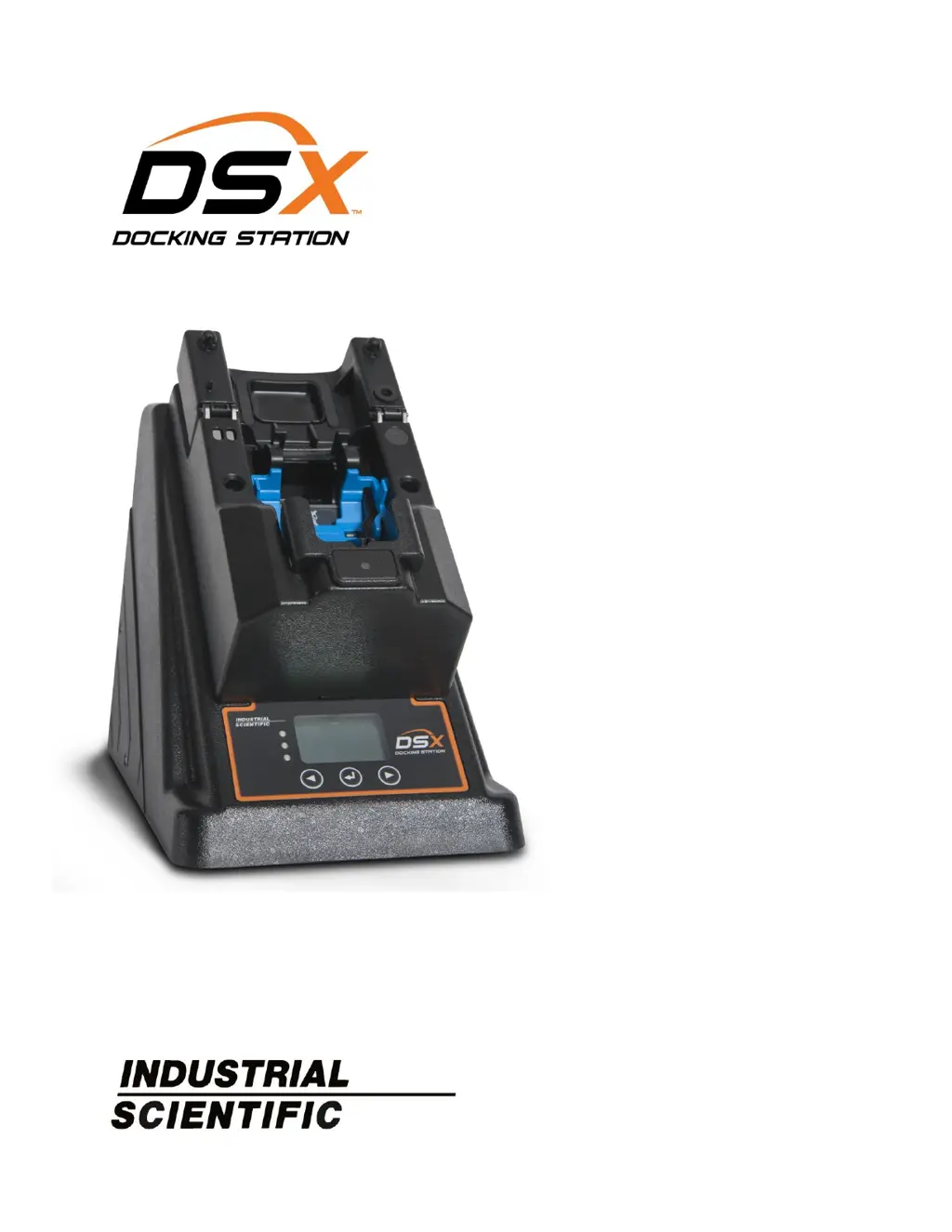
Industrial Scientific DSX-L - User Manual

Industrial Scientific DSX-L
245 pages
Print Icon
To Next Page IconTo Next Page
Loading...
Administrator’s
Guide
DSX-L Local Server Mode
Hardware
Software
Installation
Operation
Troubleshooting
Part Number: 17156006
January 24, 2020
Edition: 10

Table of Contents

Other manuals for Industrial Scientific DSX-L

Questions and Answers

  • C
    Caitlin DominguezAug 17, 2025
    How to fix 'Invalid User Name or Password' error on Industrial Scientific DSX-L?
    • J
      Justin ValenciaAug 17, 2025
      If you cannot log on to the Industrial Scientific Docking Station System Account Controller (DSSAC) due to an invalid user name or password error, ensure that your username and password are typed correctly, noting that passwords are case-sensitive. Also, verify that the CAPS LOCK key is not enabled on your keyboard.
  • S
    Sandra HoffmanAug 20, 2025
    What to do if upload to iNet fails on Industrial Scientific DSX-L?
    • M
      melindaporterAug 20, 2025
      If the upload to iNet fails, verify that the correct Company Password and URL have been configured in the DSSAC. Also, the Internet connection may have failed, in which case you should contact your network administrator.
  • J
    Jonathan VelasquezAug 22, 2025
    Why DSSAC clients and IDS cannot connect to the Industrial Scientific Docking Station DSS?
    • R
      Robert MataAug 23, 2025
      If DSSAC clients and IDSs cannot connect to the DSS, verify that the server is running and connected to the network. For DSSAC clients, ensure the correct server IP address is specified in the Login section. For IDSs, verify the correct server IP address is configured by checking the Information screen from the IDS menu. Also, ensure that the DSS has a fixed IP address and that DHCP is running to assign IP addresses to the IDSs.
  • J
    Johnathan LutzAug 25, 2025
    What to do if data entered in Industrial Scientific DSX-L Docking Station DSSAC is not saved?
    • L
      Luis RamirezAug 26, 2025
      If data entered in DSSAC is not being saved, it is possible that the connection to the network has been interrupted. Contact your network administrator.
  • J
    Jesse KirbyAug 27, 2025
    How to fix network error when launching Industrial Scientific DSX-L DSSAC application?
    • T
      Tara LongAug 27, 2025
      If you receive a network error when launching the DSSAC application, it may be because the DSS is down, or the computer is not connected to the network. Contact your network administrator or docking station systems administrator.
  • A
    Andre BennettAug 30, 2025
    Why my Industrial Scientific DSX-L Docking Station IDS does not display the correct time?
    • D
      danielgreenAug 30, 2025
      If the IDS does not display the correct time, verify that the server has the correct time for your time zone, as the IDSs use the time available from the server.
  • C
    Christopher ScottSep 1, 2025
    Why are Bump and Calibration certificates blank when printed from Industrial Scientific DSX-L?
    • B
      brandonjacksonSep 1, 2025
      If bump and/or calibration certificates are blank when printed using the Auto Print feature, verify the version of Internet Explorer that is being used. The docking station system requires version 6.0 or later; earlier versions may print blank certificates.
  • T
    Teresa EsparzaSep 4, 2025
    What to do if Industrial Scientific Docking Station instrument shows failed sensor but IDS displays it as available?
    • C
      cameronbobbySep 4, 2025
      If an instrument shows a failed sensor on its display, but the IDS displays the instrument as available, the instrument was probably calibrated in the field. Force a calibration on the IDS.
  • J
    Jason TateSep 6, 2025
    What does “Unavailable” mean when downloading datalog from Industrial Scientific DSX-L IDS?
    • J
      joel78Sep 7, 2025
      If the IDS displays “Unavailable” when a datalog download is attempted, the instrument’s datalog data is probably corrupt. Manually clear the datalog from the instrument.
  • L
    Laura RobertsSep 9, 2025
    What does “Unavailable” mean on Industrial Scientific DSX-L Docking Station IDS display?
    • C
      Caitlin AllisonSep 9, 2025
      If the IDS display reads “Unavailable,” an error occurred with the IDS. Review the DSS event log and look for errors related to the IDS serial number.

Summary

Getting Started with DSX Installation

Installing IIS and MSMQ Services

Provides step-by-step instructions for installing Internet Information Services (IIS) and Message Queuing (MSMQ).

Installing DSX Server Software and Configurator

Guides through installing the DSX Server software and the Docking Station Configurator tool.

Database Setup and Configuration Options

Covers options for preparing and selecting the database for first-time installations.

Network Configuration and Accessing DSSAC

Details network setup, static IP assignment, firewall configuration, and accessing the DSSAC.

Setting Up Users in DSSAC

Configuring Instruments with DSX Docking Station

Managing Instrument Properties, Options, and Settings

Explains how to view and modify instrument properties, management settings, and options via DSSAC.

Viewing Calibration and Bump Test Data

Details how to view and graph calibration and bump test results, including sensor-specific data.

Managing Instrument Datalog and Alarm Events

Covers viewing datalog data, managing alarm events, and understanding event types.

Special Instrument Features and Registration

Describes special features like removing instruments, manual registration, and advanced finding.

Configuring the Docking Station (IDS)

Configuring Gas Cylinders and iGas Usage

Details configuring gas inlets, adding gases, using iGas, and manifold setup.

Basic Operation of the DSX-L Docking Station

Performing Forced Calibrations, Bump Tests, and Datalog Operations

Guides on initiating calibrations, bump tests, and datalog downloads from the IDS menu.

Event Scheduling in DSX

The Journal Feature in DSSAC

Default Settings Management

Default Alarm Settings Configuration

Explains how to modify default alarm settings for sensors and instruments.

Default Calibration Gases Configuration

Details how to define default calibration gas concentrations for various sensor types.

Printing Reports and Data

Troubleshooting Docking Station Issues

Resolving DSSAC and DSS Connection Issues

Provides solutions for common DSSAC and DSS communication or connection problems.

Troubleshooting Instrument Docking Station Issues

Addresses common problems related to instrument calibration, datalog, and IDS operation.

iNet Configuration for Gas Detection Programs

Industrial Scientific DSX-L Specifications

General IconGeneral
CalibrationAutomatic calibration
Bump TestingAutomatic bump testing
ConnectivityEthernet, USB
Power Supply100-240 VAC, 50/60 Hz
Communication InterfaceEthernet, USB
Storage Temperature-20°C to 60°C (-4°F to 140°F)
PowerAC power adapter
CompatibilityCompatible with Industrial Scientific gas detectors
FunctionDocking station for gas detector maintenance and data management
Operating Temperature0°C to 40°C (32°F to 104°F)

Related product manuals