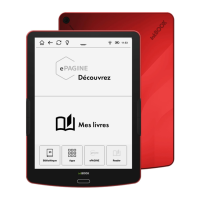
You can change the applications that are displayed at the bottom of the home screen
in order to have easier access to your favorite ones. Just choose the ones you like and
define in which position you want to have them. You can set up the shortcuts to the apps that
are already installed on your device.
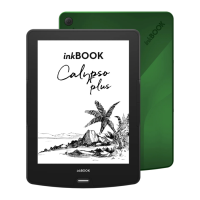
The lockscreen (sleep mode screen) may display a picture you like. Just change the
graphics to your preference. Please choose one from pictures displayed on screen. If you
wish to add your picture, please remember to adjust it first to exact resolution size of your
inkBOOK screen and download it to the “Screensavers” folder.
Choosing the preferred screen refresh mode may be sometimes important. Please note
that E Ink screens refresh partially, but also need to proceed a full refresh every certain
interval. You can set this interval in:
- pages - full refresh will be performed after a number of them,
- time - full refresh after chosen time.
If you do not have a very special needs we do recommend to stay with default settings.
READING SETTINGS
Allow to set up reading settings that will be performed when ebook is open.
- Show time left to finish - shows the time left to the end of book
- Show reading progress - displays reading progress in % or by drawing a line
SEND A BOOK TO YOUR INKBOOK
If you wish to have a quick and easy way of transferring e-books that you have just
purchased to your inkBOOK, this tool is for you. After accepting the terms of use your
inkBOOK will create for you an e-mail address (please be connected to WiFi during that
process) to which you can send an e-book as an attachment. You can copy it or scan the QR
code with that address.
Then just synchronise your device and the e-book will be waiting for you on home screen
and in Library
Some content providers and services do have “Send-by-mail” service on their websites, so it
is enough just to type your Send-to-inkBOOK e-mail.
Please keep in mind that some files can be too large to send them via e-mail. Every service
provider has its limitations in that matter. If your file is too large, you can always send it by
connecting you inkBOOK to the computer using attached cable.


 To Next Page
 Loading...