Turning Off: To turn off your inkBOOK press and hold the Power button for 5 seconds until
the dialog box appears, and then choose “Power off”.
Changing pages: To change a page in a book, press Next Page or Previous Page buttons
Sleep Mode: Your inkBOOK will go into sleep mode automatically after a few minutes of
inactivity. The static screensaver uses no battery power. By short pressing the Power button
you go/exit the Sleep Mode.
Charging your inkBOOK: Please connect one end of the attached cable to USB Power
Port and the other end to your USB charger. Please use only the chargers 5V 1A (ca. 4
hours of charging) or your computer USB (ca 6 hours of charging).
Connecting your inkBOOK to computer: You can use the USB cable you will find in a box
to connect your inkBOOK to a computer for transferring files. More information can be found
here: Using your inkBOOK with computer
Screen Refreshing/ Flashing - understanding inkBOOK display technology
Your inkBOOK uses a high-resolution display technology called electronic paper and
manufactured by E Ink Corporation. The display is reflective, which means you can read it
clearly even in bright sunlight. Electronic paper uses ink just like books and newspapers, but
it displays the ink particles electronically with the help of electric current.
On occasion, your screen may appear to flash, especially when you use it in applications.
This is part of the process of REFRESHING the e-reader display.
By default, your inkBOOK features fast, smooth page turns, minimising the number of
refreshments (whole screen flashes). The applications built-in inkBOOK software are
specially modified to take full advantage of electronic ink technology.
However, it is possible that when using other third party Android applications (including those
from inkBOOK Plus Store or using internet, the e-reader may flash more often or the image
may not be displayed properly - strange artifacts may remain on the screen. In order to clear
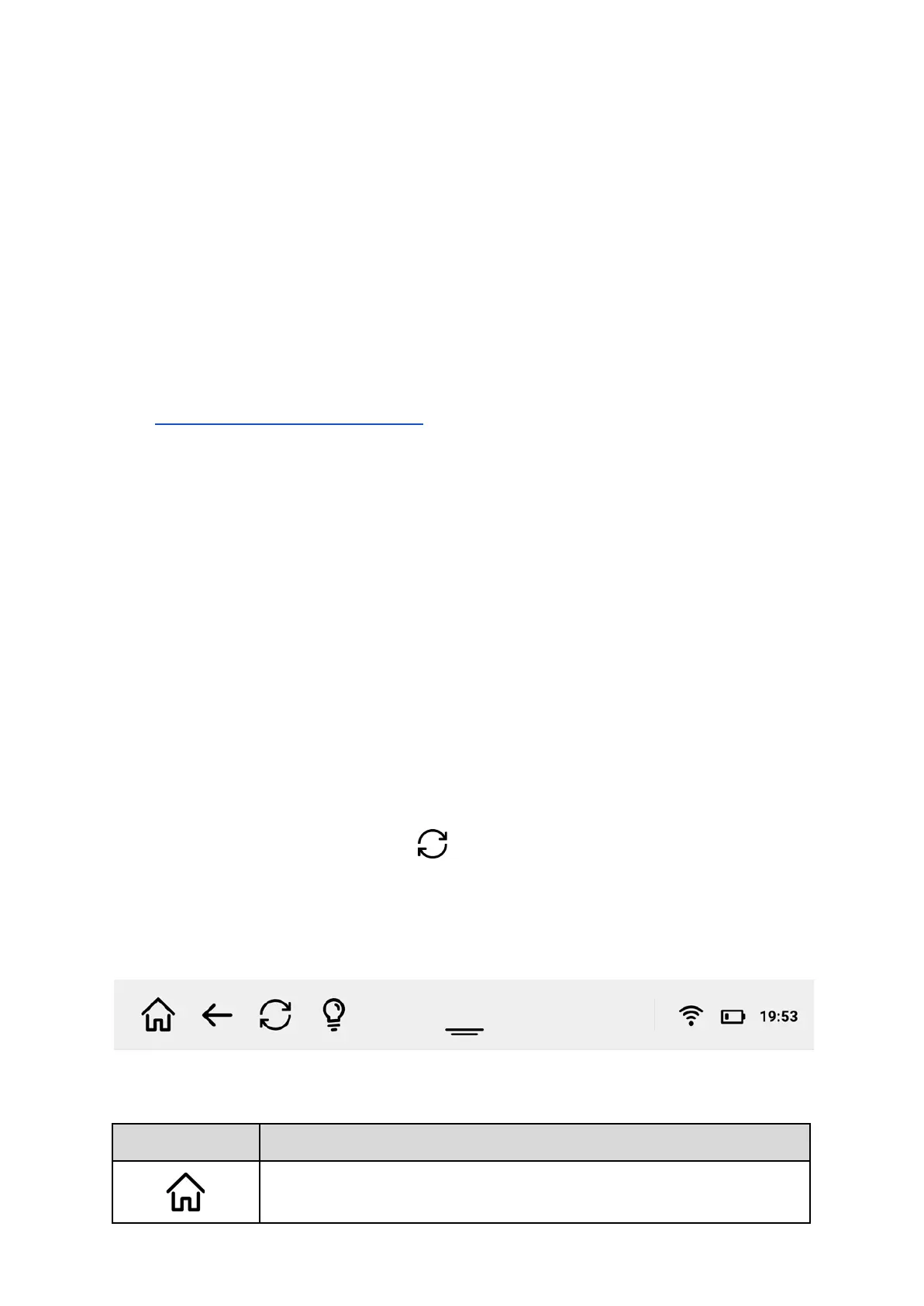
it perform a full refresh action by taping button on toolbar.
Status Indicators
Like most Android based devices inkBOOK uses status bar in top part of the screen to
inform user about current state and current events.
Following status indicators may appear:


 To Next Page
 Loading...