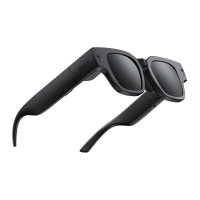
The INMO Air are smart AR glasses designed for an immersive augmented reality experience. They combine advanced technology with a sleek, wearable design, offering users a new way to interact with digital content and their surroundings.
Function Description
The INMO Air glasses serve as a personal AR display, allowing users to view digital information overlaid onto their real-world environment. They integrate a camera for capturing images and videos, and an optical display system that projects content directly into the user's field of view. The glasses are equipped with a microphone and speakers, enabling voice commands and audio output. A key feature is the ability to control the device through a capacitive touchpad located on the temple, as well as through voice commands, making interaction intuitive and hands-free. The device also supports a voice assistant, which can be activated by a double-click on the touchpad, enhancing user convenience.
Usage Features
Getting Started:
To begin using the INMO Air, users first need to download and install the INMOLENS APP by scanning a QR code provided in the manual using their mobile browser. Once the app is installed, the glasses can be controlled via the touchpad or voice commands. A double-click on the touchpad wakes the voice assistant, ready for interaction.
Wearing the Glasses:
Proper fit and comfort are crucial for an optimal AR experience. The glasses are designed to accommodate various users, including those with myopia.
- Myopia Correction: For users with myopia, optional myopia lenses (0-500 degrees) are available and can be purchased separately. These lenses are installed onto brackets on the left and right sides of each nose pad, aligning with the empty area on the frame. Users are advised to distinguish between left and right lenses and, if possible, wear gloves during installation to prevent fingerprint oil contamination.
- Comfort Adjustment: After putting on the glasses and ensuring they are powered on, users should fine-tune their position by adjusting them up and down, left and right, until the clearest image is visible. The width of the nose pads can also be adjusted to further optimize the glasses' position on the face.
- Shading Lenses: The INMO Air also supports shading lenses, which can be easily attached or removed from the frame via a buckle mechanism. Users simply align the lenses with the buckle area and press them to snap them into place. It is recommended that non-professionals do not disassemble the lenses; for replacement, contact the after-sales hotline.
Controls:
The INMO Air offers multiple ways to interact with the device:
- Head Controller: The glasses incorporate a head controller for navigation.
- Touchpad: The capacitive touchpad allows for various gestures:
- Click: Enter/Confirm actions.
- Horizontal Slip: Scroll through the view horizontally.
- Slip Down: Go back.
- Universal Button:
- Short Press: Back function.
- Long Press: Evoke Voice Assistant.
- Power Button:
- Long Press: Turn the glasses on/off.
- Short Press: Turn the screen on/off.
LED Indicator:
The glasses provide visual feedback through an LED indicator:
- Blinking Red Light: Indicates low battery status.
- Blinking Green Light: Indicates the device is charging.
- Steady Green Light: Indicates charging is complete.
- Blue Light On: Indicates successful boot-up.
Maintenance Features
Proper maintenance ensures the longevity and optimal performance of the INMO Air glasses.
Routine Maintenance:
- Dust Removal: Use a balloon or a soft brush to remove dust from the inside or the gap of the optical waveguide lens.
Lens Care:
- Shading Lens Cleaning: Wipe the shading lens with the accessory lens cloth.
- Optical Waveguide Lens Cleaning: Wipe the optical waveguide lens with the accessory lens cloth.
Storage Specification:
- Protection during Storage/Transport: When storing or transporting the glasses, always place them in the Portable glasses case to prevent any damage.
Safety Information and Warnings:
- Keep Dry: Avoid dusty, humid, or high-salt environments (like near the sea) to prevent circuit failures.
- Thunderstorms: Do not use the device during thunderstorms to avoid malfunction or electric shock.
- Temperature Range: Operate the device between 0°C and 40°C, and store it between -20°C and 60°C. Extreme temperatures can shorten its life cycle or cause other failures.
- Charging: Always use the original cable for charging. When connecting to a USB-Type-C port, ensure the port has the USB-Type-C logo and complies with relevant specifications.
- High Temperatures: Do not expose the device to high temperatures or heat-generating devices (strong sunlight, heaters, microwaves, ovens, water heaters) to prevent damage, battery bulging, liquid leakage, or battery burst.
- Disassembly/Modification: Do not disassemble or modify the device, insert foreign objects, or immerse it in liquids, as this can cause short-circuiting, battery leakage, overheating, or fire.
- Fire Hazard: Do not throw the device into a fire, as it may catch fire and explode.
- Disposal: Dispose of the device according to local regulations, not as domestic waste, to prevent explosions. Support recycling operations.
- Pets: Do not allow pets to chew on the device to prevent injury or explosion.
- Physical Damage: Avoid dropping, squeezing, or puncturing the device, and do not subject it to high external pressure, which can cause damage, failure, short circuits, broken lenses, or fire/explosion.
- Adapters/Batteries: Using unapproved or incompatible adapters, power supplies, or batteries can cause fire, explosion, or other hazards.
- Small Parts: The device and its accessories contain small parts; keep them out of reach of children to prevent accidental damage or swallowing, which could cause suffocation.
- Battery Replacement: The device has a non-removable built-in battery. Do not replace the battery without authorization to avoid damage.
- Children: This product is not a toy; children should not touch it, and special attention is required when operating in front of children.
- Manual Importance: Read the manual carefully before use to understand legal rights, responsibilities, and safety instructions.
- Official System: The company is only responsible for the official system and updates. Unofficial third-party systems may pose security risks. Update the system through official channels. Modifying system files or using third-party ROMs may cause instability, for which the company will not provide support.
- Disclaimer Updates: The company reserves the right to update its disclaimer. Refer to the official website or email for the latest version.
- User Responsibility: By using the product, users are deemed to have understood and accepted all terms. Users are responsible for their actions and must use the product for legitimate purposes, complying with all applicable policies.
- Liability: The company is not liable for direct or indirect personal injury or property damage if the user does not follow the manual.
- Navigation Function: While the navigation function has passed road safety tests, users may still experience interference. It is strongly recommended to be careful, concentrated, and strictly abide by traffic laws.
Legal Statements:
The manual is for reference only, and the product is subject to the actual item. Users must respect privacy rights when capturing photos/videos and are prohibited from unauthorized surveillance. Users should be aware that recording others, even for non-commercial purposes, may lead to copyright disputes or legal violations. The company provides no direct or indirect guarantee for the manual's contents and will not compensate for damages or loss of profits arising from its use. Users must comply with import/export control laws. The company reserves the right to modify manual information without prior notice.
Special Instructions:
- Myopia correction lenses (0-500 degrees) must be purchased separately. Consult the supplier for customization.
- Due to the physical and chemical properties of lithium battery materials, battery capacity will decay with increased charge/discharge cycles.

 Need help?
 General

 To Next Page