EasyManua.ls Logo

Insignia NS-DCR30A2 - User Manual

Insignia NS-DCR30A2
16 pages
Print Icon
To Next Page IconTo Next Page
Loading...
Before using your new product, please read these instructions to prevent any damage.
USER GUIDE
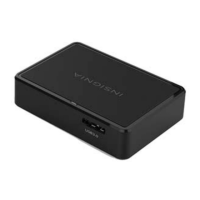
USB 3.0 Multi-Format
Memory Card Reader
NS-DCR30A2/NS-DCR30A2-C
NS-DCR30A2-NS-DCR30A2-C_15-0920_MAN_V3_ENG.fm Page 1 Friday, December 4, 2015 1:08 PM

Other manuals for Insignia NS-DCR30A2

Questions and Answers

  • M
    Michele KaneAug 2, 2025
    How to fix slow file transfer on Insignia Card Reader?
    • F
      Frank KnightAug 2, 2025
      If file transfer with your Insignia Card Reader is slow, it might be due to slower speed cards. Upgrade to a faster class of card, such as Class 10, to improve the transfer speed. This issue is often caused by cards with slow transfer rates.
  • D
    Daniel WilliamsAug 9, 2025
    What to do if no icon appears when a card is inserted into Insignia Card Reader (MACOS X)?
    • C
      caguilarAug 9, 2025
      If no icon appears when a card is inserted into the Insignia Card Reader on MACOS X, the card may have been formatted in Windows FAT 32 format. Reformat the card using OS X-compatible FAT or FAT16 format using a PC or digital device.
  • E
    Edward HallAug 17, 2025
    What to do if my Insignia NS-DCR30A2 shows errors when reading or writing?
    • E
      Emma JohnsonAug 17, 2025
      If memory cards appear on your computer but you encounter errors when reading or writing, ensure the memory card is fully inserted into the slot. Try using a different memory card of the same type. Also, check if the card has a read/write security switch and ensure it is set to 'Write Enabled'. Make sure that you have not exceeded the capacity of the card. Clean the card's contacts with a lint-free cloth and isopropyl alcohol. If you're using a USB extension cable or hub, try plugging the card reader directly into your computer using the provided USB cable. If the errors persist, consider replacing the memory card. Note that some cards, like SDXC, might not be compatible with older operating systems like XP.
  • M
    Monica MartinezAug 23, 2025
    Why is my Insignia Card Reader not showing memory cards?
    • S
      Sean RobertsAug 23, 2025
      If memory cards do not appear on your computer when using an Insignia Card Reader, ensure that the memory card is fully inserted into the slot and that the card reader is fully connected to your computer. Try unplugging and reconnecting the card reader. Test with a different memory card of the same type. Inspect the card slots for bent pins and straighten them carefully with the tip of a mechanical pencil, if needed. Also, ensure your computer has the latest OS updates and service packs installed.

Summary

Product Features

Product Information

Important Safety Instructions

Essential warnings for safe operation and to prevent product damage or user injury.

Card Reader Components

Identifies the physical parts and features of the card reader.

Package Contents

Lists all items included in the product packaging.

Minimum System Requirements

Outlines the necessary computer specifications for the card reader to function.

Physical Layout and Card Slots

Front and Back View Overview

Illustrates the physical layout, ports, and indicators of the card reader.

Supported Card Slots

Details the different types of memory cards supported by each slot.

Using Your Card Reader

Connecting the Card Reader

Instructions for connecting the card reader to a computer via USB.

Accessing Memory Cards on Windows

Steps for accessing and removing memory cards on Windows OS.

Accessing Memory Cards on Mac OS X

Steps for accessing and removing memory cards on Mac OS X.

Card Reader Operations

Data LED Indicator

Explains the function and meaning of the card reader's data LED.

Formatting Memory Cards in Windows

Step-by-step guide to format memory cards on Windows.

Advanced Operations and Support

Formatting Memory Cards with Macintosh

Step-by-step guide to format memory cards on Macintosh.

Troubleshooting Common Issues

Solutions for common problems like cards not appearing or slow transfers.

Specifications

Legal Notices

Warranty Information

One-Year Limited Warranty

Details the terms, coverage, and limitations of the product's warranty.

Insignia NS-DCR30A2 Specifications

General IconGeneral
BrandInsignia
ModelNS-DCR30A2
CategoryCard Reader
LanguageEnglish

Related product manuals