EN - Page 3 of 7
This hard drive is compa ble with the opera ng systems MS Windows 7 / 8 / 8.1 / 10 and
Mac OS 10.x*. A free USB interface is required to operate it.
*Trademarks: Windows 7 / 8 / 8.1 / 10 are registered trademarks of the Microso Corpora on.
Macintosh and MAC are registered trademarks of Apple Computer. All brands and third party
names are the property of the respec ve user.
System requirements
Notes:
A USB 3.0 interface card is necessary for the USB 3.0 opera on The hard drive is downward
compa ble to previous USB standards. The hardware con gura on of your PC and the used
opera ng system can infl uence the compa bility of the hard drive.
USE
Connecting the hard drive
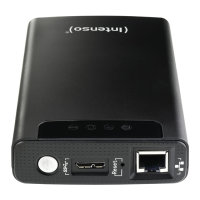
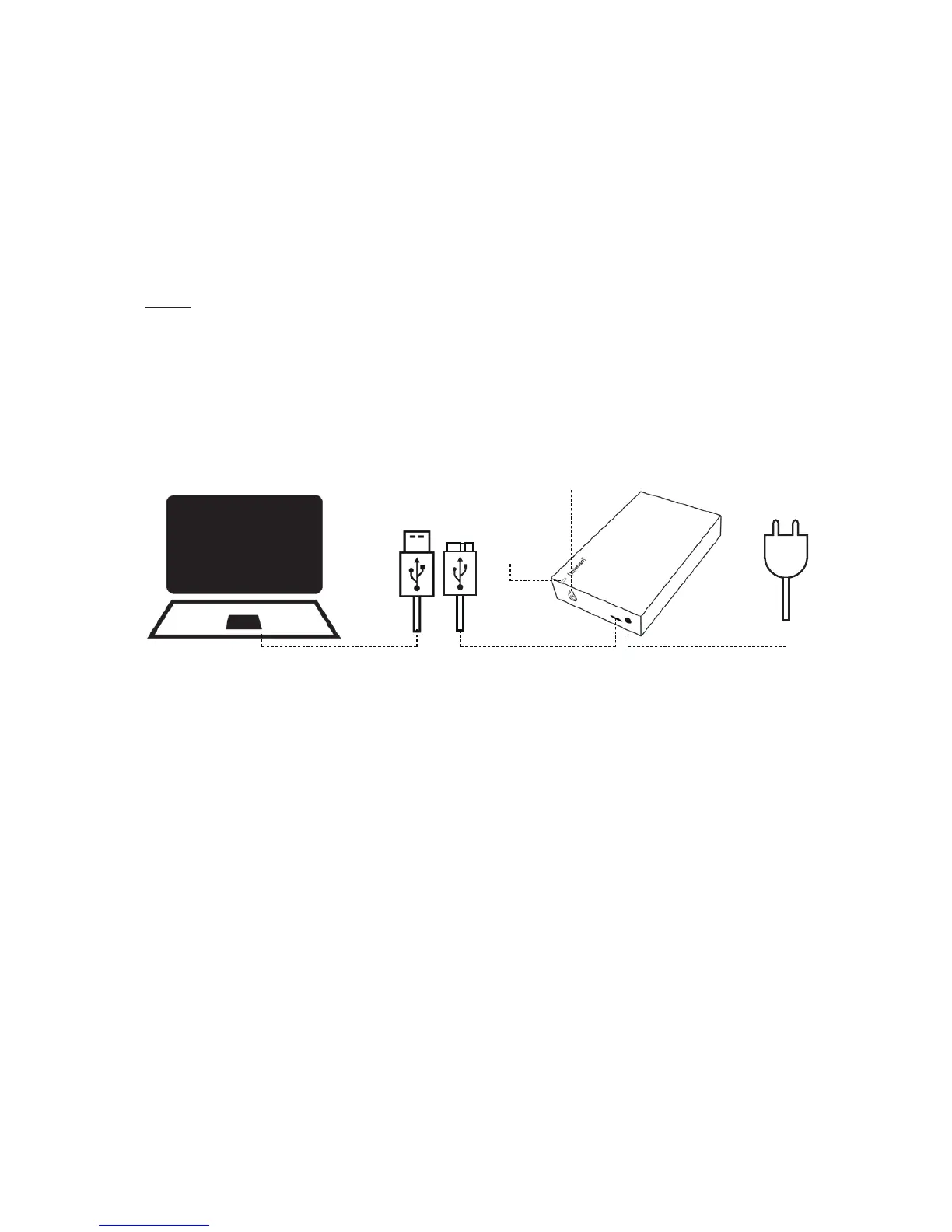
Connect the supplied power supply with the external hard drive. Plug the other end of the power
supply into the socket. To switch on, press the On/O switch on the front side of the housing.
To connect the external hard drive to your computer, please use only the supplied USB cable.
Connect the USB 3.0 plug with the Intenso hard drive and the plug of the USB cable end with
your computer.
The computer recognizes the “new hardware” and installs the driver automa cally. Wait un l the
driver installa on is completed. In the “workplace” there is now another drive with the
designa on “Intenso” available.
As soon as the external drive is connected with the computer, the LED lights up The LED fl ashes
when a write or read opera on is carried out.
Depending on the used opera ng system, the hard drive must be logged o before the
connec on to the computer is interrupted. For further details please refer to the Help Sec on of
your opera ng system provider. The device may not be removed when it is s ll being accessed
(fl ashing LED). This can lead to damages and/or data loss. Please close all the les located on the
hard drive (photos, documents, etc.) before removing the hard drive.
Removing the hard drive
USB 3.0 USB 3.0 Micro B DC IN 12V - 2A
ON / OFF
LED



 To Next Page
 Loading...