USE
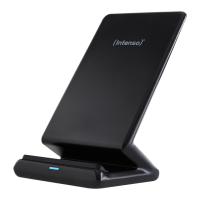
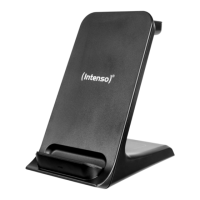
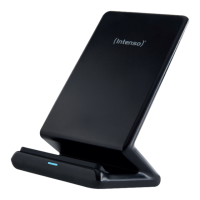
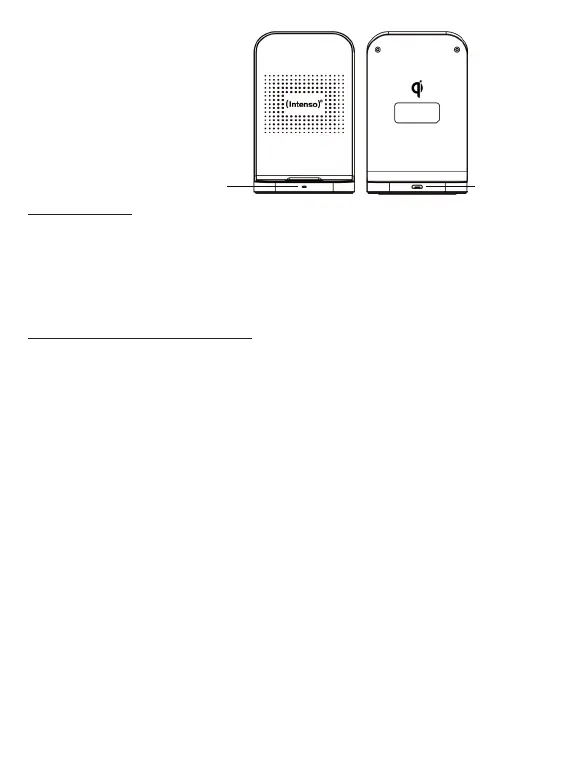
Device overview
1 - Status LED
2 - USB-C IN
Operaon
LED status display
The current operang status of the device is indicated by the status LED. If you connect the
device to a connected power supply unit, the LED ashes green once and blue once as conrmaon and
then remains o. If a charging process is started, the LED lights up blue connuously. When the terminal is
fully charged, the LED usually changes from blue to green (depending on the charging device). If the LED
ashes blue quickly, there is an error – for example, the device is not posioned correctly, it has become
too hot, there is a foreign object between the devices or an incompable power supply unit is being used.
Start-up / charging compable devices
Step 1: Preparaon
Connect the supplied USB-C to USB-C cable to the USB-C port (IN) of the inducve charging staon and
connect the other end of the USB cable to the power supply unit. Next, connect the power supply unit to a
power socket (follow the safety instrucons).
Step 2: Start charging
Place your Qi-compable device in the centre of the inducve charging staon; you can choose either a
horizontal or vercal orientaon. The charging process starts automacally, and the status LED lights up
blue connuously.
If this is not the case, please check
a. whether your device is Qi-compable
b. whether there is a foreign object between the devices or you are using an unsuitable case.
c. whether you have chosen the enclosed power adapter or a dierent but compable one. If this is
not the case, replace it accordingly. If this is the case, please disconnect it from the power supply for
a few seconds and reconnect it to start the charging process.
d. whether the cable ends and the power supply unit are correctly connected.
e. where the correct wireless charging posion is on your device. You may need to reposion it.
Please note that the ambient temperature and the charging electronics of the device to be charged have
an eect on the charging behaviour over which the inducve charging staon itself has no inuence. For
example, the charging speed may be reduced at increased temperatures or when charging levels have
already been reached.
Step 3: End charging process
To end the charging process, simply remove your device from the inducve charging staon.
EN - Page 4 of 5
1 2



 To Next Page
 Loading...