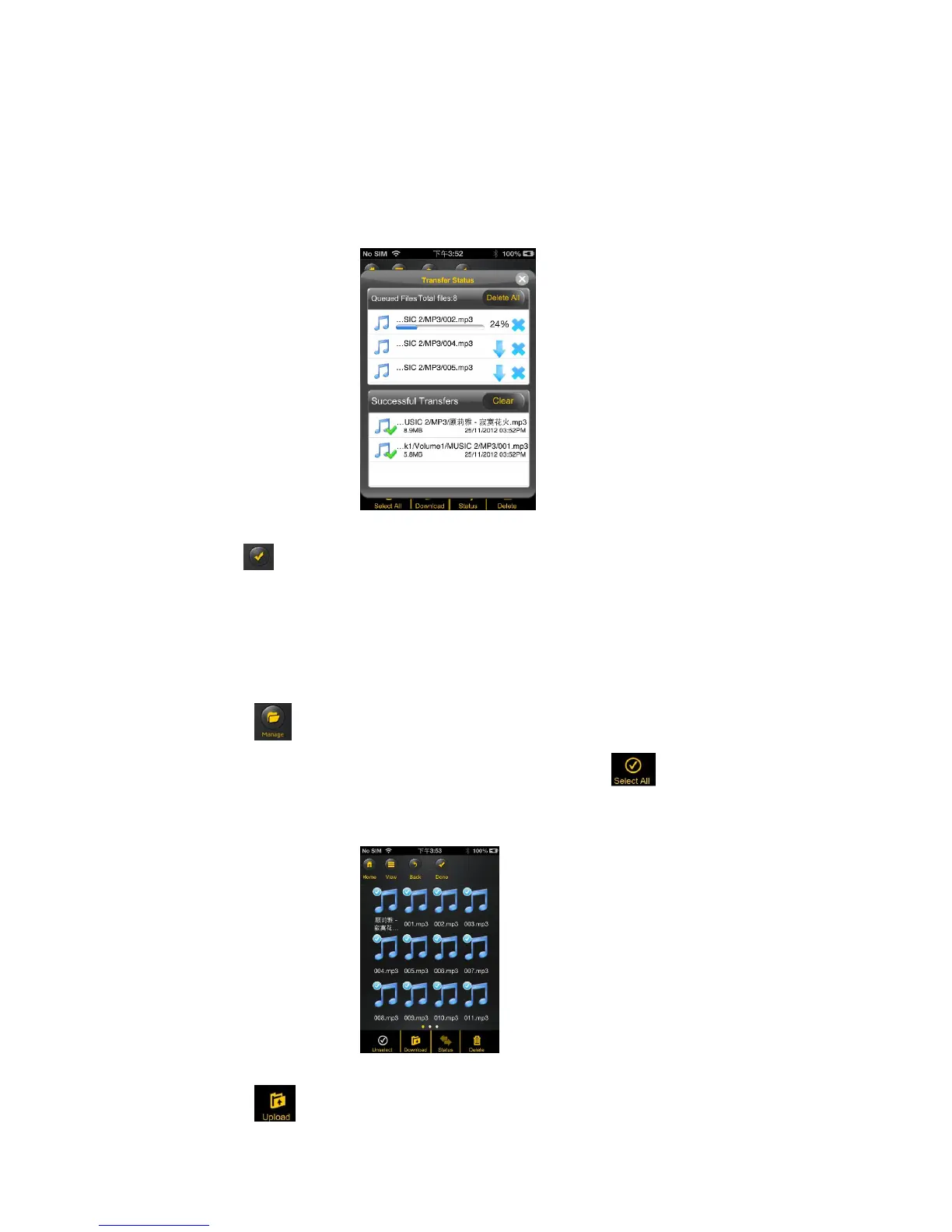
5. Click on the “Confirm” button to start copying/transferring files as seen on the screenshot below.
Note: Successfully copied/transferred files will be listed below inside the “Successful Transfers”
window as seen on the left screenshot. Click on the “Clear” button to remove or clear the list
6. Click anywhere on the screen or “x” button, you will return to the previous screen. Once done, click
on the to exit.
7.
11.11. Copying/transferring file to “Memory 2 Move” (iOS and Android)
Make sure you are in the “My Device”.
1. Click on .
2. Use your index finger to select one or more files. You may use the to select all files to be
copied/transferred.
3. Click on .


 To Next Page