11.12. Delete/erasing a single or multiple files (iOS and Android)
One or more files can be easy deleted/erased whether you are in “My Device” or in “Memory 2
Move”.
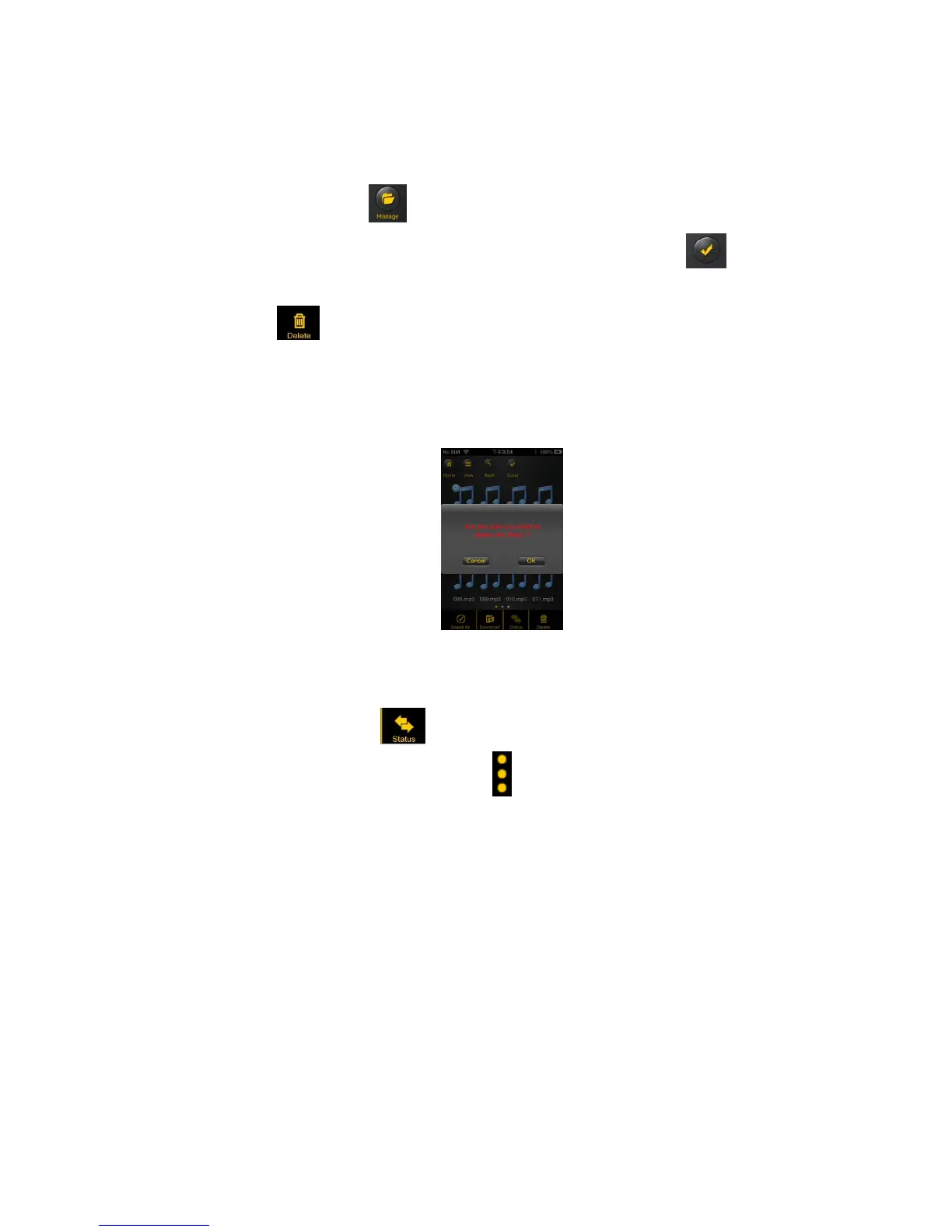
1. To delete files, click on the .
2. Use your index finger to select a single or multiple files. You may click on the to select all
files to delete/erase.
3. Click on the to delete or erase the selected file or files. A warning message will appear on
the screen to confirm file deletion as seen on the screenshot below. Click OK to continue deleting
files.
11.13. Upload/download history and status
If you have uploaded or download multiple files from/to the “Memory 2 Move” to your local storage
(My Device), simply click the to check the files on the queue or files that were successfully
copied/transferred. You may also click on the on the main screen to check on the status.
11.14. Close “Memory 2 Move” App
11.14.1. iOS
To exit from using the “Memory 2 Move” App on iPhone/ iPad devices, simply press the Home key
on your Apple Device.
To close the app, click on the Home key twice and the list of app will appear at the bottom of your
device. Click and hold the application icon until the minus “-“ sign appears at the top corner of the
app icon. Click on the minus “-“ sign to remove the app as seen on the screenshot below.


 To Next Page