Item No. 8105089 – 12/2013 Page 1 of 6
Quick Guide – REM440 Protocol Setup
This Quick Guide is intended to give a brief introduction on how to work with, create or edit protocols in the
Affinity
2
and Callisto™ software suites.
Introduction
The Affinity
2
and Callisto™ software suites all have pre-defined protocols. Most of these protocols can easily be
copied, modified or created from new. These modifications can be either permanent or temporary.
Working with Protocols
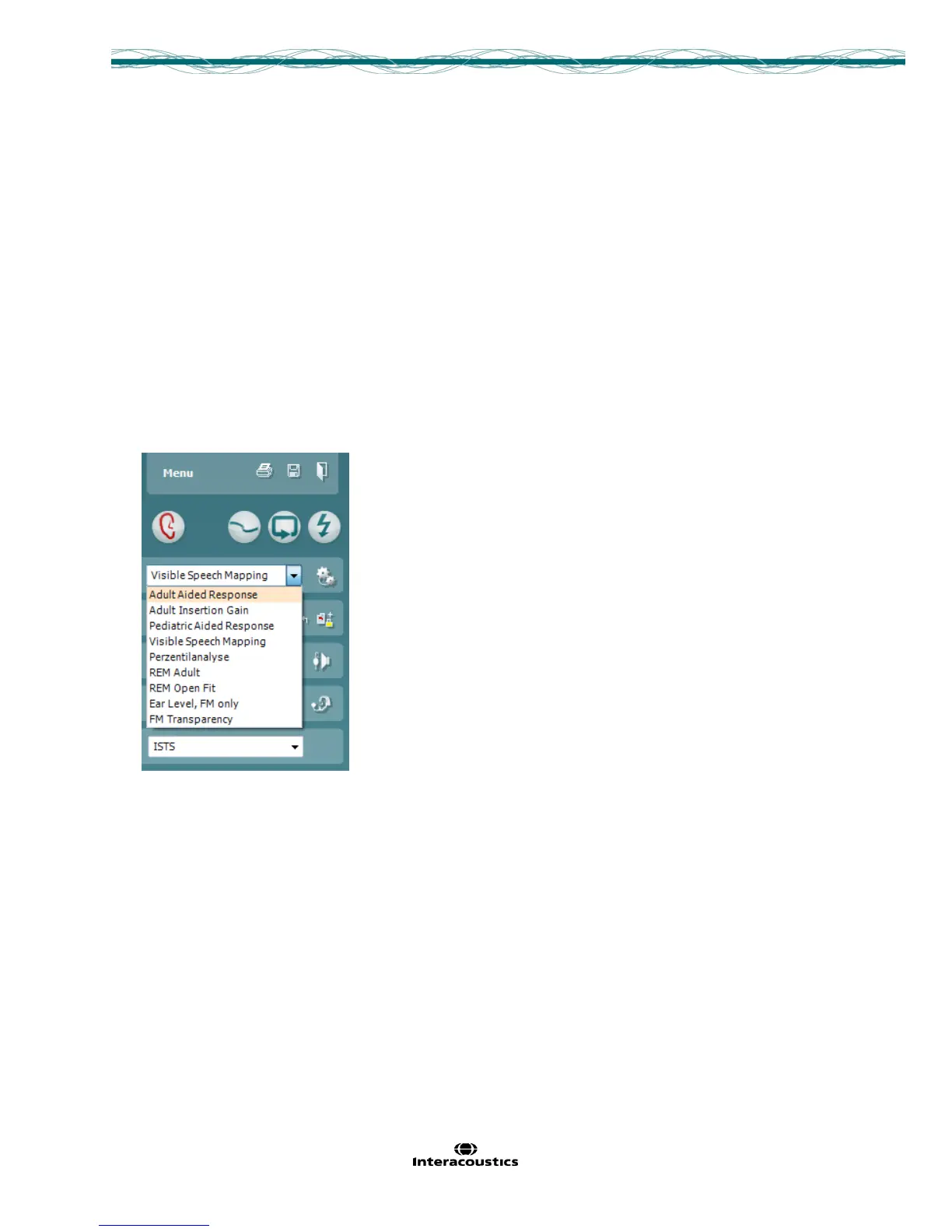
Selecting a standard test protocol:
1. Open the Affinity
2
Suite from your patient management system, Noah, OtoAccess™, or stand-alone.
2. Click on the REM tab
3. In the List of Protocols, all customized and standard test protocols are listed.
Designing a New Customised Test Protocol
1. Enter the REM440 setup by pressing Menu/Setup/REM440 setup.
2. Press New. A pop-up will ask whether the new test protocol should be based on a copy of the currently
selected test protocol. When asked by the message box:
YES: The system will create a copy of the current test and allow you to add new tests, make changes, and
save it under a new name.
NO: The Selected tests section will be blank and you can create a new test from scratch.


 To Next Page